KiviCare BodyChart Addon
Core Concepts

What is KiviCare Body Chart Addon?

The KiviCare Body Chart Addon is an advanced feature designed for healthcare management systems built on WordPress, specifically integrated with KiviCare. It allows administrators and healthcare providers to visually document patient conditions using body chart diagrams during clinical encounters.

This feature improves clinical accuracy by allowing annotations directly on body images, making patient records more descriptive and easier to understand.

Key Features

  • Centralized management of body chart templates
  • Visual and interactive clinical documentation
  • Secure storage and retrieval of body chart data
  • Seamless integration with patient encounters
  • Improved communication through visual records

Prerequisite: The BodyChart addon must be activated in the system for this feature to function.

Setting –>Encounter Body Chart

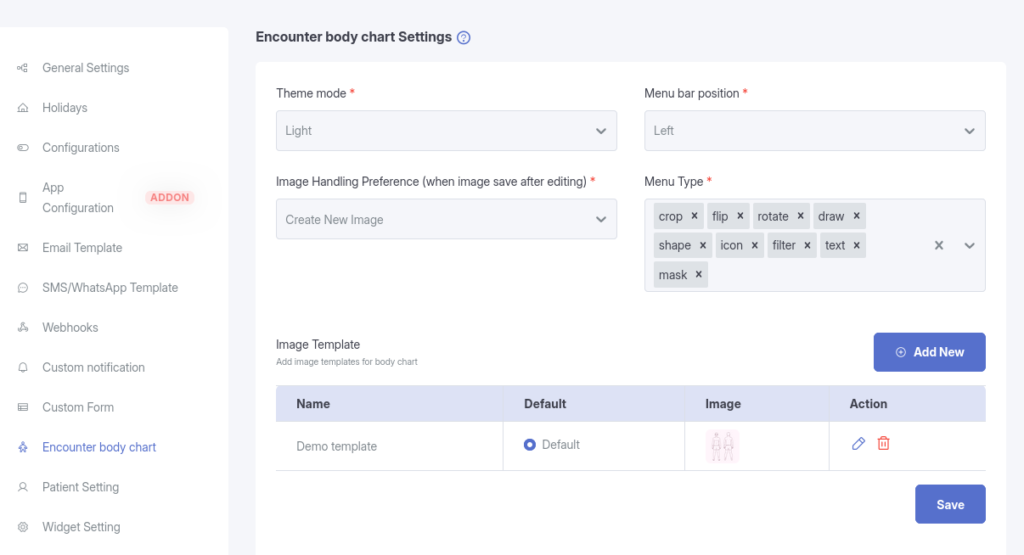
The Encounter Body Chart Settings section allows administrators to configure body chart behavior and manage templates used by clinicians.

General Settings

Administrators can configure:

  • Theme mode (Light / Dark)
  • Menu bar position
  • Image handling preference (create new image or overwrite)

  • Available editor tools (Crop, Flip, Rotate, Draw, Shape, Icon, Filter, Text, Mask)

Body Chart Templates

Templates act as base images for creating body charts during encounters.

Template List

The main screen displays a list of all configured body chart templates.

Displayed Information:

  • Template Name
  • Template Preview Image

Available Actions:

  • Add New Template
  • Edit Template
  • Delete Template
Add New Template
  1. Click Add New
  2. Enter a unique template name
  3. Upload or select an image from the media library
  4. Preview the image
  5. Click Save
Edit Template
  1. Click the Edit icon next to a template
  2. The edit modal opens with pre-filled data
  3. Update the template name and/or image
  4. Click Save
Delete Template
  1. Click the Delete icon next to a template
  2. Confirm deletion in the popup dialog

Encounter Dashboard → Body Chart

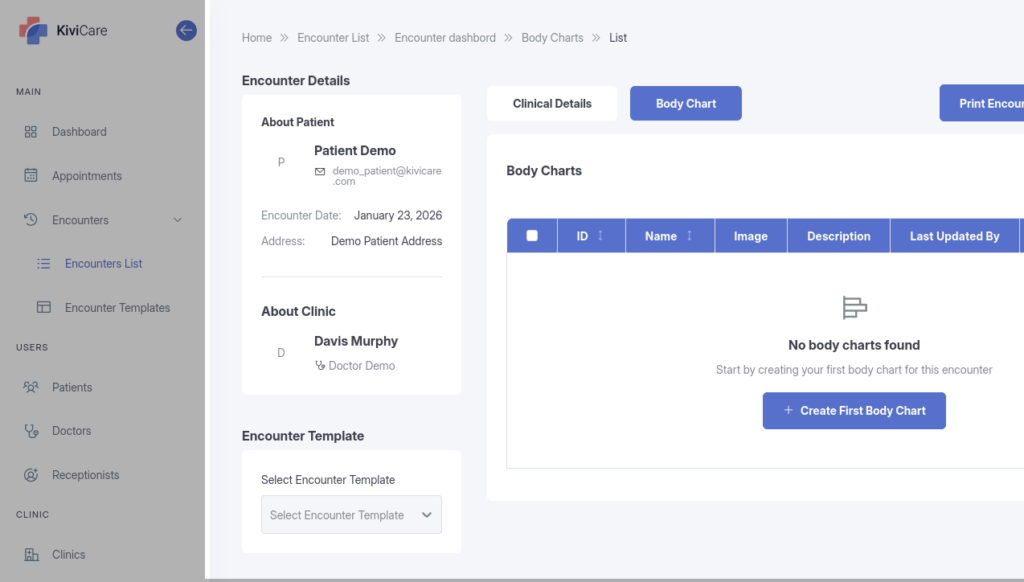
The Body Chart Editor is used by healthcare providers to create and manage body charts during patient encounters.

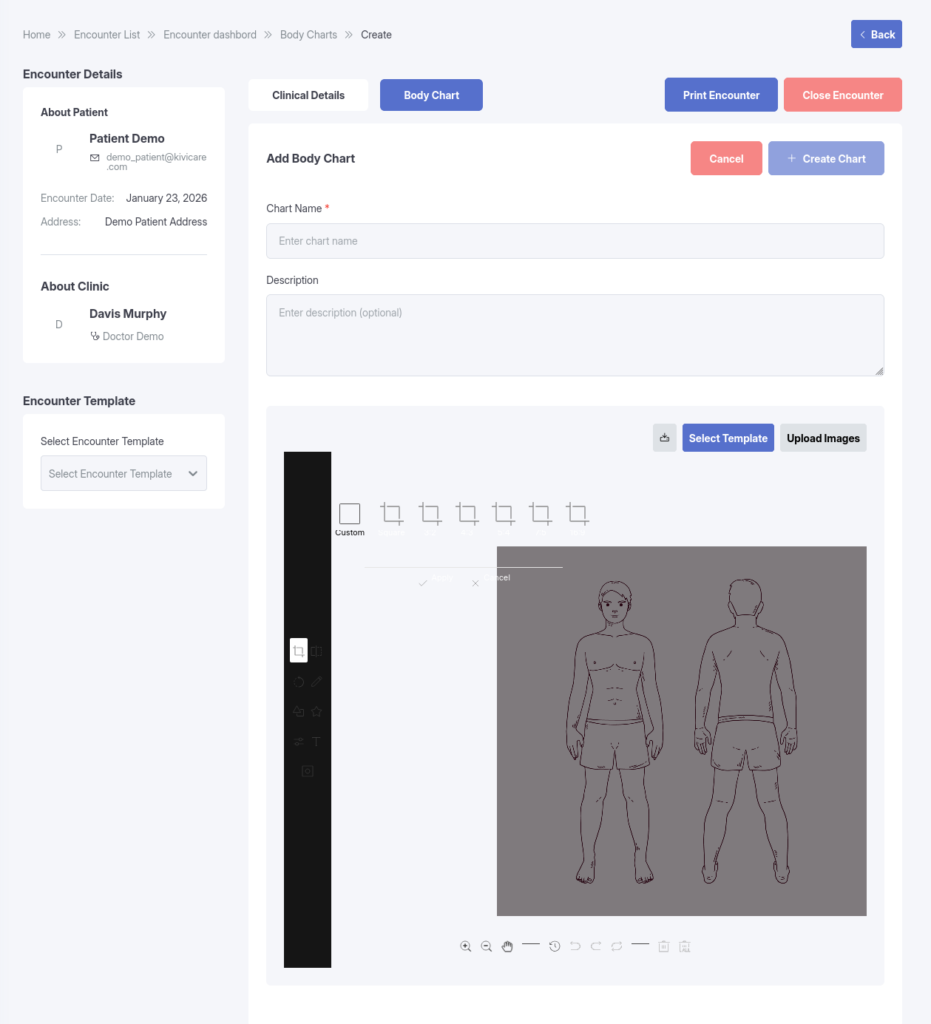
Editor Header

The header displays contextual actions and information.

Elements:

  • Page title:
    • Add Body Chart (for new charts)
    • Edit Body Chart (for existing charts)
  • Cancel button – Returns to the body chart list
  • Create Chart / Update Chart button – Saves the chart
Image Editor Canvas

The central workspace where body charts are displayed and annotated.

Capabilities:

  • Displays selected templates or uploaded images
  • Allows drawing, marking, and annotations
  • Retains annotations when switching images (where applicable)
Toolbar

Located on the left side of the editor.

Tools Include:

  • Crop
  • Flip
  • Rotate
  • Shape
  • Icon
  • Filter
  • Text
  • Mask

Workflow

Creating a New Body Chart

  1. Navigate to Encounters → Encounter Dashboard → Body Chart
  2. Click Add New
  3. Enter a Chart Name (required)
  4. Optionally add a description
  5. Select a body chart template or upload a custom image
  6. Annotate the image using the editor tools
  7. Click Create Chart

Editing an Existing Body Chart

  1. Select a body chart from the list
  2. Existing chart data loads automatically
  3. Update the chart name, description, or annotations
  4. Click Update Chart

Switching or Uploading Images

Select Template:

  • Click Select Template
  • Choose a template from the modal

Upload Image:

  • Click Upload Images
  • Select or upload an image via the media library

Suggestions & Improvements

Your email address will not be published. Required fields are marked *