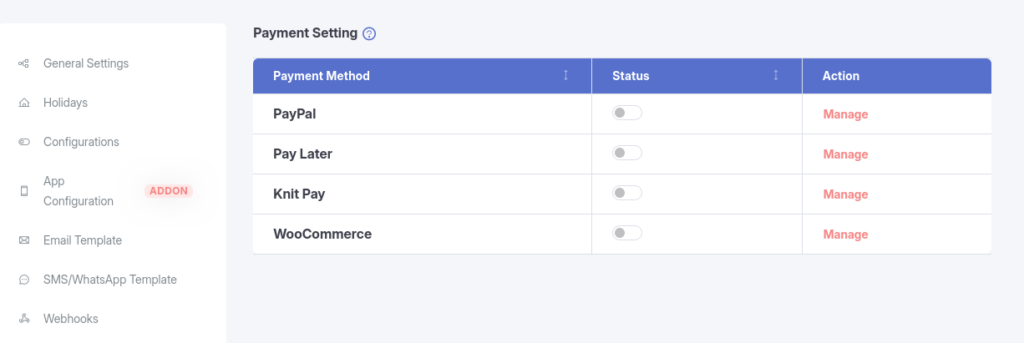
The Payment Settings module allows administrators to configure and manage payment gateways used to collect payments from patients. KiviCare supports multiple secure and flexible payment options, ensuring smooth and reliable transactions for clinics of all sizes.
Supported payment methods include:
PayPal
WooCommerce-based gateways
Manual (Pay Later) payments
Knit Pay integrations
2. Supported Gateways
A. PayPal
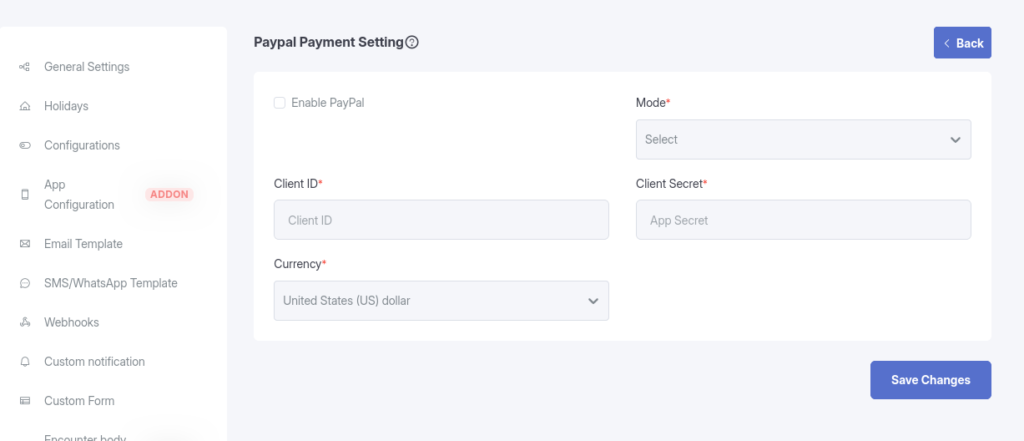
Direct integration with PayPal for secure credit card and wallet-based transactions.
Configuration Options:
Status – Enable or disable the PayPal gateway
Mode – Choose between:
Sandbox (testing environment)
Live (production transactions)
Client ID – Your PayPal REST API Client ID
Client Secret – Your PayPal REST API Client Secret
Currency – Select the transaction currency (e.g., USD, EUR)
B. WooCommerce
Integrate WooCommerce to leverage any payment gateway supported by WooCommerce, such as:
Stripe
Square
Razorpay
And more
This allows KiviCare appointment payments to be processed through the WooCommerce checkout system.
Configuration Options:
Status – Enable or disable WooCommerce payments
Configuration – Requires linking KiviCare services with WooCommerce products or enabling cart redirection to the WooCommerce checkout flow
C. Pay Later (Manual Payment)
Allows patients to book appointments without making an immediate online payment.
Use Cases:
Cash on Arrival
Pay at Clinic
Configuration Options:
Status – Enable or disable manual payments
Description – Display custom instructions for patients
D. Knit Pay(Available in Kivicare Pro)
A comprehensive payment integration layer supporting multiple Indian and international payment gateways.
Configuration Options:
Status – Enable or disable Knit Pay
Multiple Configurations – Add multiple payment profiles (e.g., knit_pay_1, knit_pay_2) to support different gateways, accounts, or endpoints
3. How to Configure Payment Settings
Navigate to Settings → Payment Settings
View the list of available payment gateways
Use the Status toggle to enable or disable a gateway
Click Manage next to a gateway to open its configuration page
Enter the required credentials (API keys, Client ID, Secret, etc.) provided by your payment service
Click Save Changes to apply the configuration
4. Operational Notes
Security Keep all API credentials (especially Client Secrets) confidential and secure.
Testing Always test payment flows using Sandbox/Test mode before enabling Live mode.
Currency Compatibility Ensure the selected currency matches your bank account and gateway configuration to prevent failed transactions or unnecessary conversion fees.