The Services Management module in KiviCare enables healthcare facilities to define, organize, and manage medical services offered by doctors. This system handles service pricing, categorization, doctor-clinic assignments, and integration with appointments and billing.
How It Works
Core Functionality
Service Catalog: Centralized repository of medical services
Service Categories: Classification of services by medical specialty types
Doctor-Service Mapping: Assign services to specific doctors and clinics
Pricing Management: Set individual charges for each service
Telemed Integration: Support for telemedicine services (with addon)
Multi-Selection Support: Allow multiple service booking in appointments
System Architecture
Service Creation: Define services with name, category, and pricing
Doctor Assignment: Map services to specific doctors in clinics
Category Management: Organize services using predefined or custom categories
Status Control: Enable/disable services as needed
Integration: Connect with appointment booking and billing systems
Settings & Configuration
Basic Service Settings
Service Name: Descriptive name for the medical service
Service Category: Medical specialty classification (from static data)
Charges: Price for the service
Service Image: Optional image for service identification
Status: Active (1) or Inactive (0)
Advanced Settings (KiviCare Pro)
Duration: Time required for service delivery (in minutes)
Telemed Service: Enable for online consultations (requires addon)
Multi-Selection: Allow booking multiple services together
Clinic Assignment: Assign services to multiple clinics
Doctor Assignment: Assign services to multiple doctors
Service Session: Allow adding sessions for a specific service.
Service Visibility: Configure service as Public or Private for appointment booking access.
Service Session (Service-Based Time Slots)
KiviCare supports Service Sessions, allowing you to define custom time availability for individual services instead of relying only on doctor sessions.
By default, appointment slots are generated based on Doctor Sessions. With this feature, you can override doctor availability and control scheduling at the service level.
How It Works
Doctor Session → Default availability (required)
Service Session → Service-specific availability (optional)
Session Priority Logic
When both doctor and service sessions exist:
Service Session → Highest Priority
Doctor Session → Fallback
Enable Service Session
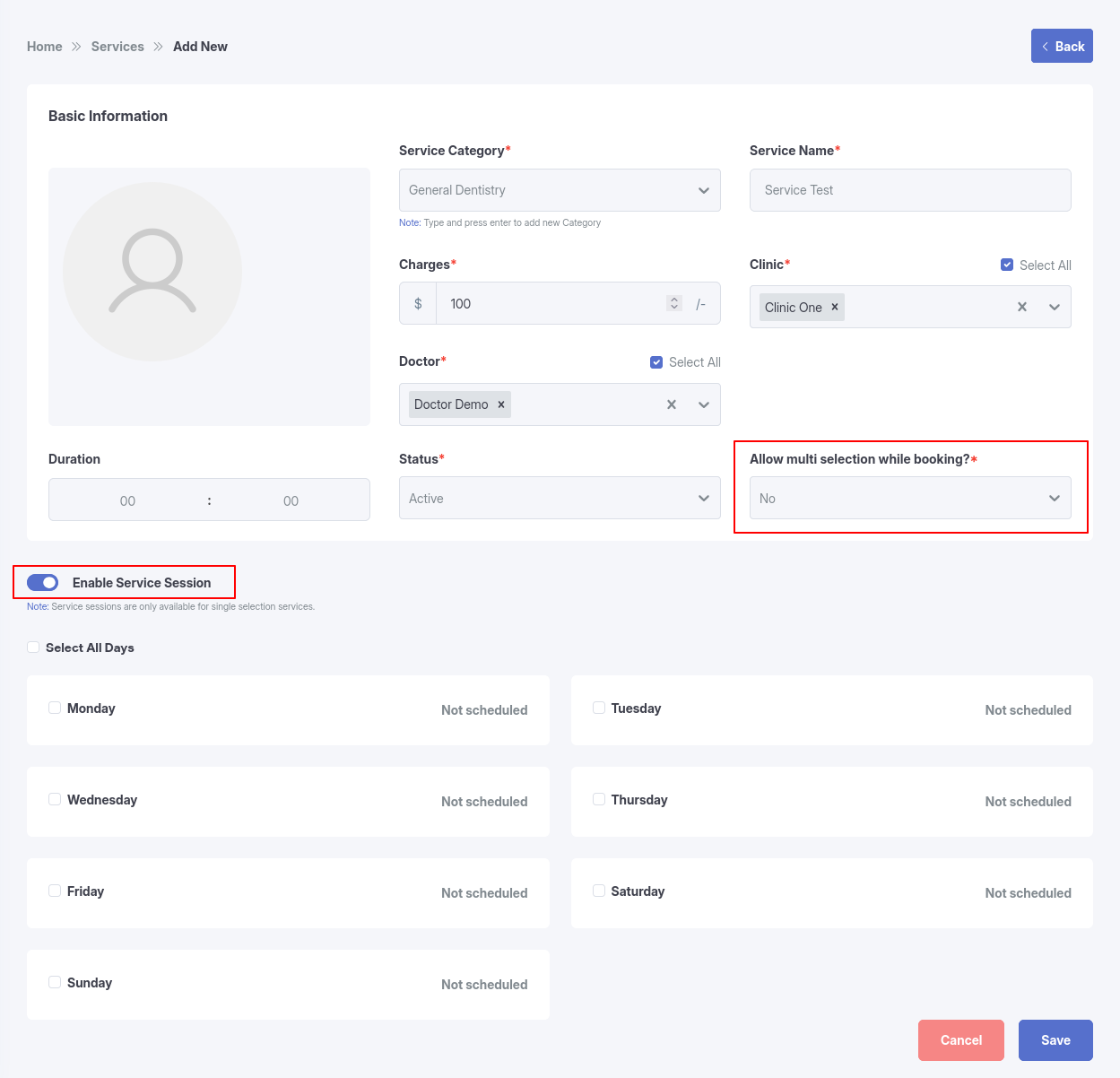
You can enable service-based sessions while creating or editing a service.
Steps:
Go to: Dashboard → Services → Add New / Edit Service
Set: Allow multi-selection while booking? = No
Enable: Enable Service Session
You can refer to the screenshot below to understand how to add and configure service sessions.
Important Condition
Service Sessions are only available for single-service booking.
Adding Service Session
After enabling the option, you can:
Select days (Monday to Sunday)
Define Start Time and End Time
Add multiple sessions per day
Configure break time within sessions
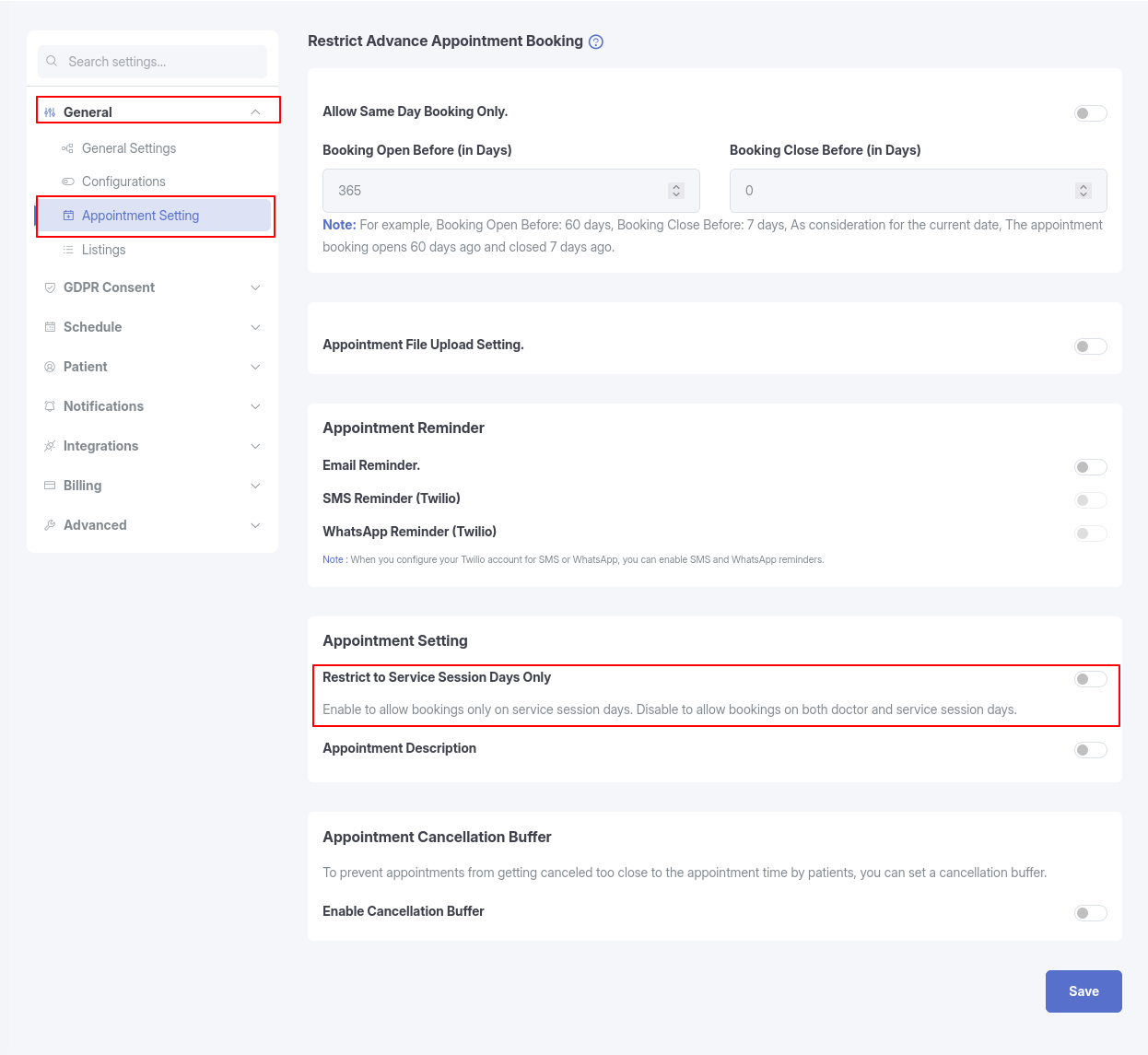
Restrict to Service Session Days Only
This setting controls which session days are shown to patients when booking an appointment for a specific service. You can enable this option by navigating to Settings → General → Appointment Settings.
Enabled
Patients can only book appointments on the days that belong to the service’s own session. Doctor session days will be hidden for that service.
Disabled
Patients can book appointments on both doctor session days and service session days. However, if a day is available in both (e.g., Wednesday), the service session takes priority and its time slots will be used.
Service Visibility (Private/Public)
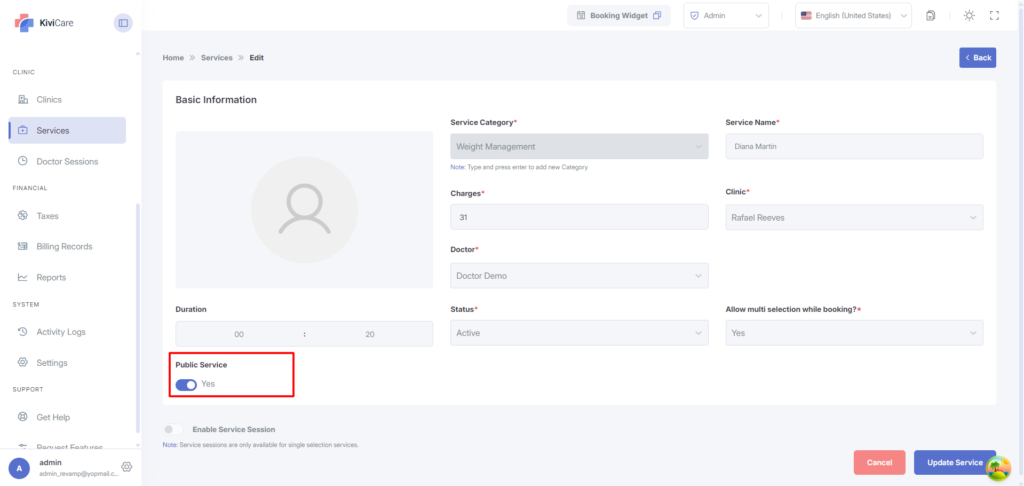
KiviCare allows you to set a service as Public or Private while creating or editing a service.
This helps you control whether patients can book the service or if it should only be used internally by clinic staff.
How It Works
Public Service
When a service is set as Public:
Patients can see and book the service
The service will appear during appointment booking
Private Service
When a service is set as Private:
Patients cannot see or book the service
Only clinic staff can assign the service internally
How to Configure
Steps:
Go to Dashboard → Services → Add New / Edit Service
Find the Service Visibility option
Select:
Public → Patients can book the service
Private → Only staff can use the service
Click Save
You can refer to the screenshot below to understand how to configure service visibility.
When to Use
New Service Setup: Adding medical services to the clinic catalog
Price Management: Setting and updating service charges
Doctor Assignments: Mapping services to qualified doctors
Category Organization: Grouping services by medical specialties
Status Management: Activating or deactivating services
Best Practices
Use clear, descriptive service names
Assign appropriate medical specialty categories
Set realistic pricing based on market standards
Ensure doctors are properly assigned to relevant services
Regularly review and update service availability
Features by Role
Administrator
Complete Service Control: Create, edit, and delete all services
Global Management: Manage services across all clinics (Pro version)
Category Management: Create custom service categories
Bulk Operations: Mass delete and status updates
Export Functions: Export service data in CSV, Excel, PDF formats
Import Services: Bulk import service data (Pro version)
Clinic Admin (Pro Version)
Clinic Services: Manage services within assigned clinic
Doctor Assignment: Assign services to clinic doctors
Pricing Control: Set service charges for clinic
Status Management: Activate/deactivate services
Service Monitoring: View service utilization
Doctor
Personal Services: View and manage own assigned services
Service Updates: Update personal service details
Status Control: Enable/disable own services
Service Information: View service pricing and details
Receptionist
Service Viewing: Access service information for booking
Price Information: View service charges for patients
Service Search: Find services by category or name
Availability Check: Verify service and doctor availability
Appointment Booking: Book services for patients
Workflow Examples
Adding New Service
User navigates to Services > Add Service
Uploads optional service image
Selects or creates service category
Enters service name and charges
Configures telemed settings (if addon active)
Assigns to clinics and doctors
Sets duration (Pro version)
Configures status and multi-selection options
Saves service
Updating Service Information
User finds service in Services list
Clicks Edit action
Modifies service details as needed
Updates doctor/clinic assignments
Changes pricing or status
Saves updated information
Managing Service Categories
User accesses service form
Types new category name in category field
System creates new category automatically
Category becomes available for other services
Categories are stored in static data
Service Categories
Service categories are managed through the static data system with type “service_type”. Categories can be:
Default Categories
Categories are predefined in the system
Accessible through dropdown selection
Can be filtered and searched
Custom Categories
Users can create new categories on-the-fly
Type category name in the service form
Automatically saved to static data
Immediately available for other services
Pricing Structure
Fixed Pricing
Each service has a base charge amount
Can vary by doctor-clinic combination
Supports decimal pricing (e.g., 150.50)
Currency Support
Configurable currency prefix/postfix
Displays in service lists and forms
Used in billing and invoicing
Consistent across the system
Troubleshooting
Common Issues
Duplicate Services: Same service name and category for same doctor-clinic
Permission Errors: Users cannot access services outside their scope
Category Issues: Categories not loading or saving properly
Doctor Assignment: Services not showing for assigned doctors
Status Problems: Services not activating/deactivating properly
Resolution Steps
Check for duplicate service-doctor-clinic combinations
Verify user roles and permissions
Ensure proper clinic and doctor assignments
Validate service category selections
Check service status settings
Clear browser cache and refresh
Benefits
For Healthcare Providers
Centralized service catalog management
Flexible doctor-service assignments
Easy pricing updates
Category-based organization
Status control for service availability
Integration with appointment booking
For Patients
Clear service information during booking
Transparent pricing display
Multiple service selection options
Telemed service availability
Consistent service offerings
For Staff
Role-based service access
Easy service search and filtering
Bulk operations for efficiency
Export capabilities for reporting
Import functionality for data migration (Pro)
Available Features by Version
KiviCare Lite
Basic service creation and management
Service categories
Doctor-clinic assignments
Pricing management
Status control
Search and filtering
KiviCare Pro
Multi-clinic service assignments
Service duration settings
Import/Export functionality
Advanced filtering options
Bulk operations
Enhanced reporting
Conclusion
The Services Management system in KiviCare provides essential tools for healthcare facilities to organize, price, and assign medical services to doctors and clinics. With features like category management, telemed support, and role-based access control, it ensures efficient service delivery and seamless integration with appointment booking and billing systems.