Configuration
Last updated 8 months ago
1. Overview
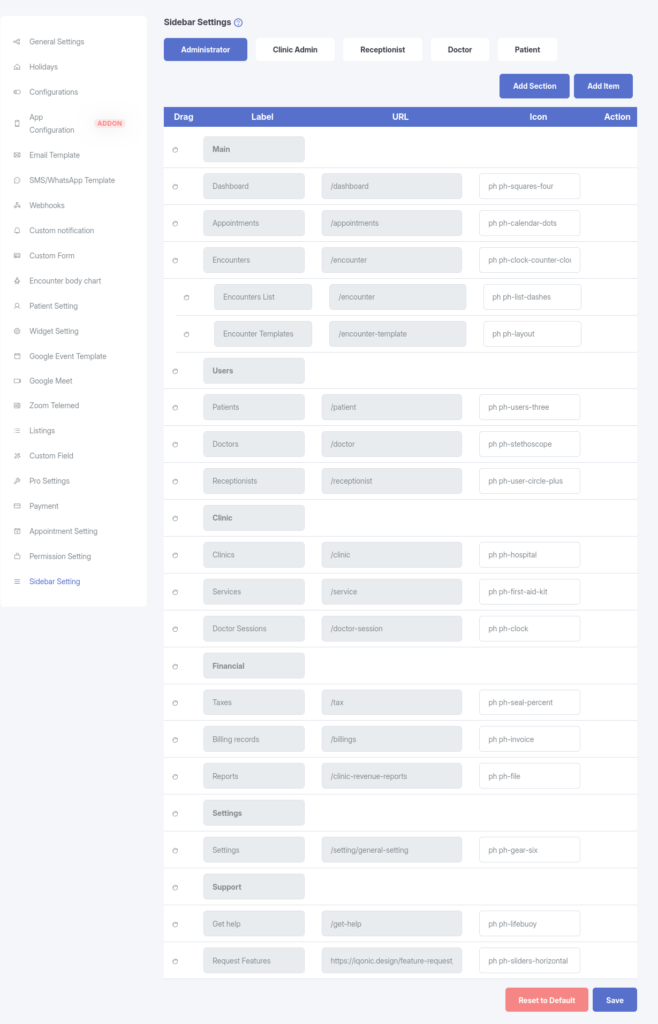
The Sidebar Settings feature allows administrators to customize the main navigation menu for all user roles, including:
- Administrator
- Doctor
- Receptionist
- Patient
- Clinic Admin
This functionality ensures that each user type has access to the most relevant tools and links, improving overall usability and workflow efficiency.
2. Why Use Sidebar Settings?
Sidebar Settings provide flexibility and control over navigation through the following benefits:
- Role-Specific Navigation
Tailor the sidebar experience for each user role by displaying only the most relevant menu items.
- Improved Organization
Reorder, group, or nest items to create a logical and intuitive menu structure.
- Custom Links
Add new external URLs or custom internal routes directly to the sidebar.
- Simplified Interface
Remove unused or irrelevant default menu items to reduce clutter and improve focus.
3. How It Works
The Sidebar Settings interface uses a drag-and-drop builder to manage navigation.
- Administrators select a user role tab (e.g., Administrator, Doctor, Patient).
- The current sidebar structure for that role is displayed.
- Menu items can be reordered, nested, added, or removed.
- When changes are saved:
- The custom configuration is stored in the database.
- The system merges the custom settings with default system routes.
- The final sidebar is rendered dynamically for the logged-in user.
4. Key Features
Drag & Drop Builder
- Easily reorder menu items
- Create nested sub-menus (up to 2 levels deep)
Multi-Role Management
- Separate configurations for each user role
- Managed through dedicated role-based tabs
Custom Menu Items
- Add Sections (non-clickable headers)
- Add Items (clickable links)
- Customize labels, icons, and routes
Reset to Default
- One-click Reset to Default option
- Restores the original system-defined sidebar structure
Validation & Safety
- Built-in validation ensures:
- Menu structure remains valid
- Links and nesting do not break navigation
- System-required routes are preserved