This comprehensive guide covers everything you need to know about Admin Guide in KiviCare Lite. Whether you’re a beginner or an advanced user, this documentation will help you understand and implement this feature effectively.
Overview
Admin Guide is an essential component of the KiviCare EHR system, designed to streamline healthcare management processes. This feature integrates seamlessly with other modules to provide a comprehensive solution for medical practices.
Key Features
Easy to use and intuitive interface
Seamless integration with existing workflows
Comprehensive data management capabilities
Real-time updates and notifications
Customizable settings and configurations
Getting Started
To begin using Admin Guide, follow these simple steps:
Navigate to the appropriate section in your KiviCare dashboard
Configure the necessary settings according to your requirements
Test the functionality to ensure everything works as expected
Train your staff on how to use this feature effectively
Admin Dashboard
The Dashboard is your command center, offering a real-time snapshot of your clinic’s performance immediately after login.
Key Statistics: Instantly view the total count of Patients, Doctors, Appointments, and Revenue. If you have the Pro version, you can also see the total number of Clinics.
Activity Feeds: The dashboard lists Upcoming Appointments for the day and highlights Top Doctors based on performance.
Financial & Demographic Data: Visual charts display recent Payment History and Booking Status , helping you understand your revenue flow and patient base. You can filter all these statistics by specific date ranges.
Admin Profile Management
Manage your own administrator account security.
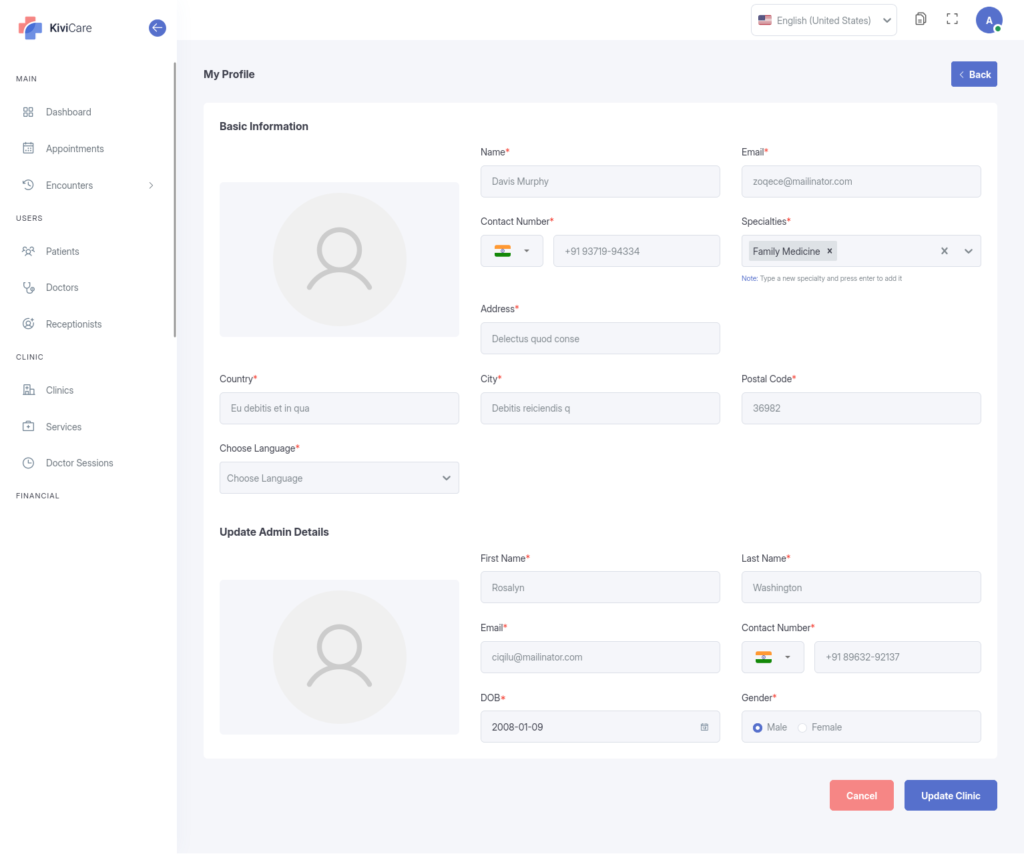
Personal Info: Update your own contact details and profile picture.
Security: Regularly update your password to maintain the security of the entire system.
Doctor Management
Administrators have full capability to build and manage their medical team.
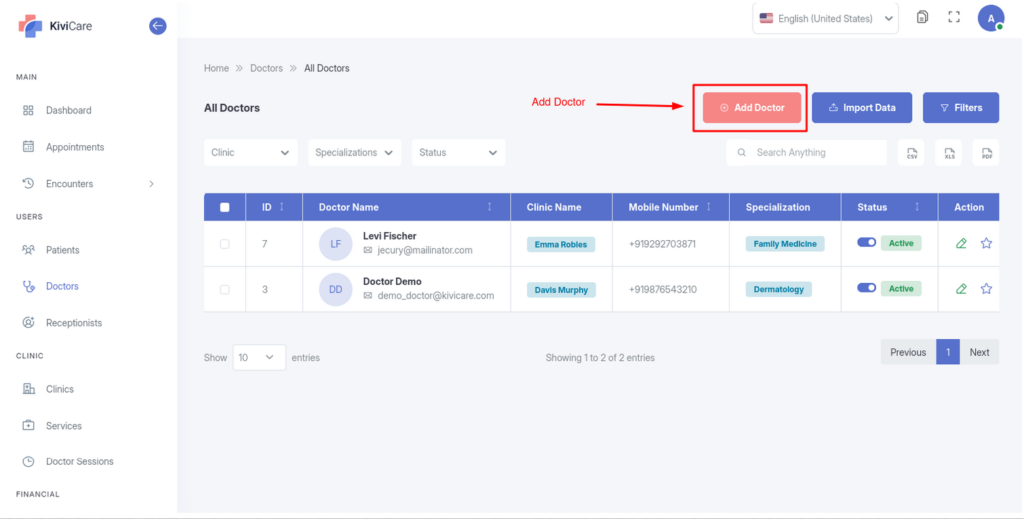
Onboarding: You can add new doctors by entering their personal details, Specialization, qualification, and years of experience. You also assign them to specific Clinics and Services (departments).
Credentialing: The system allows you to generate and email login credentials directly to the doctor.
Profile Management: You can edit profiles to update availability or contact info, view their schedule, and archive (delete) doctors who are no longer with the practice.
Receptionist Management
Receptionists are vital for front-desk operations; the Admin ensures they are set up correctly.
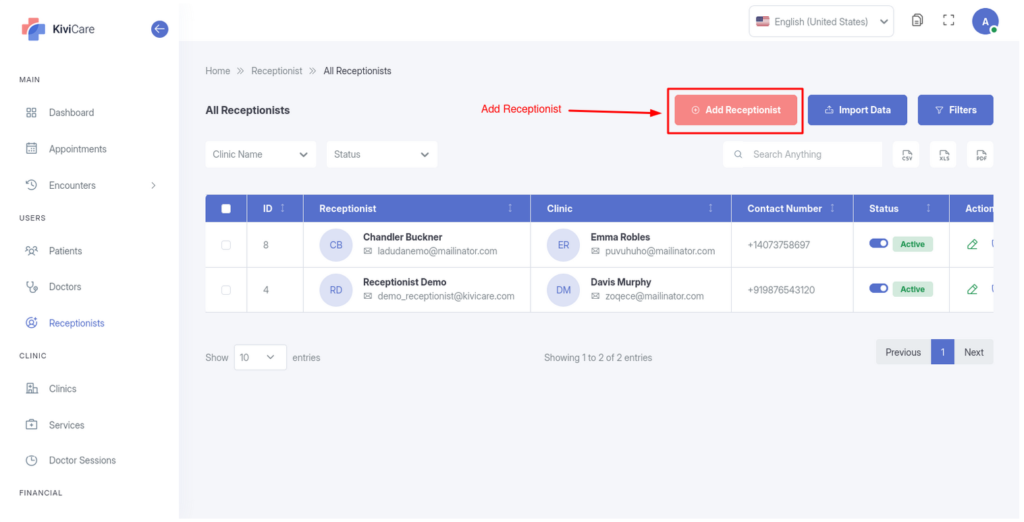
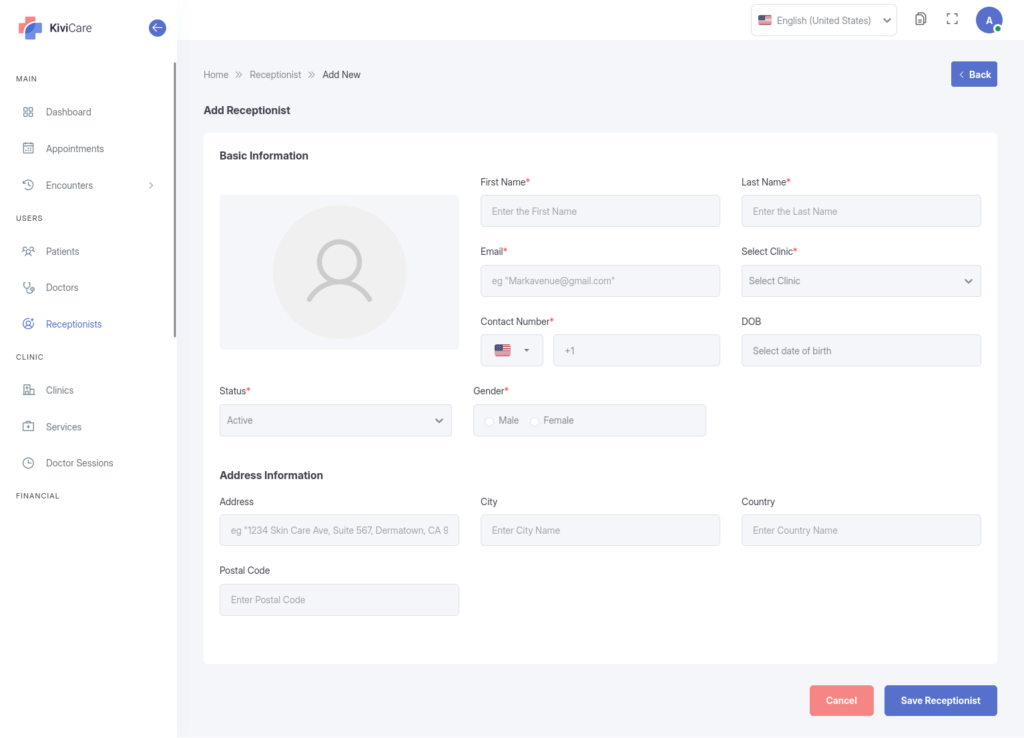
Staff Accounts: Create accounts for reception staff, assigning them to specific clinics to ensure they only see relevant data.
Access Control: You can manage their shifts, update their contact details, or revoke access by deactivating their account if they leave the organization.
Patient Management
The Administrator has a 360-degree view of the entire patient database.
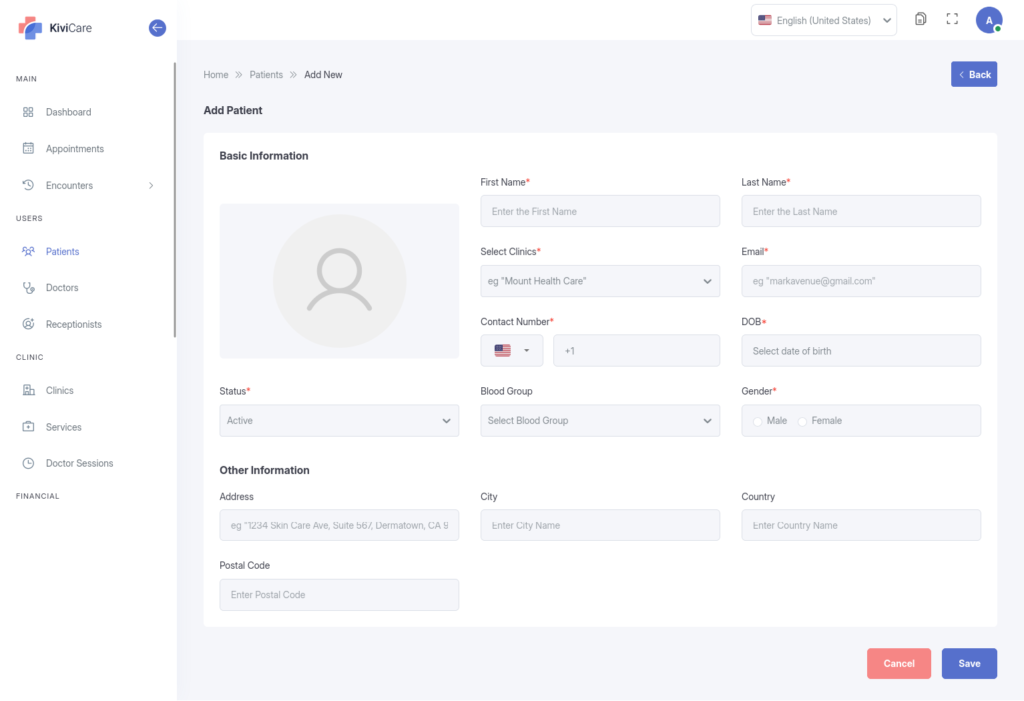
Registration: Register new patients with comprehensive details including medical history, insurance info, and emergency contacts.
Patient Profile: Access a unified view for any patient that includes their Past/Upcoming Appointments, Medical Records, Prescriptions, Invoices, and Lab Reports.
Portal Access: You can create and resend login credentials to patients, allowing them to use the patient portal/app.
Clinic Management(Available in Pro version)
For multi-location practices, this module centralizes branch management.
Location Setup: Create profiles for each physical or virtual clinic location, including address, contact email/phone, and unique operational hours.
Branding: You can upload specific logos and descriptions for each clinic.
Resource Allocation: Assign specific doctors and services to each clinic to ensure accurate scheduling.
Manage clinic administrator : new feature naturally fits here
Clinic Admin Management: You can change the assigned clinic administrator while editing a clinic without recreating clinic settings or data.
Appointment Management
This is the core operational engine of the system.
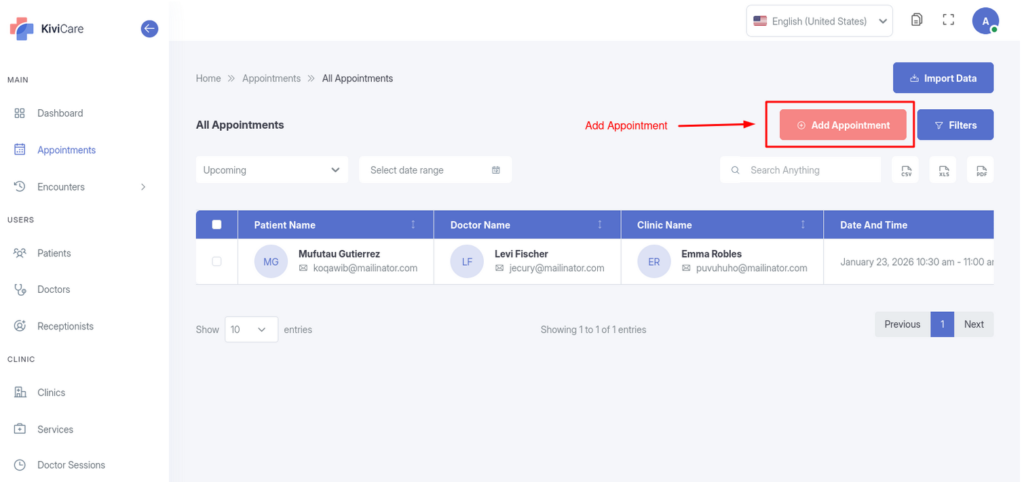
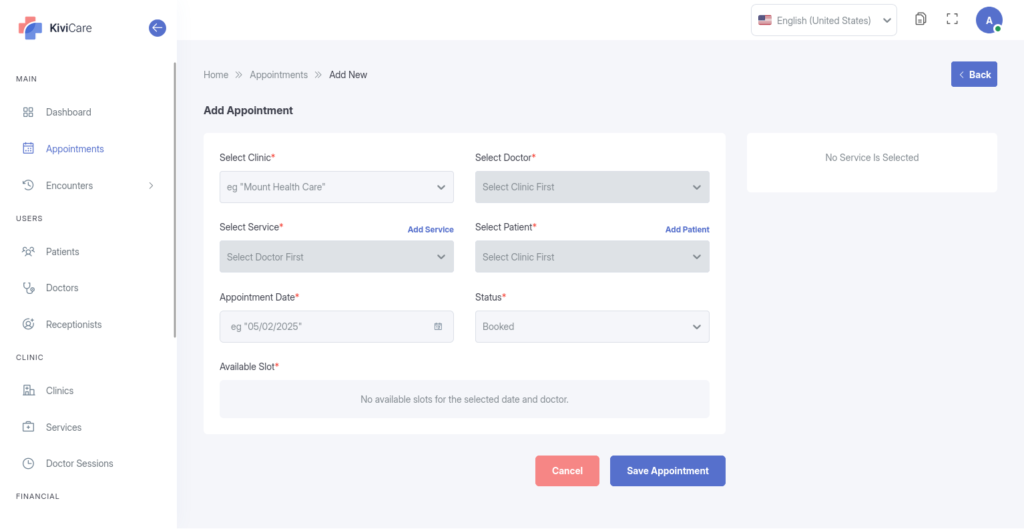
Scheduling: Admins can manually book appointments for any patient with any doctor. You can select the service, date, time slot, and appointment type (In-person or Video).
Workflow: Move appointments through their lifecycle by changing statuses (e.g., from Booked to Pending to Check-In to Check-Out or Cancelled).
Modifications: You can reschedule, edit notes, or cancel appointments. The system handles notifications to relevant parties automatically.
Encounter Management
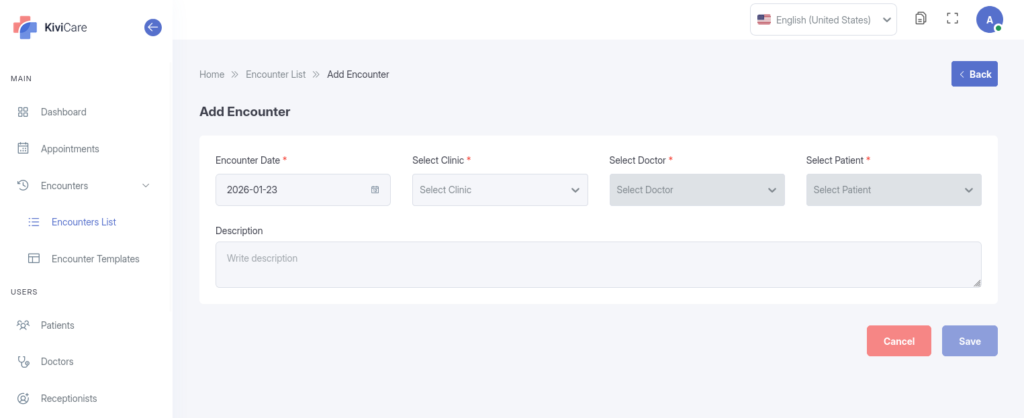
“Encounters” are the digital records of a doctor-patient visit.
Clinical Documentation: During or after a visit, Admins (or doctors) can record clinical notes, symptoms, and diagnoses.
Medical Tools: You can attach Prescriptions, upload Medical Reports (X-rays, Lab results), and use Body Charts to visually mark areas of concern.
Forms: If custom forms are set up (e.g., “New Patient Intake”), they are filled out here.
Service Management
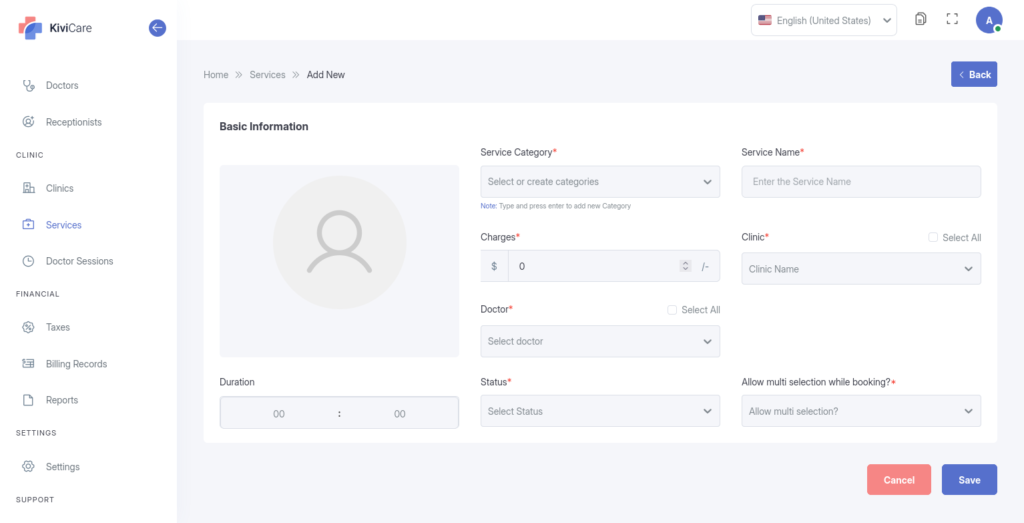
Define the “menu” of medical services your clinic offers. For each service, you can configure:
Service Name & Description
Pricing: Standard costs for the service.
Duration: How much time (in minutes) an appointment slot requires.
Staff Assignment: Which doctors are qualified to perform this service.
Doctor Sessions (Scheduling)
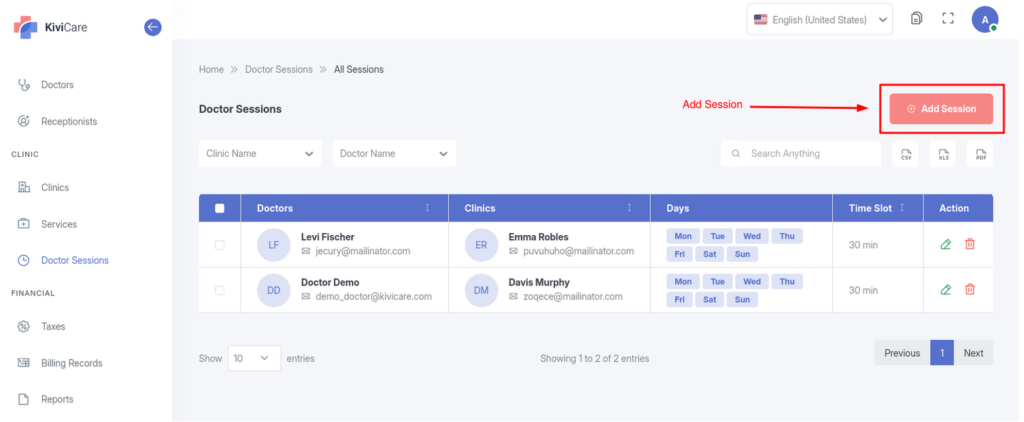
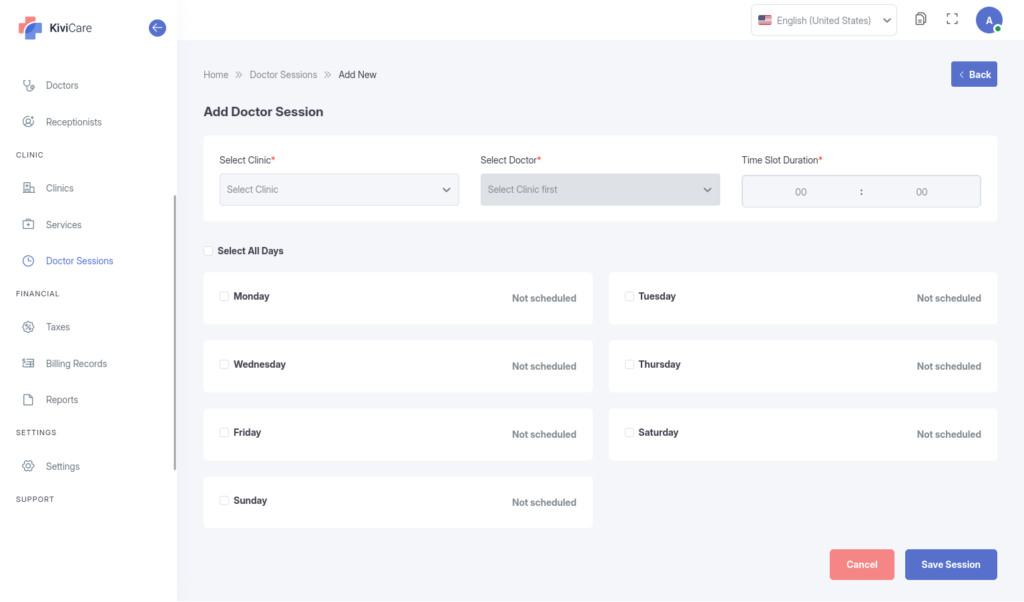
To allow online booking, you must define when doctors are available.
Session Creation: Set up specific time slots (Start Time/End Time) for each doctor.
Availability: Define which days of the week these sessions repeat.
Billing Management(Available in Pro version)
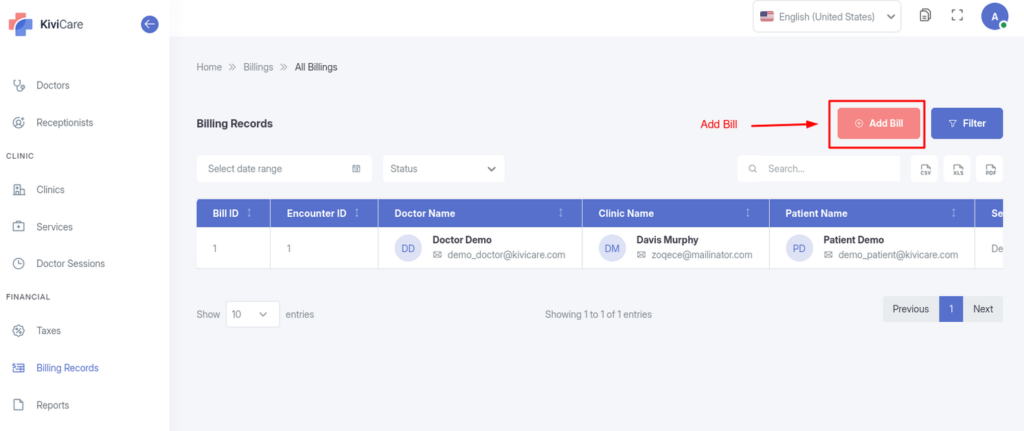
Manage the financial health of the practice.
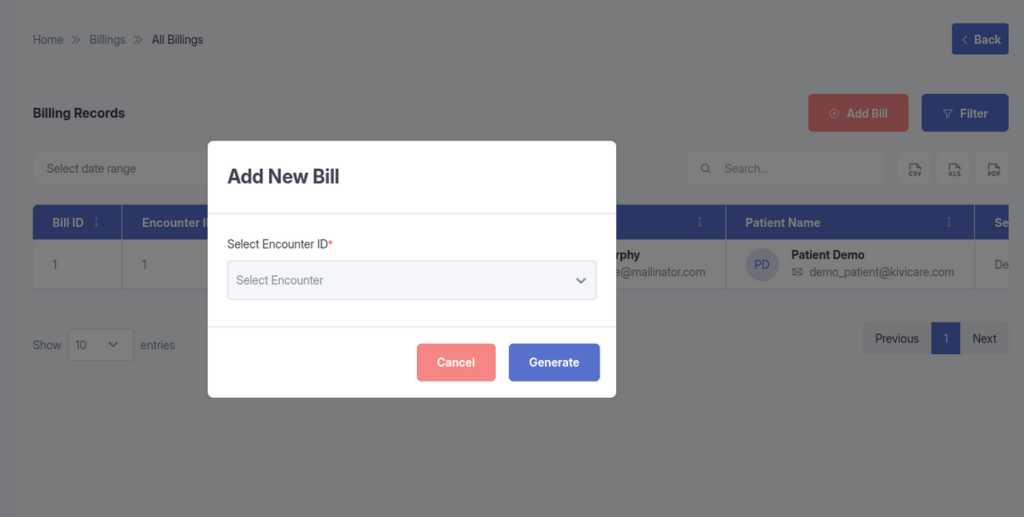
Invoicing: Generate bills for appointments. The system automatically pulls in the cost of services, but you can manually add items or discounts.
Payments: Record payments received via Cash, Card, or Online Gateways. The system tracks payment status (Paid, Unpaid) to help manage accounts receivable.
Tax Management(Available in Pro version)
Ensure financial compliance by automating tax calculations.
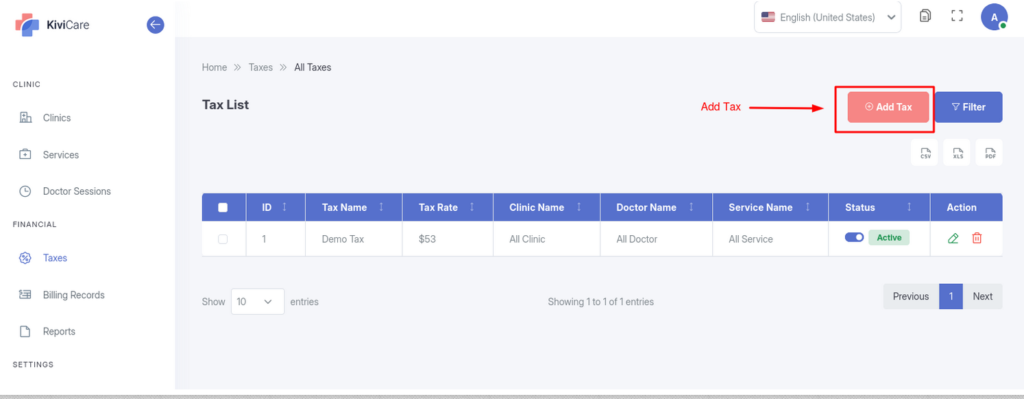
Application: Once set, these taxes can be automatically applied to services and invoices, reducing manual calculation errors.
Custom Fields
Tailor the system to your specific data needs without technical help.
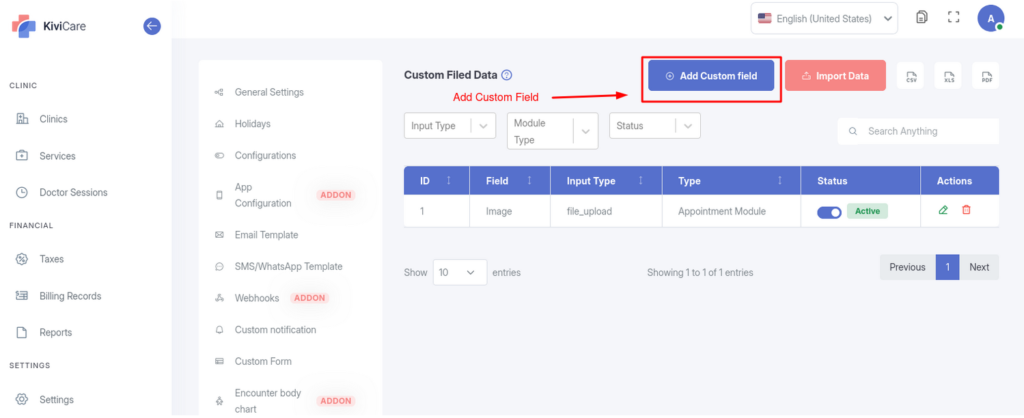
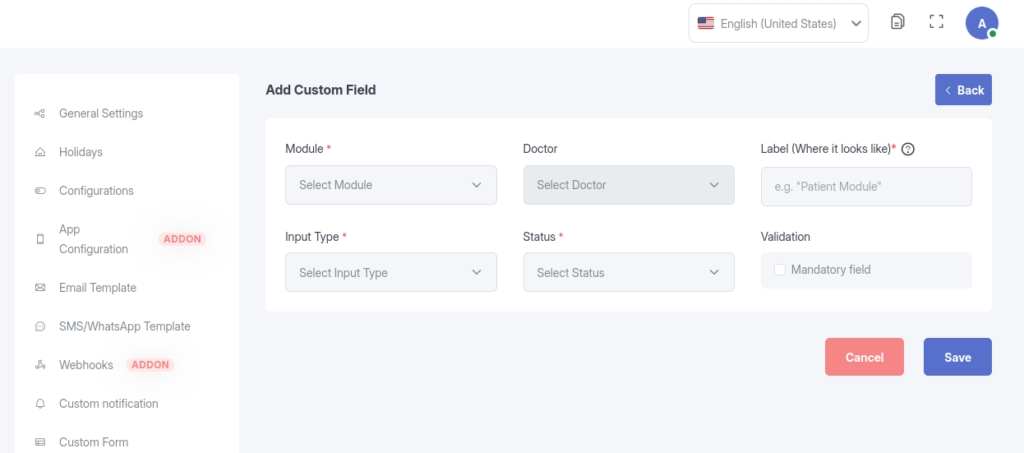
Data Flexibility: If the default patient or appointment forms are missing specific fields (e.g., “Blood Type” or “Referral Source”), you can create them here. You define the type of data (text, date, number) and where it appears.
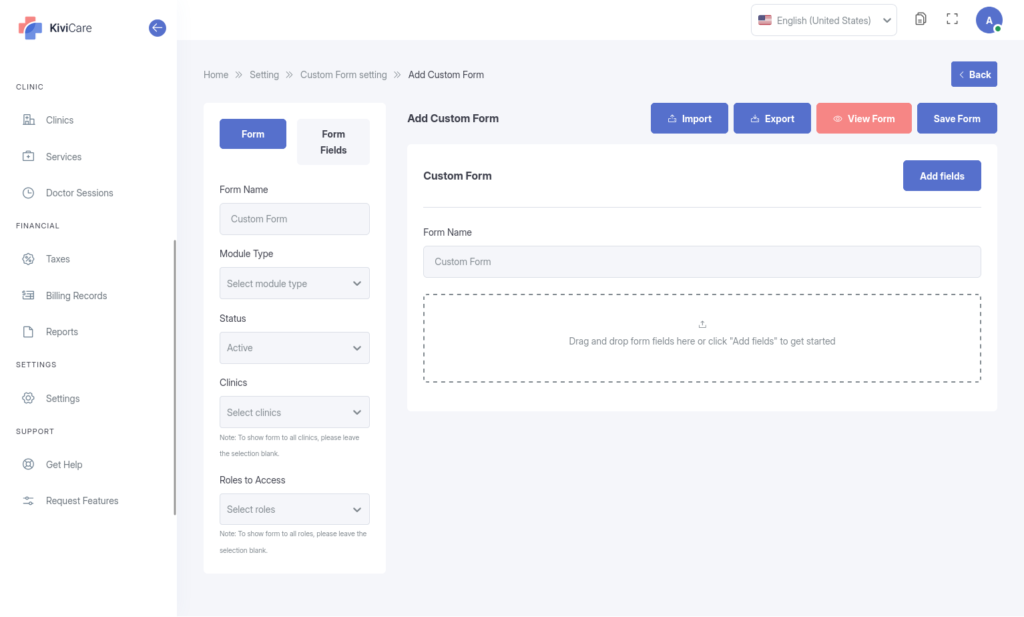
Custom Forms(Available in Pro version)
Create specialized questionnaires or intake forms.
Form Builder: Use a drag-and-drop tool to build complex forms. These are useful for obtaining patient consent, medical history surveys, or feedback forms that are attached to Encounters.
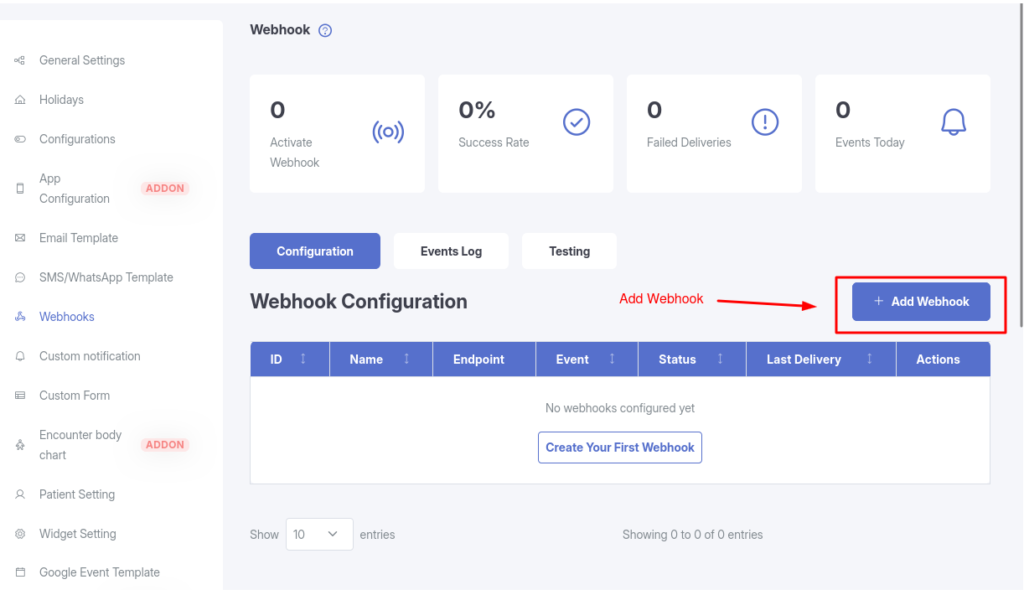
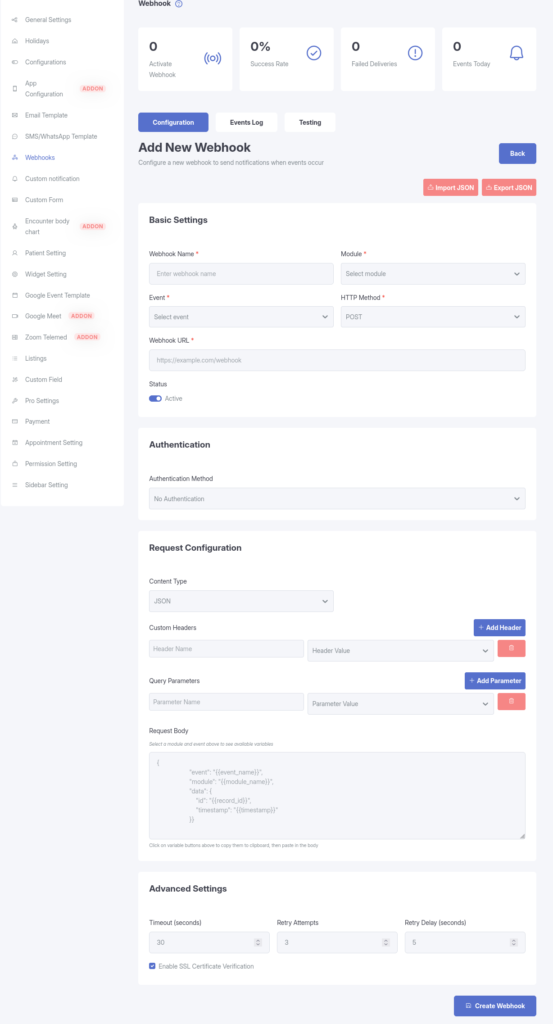
Webhook Management(Available in Webhook Addon)
Automate workflows by connecting KiviCare to other software.
Triggers: You can set up “events” (like “New Appointment Created”) that automatically send data to external applications (like a CRM or marketing tool). This feature allows for advanced automation and integration.
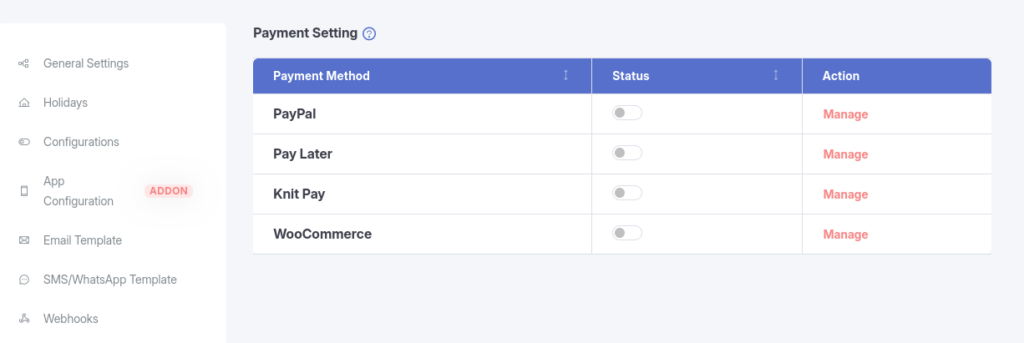
Payment Gateway Configuration
Enable online payments to modernize the patient experience.
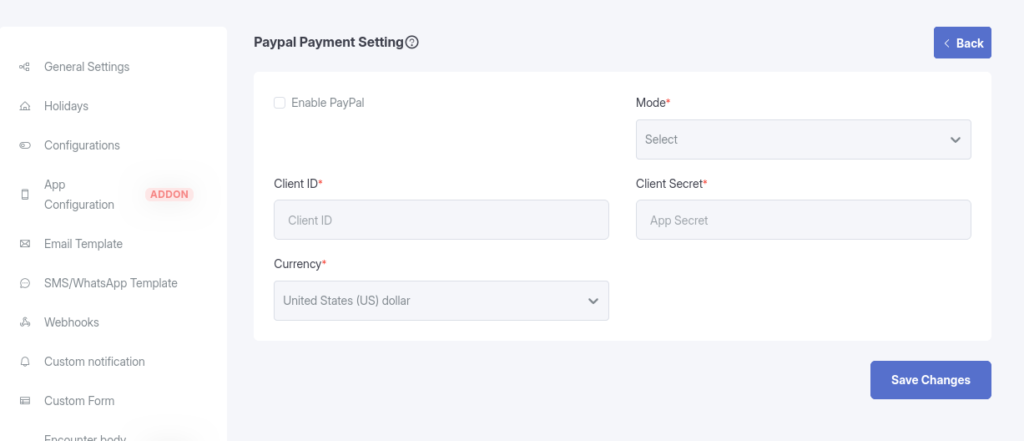
Integrations: Configure and enable supported gateways such as Stripe, PayPal, Razorpay, Knit Pay and WooCommerce.
Pay Later: You can also configure “Pay Later” options for patients paying at the counter.
Email Template Management
Control the branding and messaging of automated emails.
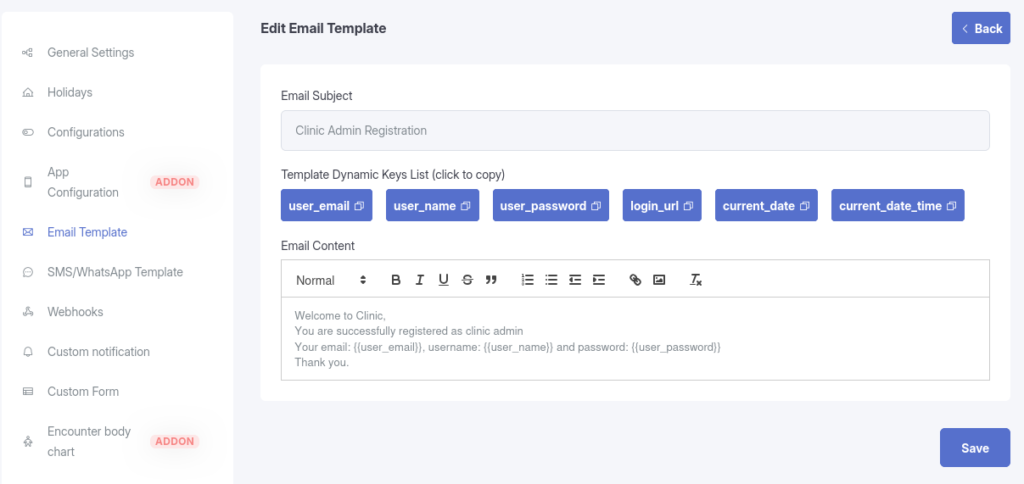
Customization: Edit the subject lines and body text for system emails (e.g., Registration Welcome, Appointment Confirmation, Bill Receipt).
Dynamic Data: Use “tags” to automatically insert the patient’s name, doctor’s name, and appointment time into the email.
SMS & WhatsApp Templates(Available in Pro version)
Manage instant communication for higher engagement.
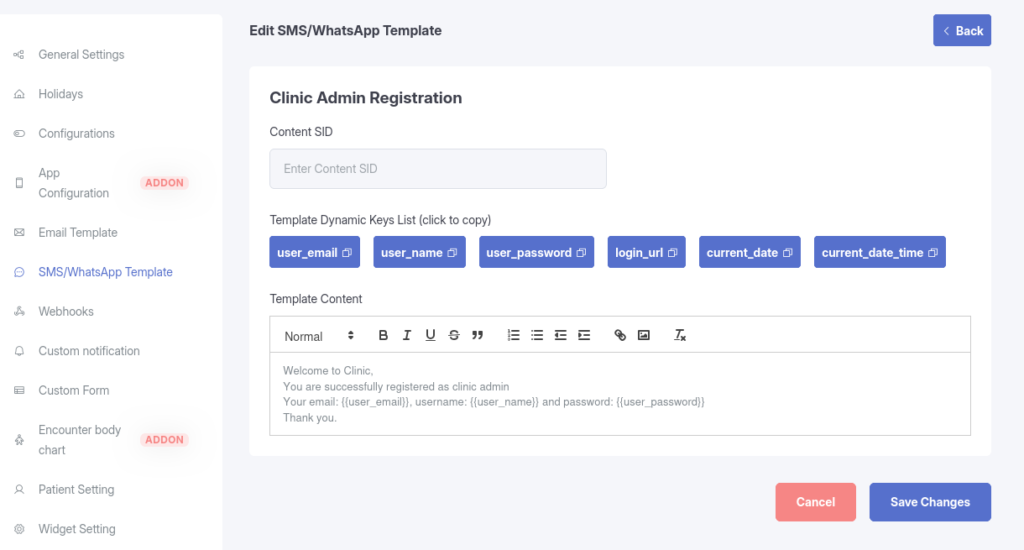
Templates: Similar to email, you can draft standard messages for SMS or WhatsApp notifications. This is effective for sending appointment reminders to reduce no-shows.
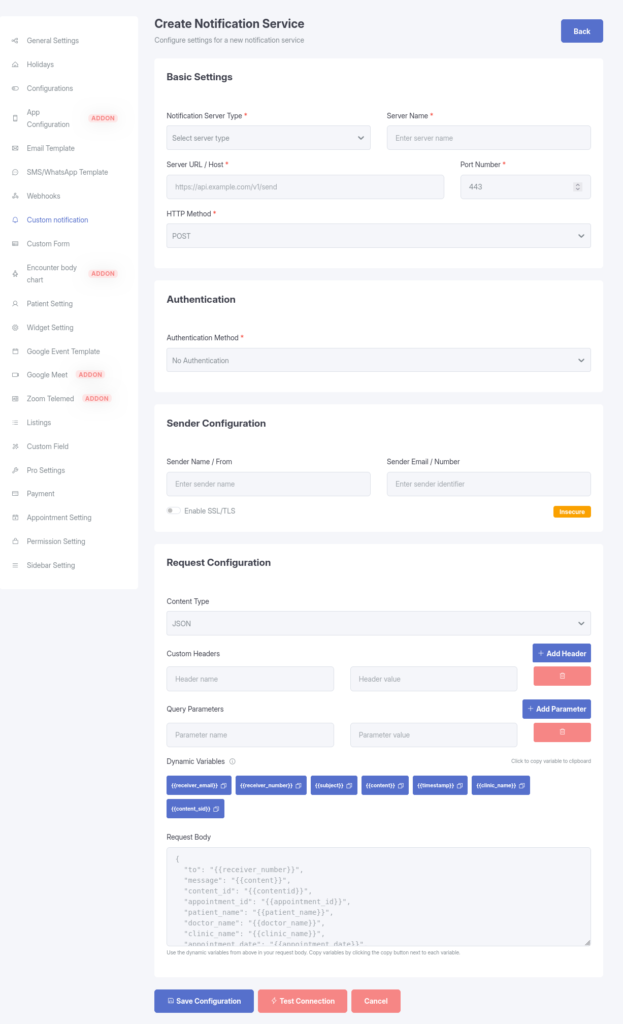
Custom Notifications(Available in Pro version)
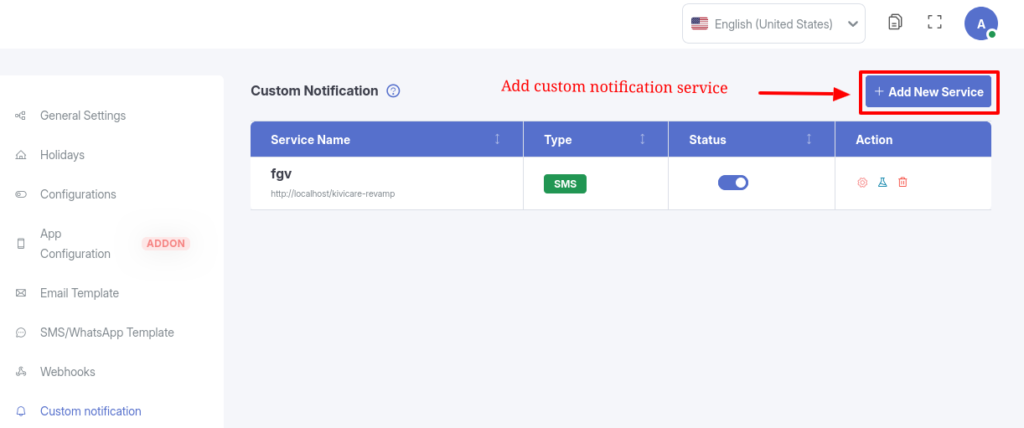
Create specific alert rules beyond the defaults.
Rules: Define who gets notified and when (e.g., “Notify the Clinic Manager via email when a Bill is unpaid”). This ensures the right team members handle critical tasks.
Permission Management(Available in Pro version)
Secure your system by defining access levels.
Role Control: You can toggle specific permissions on or off for different roles. For example, you can allow a Receptionist to view the calendar but block them from exporting patient data or viewing revenue reports.
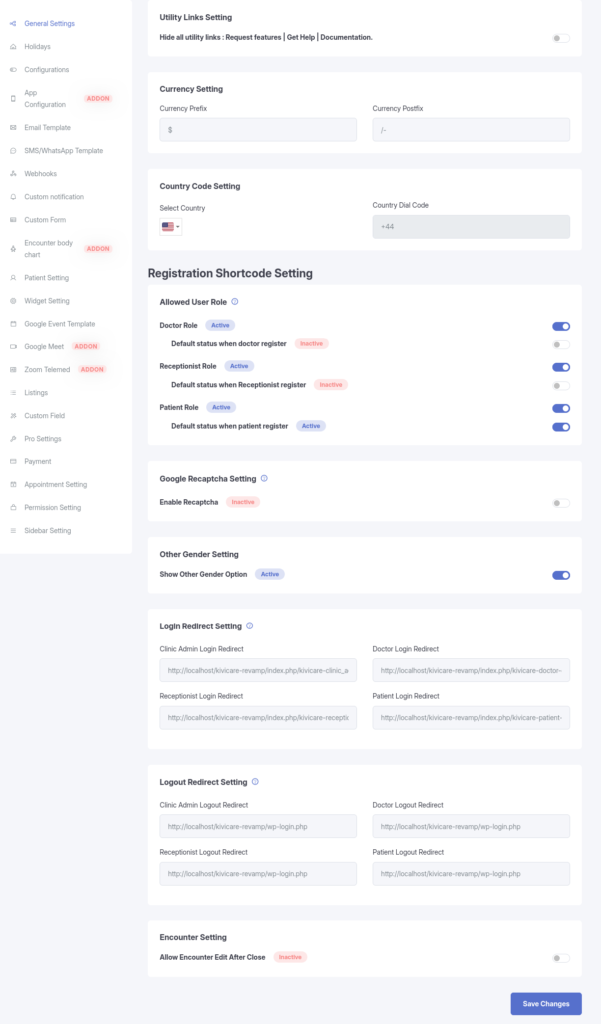
System & General Settings
The central configuration hub for the software.
Branding: Set the application Name, Logo, Favicon, and default Language.
Localization: Configure Timezone and Currency settings to match your region.
Setup: Configure the technical settings for Email (SMTP), SMS gateways, and Appointment buffers.
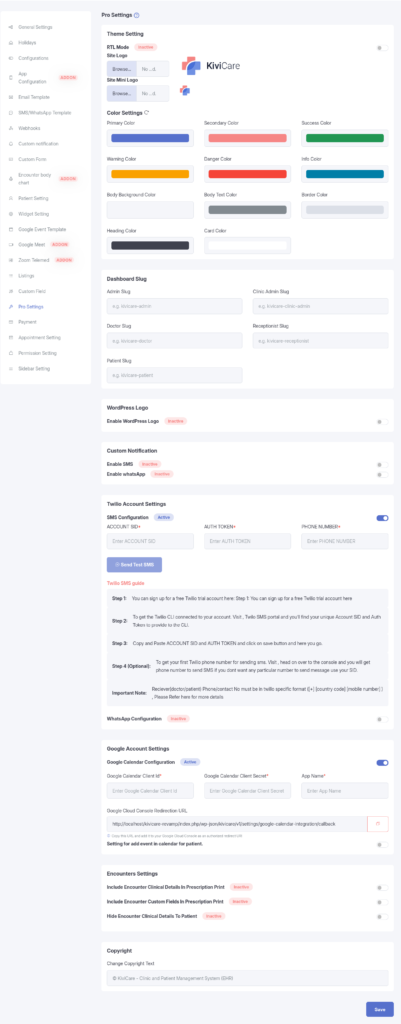
Pro Setting Integrations(Available in Pro version)
Extend functionality with external tools.
Calendar Sync: Enable Google Calendar integration so doctors can sync their work schedule with their personal calendars.
Telemedicine: Configure Zoom or Google Meet to enable video consultation features. This automatically generates meeting links for “Online” appointment types.
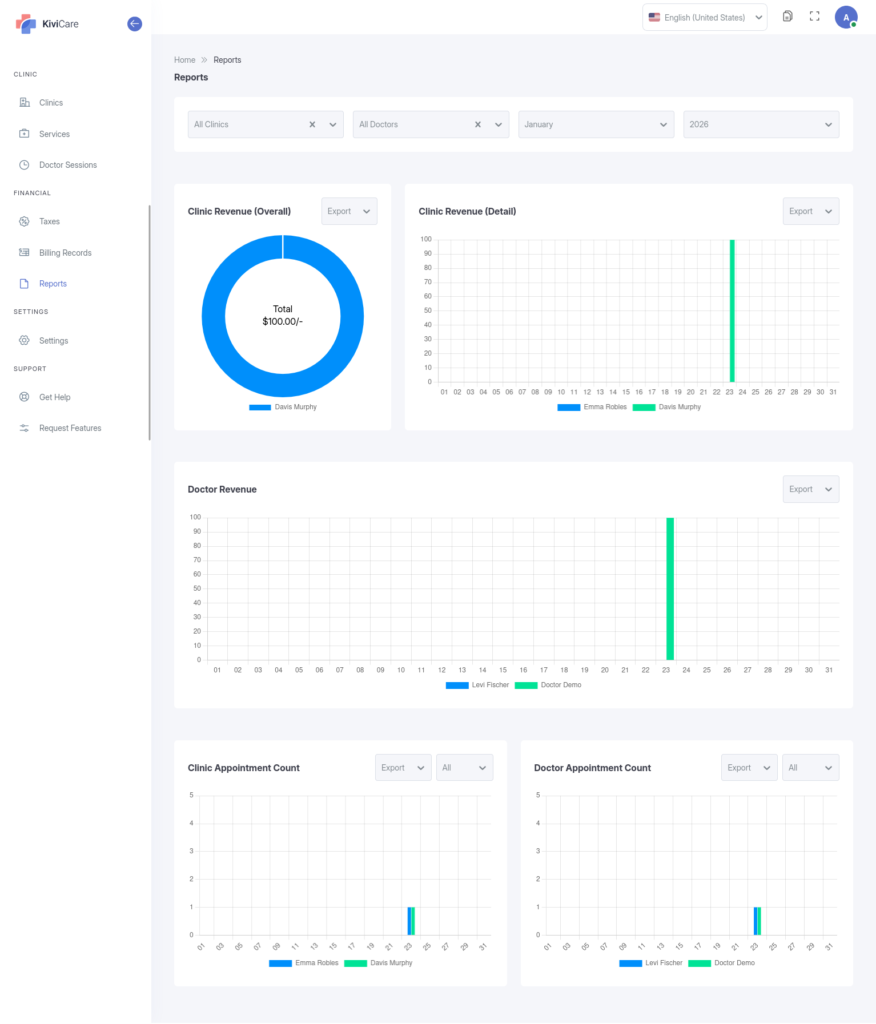
Reports & Analytics(Available in Pro version)
Financial Reports: View detailed Revenue Reports filtered by date, clinic, or doctor.
Operational Reports: Analyze Appointment trends, Patient demographics, and Doctor workload/performance.
Exporting: All reports can be exported to Excel or CSV for offline analysis.
Import & Export(Available in Pro version)
Manage bulk data efficiently.
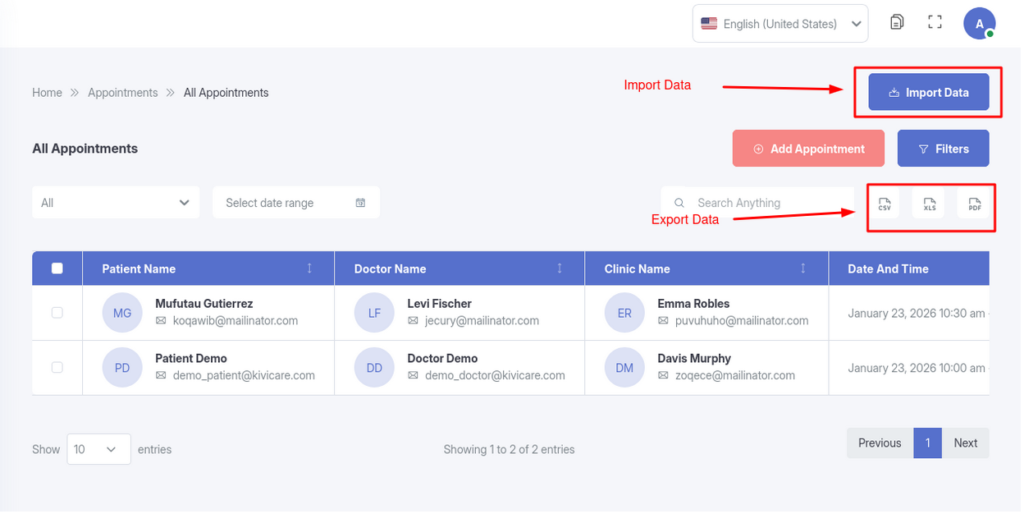
Import: Use the Import tool to bulk-upload lists of Patients, Doctors, or Services from CSV files (useful when migrating from another system).
Export: Almost all data lists in the system (Doctors, Patients, Appointments, Billing) have an “Export” option for backup or external reporting.
Best Practices
To get the most out of Admin Guide, consider implementing these best practices:
Regular Updates: Keep your system updated to access the latest features and security patches
Staff Training: Ensure all users are properly trained on the functionality
Data Backup: Regularly backup your data to prevent loss
Documentation: Maintain internal documentation of your specific configurations
Troubleshooting
If you encounter any issues with Admin Guide, try the following troubleshooting steps:
For more information about Admin Guide and related features, check out these additional resources:
KiviCare Video Tutorials
Community Forum Discussions
Official Documentation Portal
Support Ticket System
Related Resources
Clear your browser cache and cookies
Verify that you have the necessary permissions
Check for any plugin conflicts
Review the system logs for error messages
Contact support if the issue persists
Conclusion
Admin Guide is a powerful feature that enhances your KiviCare EHR experience. By following this guide and implementing the best practices outlined above, you’ll be able to leverage this functionality to its full potential. If you need further assistance, don’t hesitate to reach out to our support team.