Core Concepts

User Roles & Access Control

KiviCare uses a role-based access control (RBAC) system to ensure that every user can access only the features relevant to their responsibilities. This helps clinics maintain data security, privacy, and operational efficiency.

All roles in KiviCare are plugin-specific and fixed, while their permissions are fully configurable by administrators.


Overview of Role-Based Access Control

Each user in KiviCare is assigned a specific role. Each role has a predefined set of capabilities that control:

  • What menus are visible
  • Which actions can be performed (view, add, edit, delete, export)
  • Which medical and administrative data can be accessed

๐Ÿ’ก TIP: Permissions can be enabled or disabled per role from the KiviCare dashboard, allowing you to customize the system to match your clinic’s workflow.


๐Ÿ‘ฅ Available User Roles in KiviCare

KiviCare provides the following fixed plugin-specific roles:

  1. Administrator
  2. Clinic Admin
  3. Doctor
  4. Receptionist
  5. Patient

โš ๏ธ WARNING: Roles cannot be deleted or renamed, but their permissions are fully customizable.


๐Ÿง‘โ€โš•๏ธ Role Descriptions & Access Scope

Administrator

The highest-level role with full control over the system.

Key Responsibilities

  • Global system configuration
  • Clinic and staff management
  • Medical and billing oversight
  • Permission management

Access Highlights

  • Manage clinics, doctors, receptionists, and patients
  • Full access to appointments, encounters, prescriptions, and medical records
  • Configure services, taxes, schedules, email notifications, and settings
  • SMS/WhatsApp notifications (Pro)
  • Enable/disable permissions for all roles
  • Access to the WordPress admin panel
  • System-wide reporting and analytics
  • Manage integrations and extensions
FeatureAccess Level
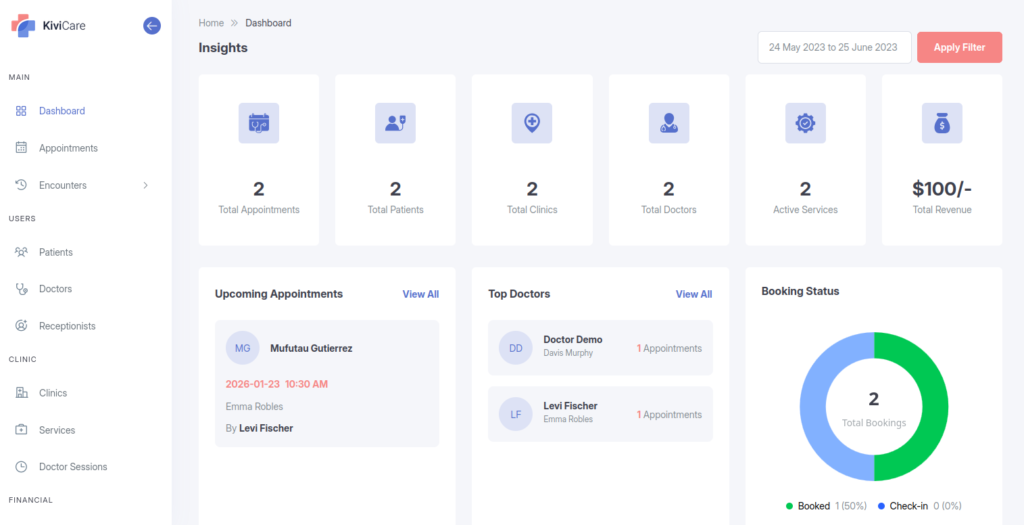
Dashboard AccessFull system dashboard
Clinic ManagementCreate, edit, delete all clinics
User ManagementManage all user types
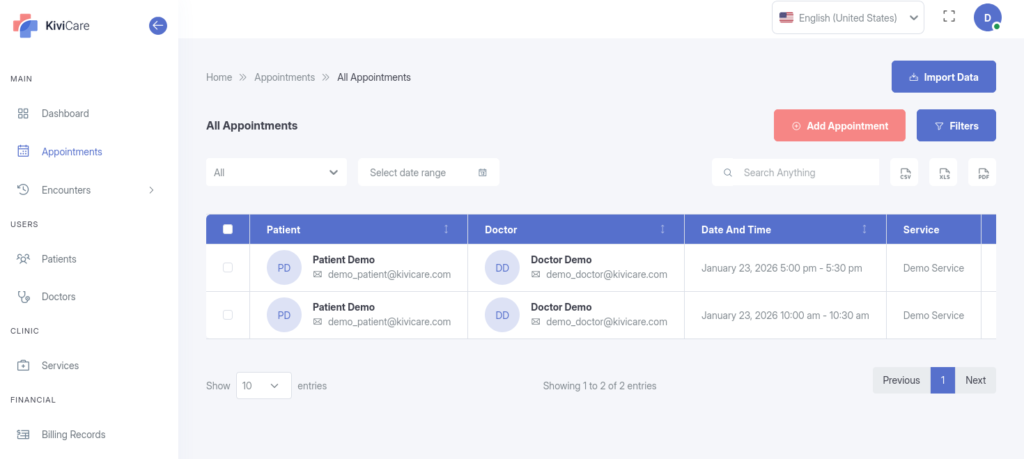
AppointmentsView, create, edit, delete all appointments
Patient RecordsFull access to all patient data
Medical Records ๐Ÿ”ท PROView all encounters and medical history
Billing & Invoices ๐Ÿ”ท PROComplete billing management
Reports ๐Ÿ”ท PROGenerate all reports
SettingsConfigure all system settings
PermissionsModify role capabilities

When to Use Administrator Role

  • System owners and IT administrators
  • Technical support personnel
  • Primary clinic owners managing multiple locations

CAUTION: Limit Administrator access to trusted users only as they have complete system control.


Clinic Admin

Manages day-to-day operations of a specific clinic without needing WordPress admin access.

Key Responsibilities

  • Clinic-level staff and patient management
  • Appointment and service configuration
  • Billing and reporting for their clinic
  • Operational oversight

Access Highlights

  • Manage doctors, receptionists, and patients within their clinic
  • Manage clinic profile, services, taxes, and schedules
  • Access encounters, prescriptions, medical records, and billing
  • Configure custom fields and forms for their clinic
  • Generate clinic-specific reports
  • Limited to assigned clinic data only
  • Cannot access the WordPress admin panel
  • Cannot modify system-wide settings
FeatureAccess Level
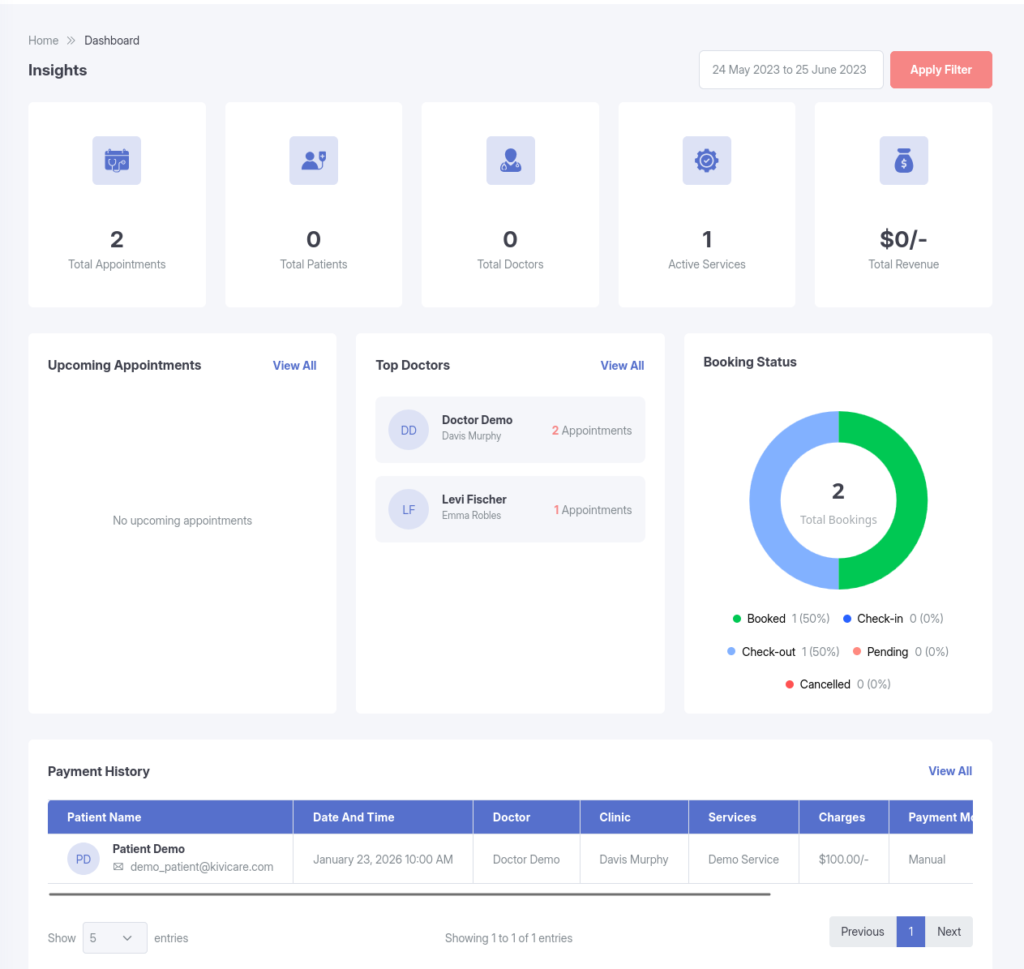
Dashboard AccessClinic-specific dashboard
Clinic ManagementEdit own clinic details
User ManagementAdd/manage doctors, receptionists, patients
AppointmentsFull access within their clinic
Patient RecordsView all patients in their clinic
Medical Records ๐Ÿ”ท PROAccess all encounters in their clinic
Billing & Invoices ๐Ÿ”ท PROManage billing for their clinic
Reports ๐Ÿ”ท PROGenerate clinic-specific reports
SettingsConfigure clinic-level settings
ServicesManage services offered by their clinic

When to Use the Clinic Admin Role

  • Clinic managers handling daily operations
  • Branch managers in multi-location setups
  • Practice managers who need operational control without technical access

IMPORTANT: Clinic Admins provide the perfect balance between operational authority and system security.


Doctor

Focused on clinical workflows and patient care without administrative overhead.

Key Responsibilities

  • Conduct patient consultations
  • Maintain medical records
  • Create prescriptions and encounter notes
  • Manage personal schedule and availability

Access Highlights

  • View and manage assigned appointments
  • Create and manage encounters (SOAP notes)
  • Add and update medical records
  • Create and manage prescriptions
  • View patient history and reports
  • Manage personal availability and clinic schedules
  • Access patients assigned to them
  • No access to clinic-wide administrative settings
  • Cannot manage other doctors or staff
  • Limited billing access (view only)
FeatureAccess Level
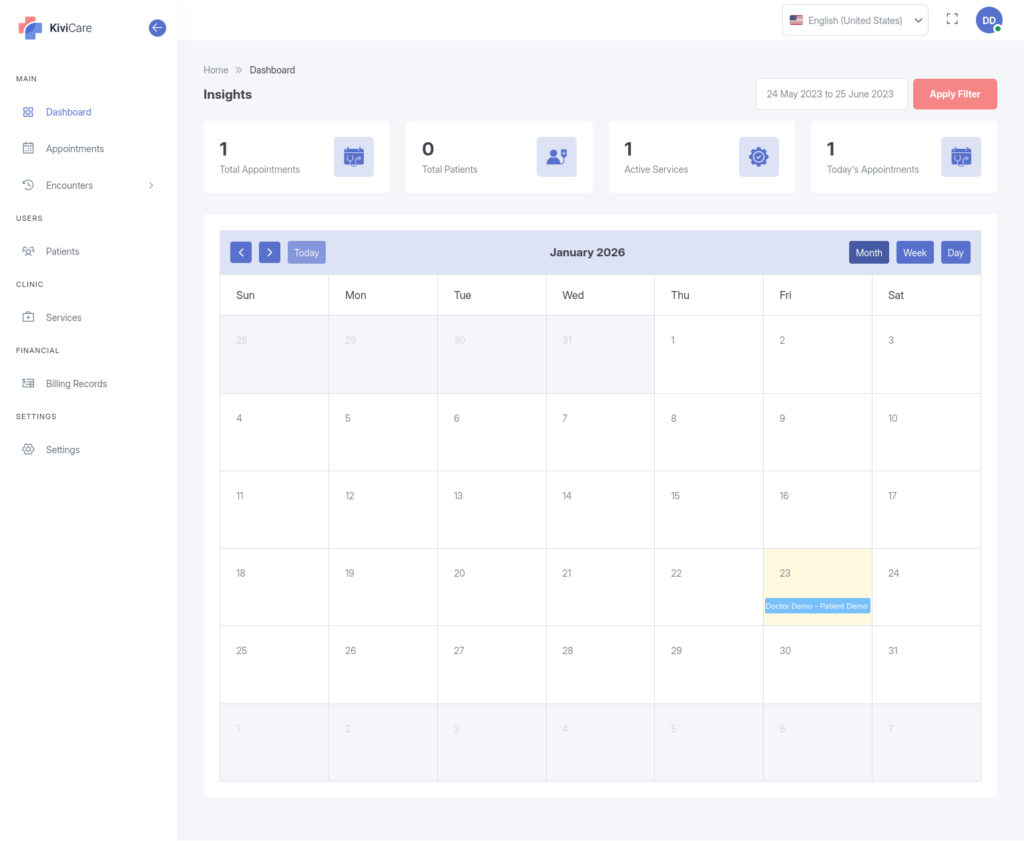
Dashboard AccessDoctor-specific dashboard
AppointmentsView the patients they are treating
Patient RecordsView patients they are treating
Medical Records ๐Ÿ”ท PROCreate and view Patient Medical Records
PrescriptionsCreate and manage prescriptions
Reports ๐Ÿ”ท PROView patient reports and own statistics
ScheduleManage personal availability
ServicesCreate and manage services
Billing ๐Ÿ”ท PROView billing information
Encounter (Medical History)Access patient medical history

Doctor Workflow Example

  1. Morning: Review today’s appointment schedule
  2. Patient Arrival: Access patient medical history
  3. Consultation: Record encounter notes (SOAP format)
  4. Treatment: Create prescriptions and treatment plans

When to Use the Doctor Role

  • Practicing physicians providing direct patient care
  • Specialists conducting consultations

๐Ÿ“ NOTE: Doctors focus purely on clinical tasks without administrative distractions.


Receptionist

Handles front-desk and administrative operations to keep the clinic running smoothly.

Key Responsibilities

  • Appointment coordination and scheduling
  • Patient onboarding and registration
  • Daily clinic operations support
  • Billing assistance

Access Highlights

  • Create, edit, and manage appointments
  • Add and manage patients and doctors
  • Manage services and schedules
  • Handle billing and invoices
  • Assist with encounter and report management
  • No access to advanced system or clinic settings
  • Limited access to medical records (basic info only)

  • Cannot modify clinic configuration
FeatureCreate, edit doctor schedules, and availability
Dashboard AccessReceptionist dashboard
AppointmentsCreate, edit, reschedule, cancel
Patient RecordsAdd and edit basic patient information
Check-In/Check-OutProcess patient arrivals and departures
Billing ๐Ÿ”ท PROCreate invoices and process payments
ServicesCreate, edit available services
SessionsCreate, edit doctor schedules and availability
Reports ๐Ÿ”ท PROView appointment reports

Receptionist Daily Workflow

  1. Morning Setup: Review today’s appointment schedule
  2. Patient Check-In: Process arriving patients
  3. Phone Calls: Handle appointment booking requests
  4. Walk-Ins: Register and schedule walk-in patients
  5. Rescheduling: Manage appointment changes
  6. Patient Check-Out: Process departures and payments
  7. End of Day: Prepare next day’s schedule

When to Use the Receptionist Role

  • Front desk staff managing appointments
  • Administrative assistants handling patient coordination
  • Call center staff booking appointments

๐Ÿ’ก TIP: Receptionists are the first point of contact and keep the clinic operations flowing efficiently.


Patient

Provides self-service access to patients while maintaining privacy and security.

Key Responsibilities

  • Manage personal appointments
  • View personal medical data
  • Update profile information
  • Track billing and payments

Access Highlights

  • Book, view, reschedule, and cancel appointments
  • View prescriptions and medical records
  • Access bills and reports
  • Update personal profile and password
  • Submit and manage reviews
  • Download medical reports
  • Patients can only access their own data
  • No access to other patients’ information
  • Cannot view clinic administrative data
FeatureAccess Level
Dashboard AccessPersonal patient portal
AppointmentsBook, view, reschedule, cancel own appointments
EncounterView own Encounter (Medical History)
PrescriptionsView and download prescriptions
Billing ๐Ÿ”ท PROView bills and payment history
Reports ๐Ÿ”ท PROAccess own lab reports and documents
ProfileUpdate personal information
ReviewsSubmit doctor/clinic reviews

Patient Portal Features

  1. Self-Service Booking: Book appointments online 24/7
  2. Appointment Reminders: Receive email notifications (SMS/WhatsApp with Pro)
  3. Medical History: Access complete medical records
  4. Prescription Access: View and download prescriptions
  5. Billing Transparency: View all charges and payments
  6. Profile Management: Update contact and demographic information

When to Use Patient Role

  • All registered patients receiving care
  • Family members managing appointments (with consent)
  • Caregivers accessing patient information (with authorization)

โ„น๏ธ IMPORTANT: Patient data privacy is strictly enforced. Each patient can only see their own information.


Permission Management

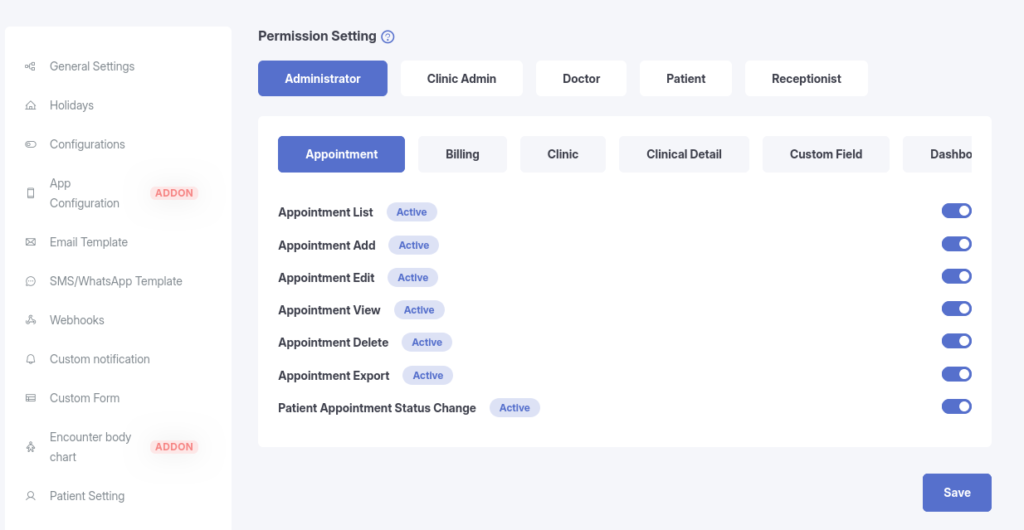
KiviCare allows administrators to fine-tune permissions for each role, providing flexibility to match your clinic’s specific needs.

Where to Manage Permissions

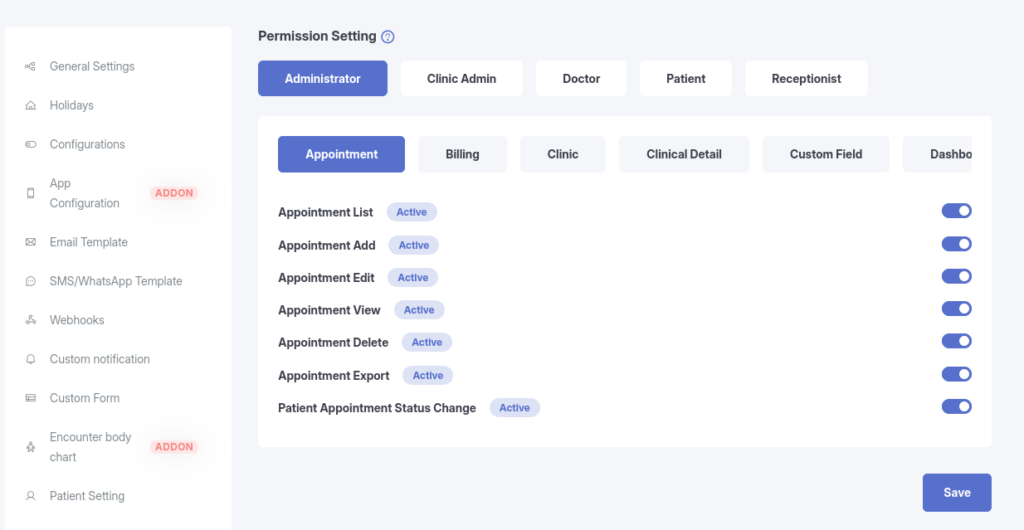
Navigate to: KiviCare Dashboard โ†’ Settings โ†’ Permission Settings

From here, admins can:

  • Enable or disable individual capabilities per role
  • Control access to specific menus and actions

Permission Categories

Permissions are organized into logical categories:

1. Dashboard & Navigation

  • Which dashboard widgets are visible
  • Menu items and navigation access

2. Data Management

  • Create, read, update, delete (CRUD) permissions
  • Export and import capabilities
  • Bulk action permissions

3. Clinical Features

  • Appointment management
  • Patient management
  • Receptionist management
  • Doctor management
  • Encounter management
  • Prescription creation
  • Medical record access
  • Billing and invoicing

4. Administrative Functions

  • User management
  • Clinic configuration
  • Service and schedule management
  • Billing and invoicing
  • Reports
  • Settings

5. Reporting

  • Which reports can be generated
  • Data export permissions
  • Analytics access

Configuring Permissions

  1. Navigate to Settings โ†’ Permission Settings
  2. Select the role you want to configure
  3. Review the capability checklist
  4. Enable or disable specific permissions
  5. Save changes
  6. Changes apply immediately to all users with that role

Permission Inheritance

  • Administrator: Has all permissions by default
  • Clinic Admin: Has clinic-level permissions
  • Receptionist: Has clinical permissions
  • Doctor: Has clinical permissions
  • Patient: Has personal data access only

โš ๏ธ WARNING: Disabling critical permissions may prevent users from performing their core duties. Test changes carefully.


Role Capability Matrix

Below is a comprehensive matrix showing what each role can do across key features:

Appointment Management

CapabilityAdminClinic AdminDoctorReceptionistPatient
View All Appointmentsโœ…โœ… Clinic Onlyโœ… Own Onlyโœ… Clinic Onlyโœ… Own Only
Create Appointmentsโœ…โœ…โœ…โœ…โœ…
Edit Appointmentsโœ…โœ…โœ… Ownโœ…โœ… Own
Delete Appointmentsโœ…โœ…โœ… Ownโœ…โŒ
Cancel Appointmentsโœ…โœ…โœ…โœ…โœ… Own
Check-In Patientsโœ…โœ…โœ…โœ…โŒ
Export Appointmentsโœ…โœ…โœ… Ownโœ…โŒ

Patient Management

CapabilityAdminClinic AdminDoctorReceptionistPatient
View All Patientsโœ…โœ… Clinic Onlyโœ… Assignedโœ… Clinic Onlyโœ… Self
Add Patientsโœ…โœ…โœ…โœ…โŒ
Edit Patientsโœ…โœ…โœ… Assignedโœ…โœ… Own Profile
Delete Patientsโœ…โœ…โŒโŒโŒ
Export Patient Dataโœ…โœ…โŒโŒโœ… Own Data
View Medical Historyโœ…โœ…โœ… Assignedโš ๏ธ Limitedโœ… Own

Clinical Records

CapabilityAdminClinic AdminDoctorReceptionistPatient
View Encountersโœ…โœ…โœ… Ownโš ๏ธ Limitedโœ… Own
Create Encountersโœ…โœ…โœ…โŒโŒ
Edit Encountersโœ…โœ…โœ… OwnโŒโŒ
Delete Encountersโœ…โœ…โŒโŒโŒ
Create Prescriptionsโœ…โœ…โœ…โŒโŒ
View Prescriptionsโœ…โœ…โœ… Ownโš ๏ธ Limitedโœ… Own
Medical Records ๐Ÿ”ท PROโœ…โœ…โœ… Assignedโš ๏ธ Limitedโœ… Own

Staff & Clinic Management

CapabilityAdminClinic AdminDoctorReceptionistPatient
Manage Clinics ๐Ÿ”ท PROโœ… Allโœ… OwnโŒโŒโŒ
Add Doctorsโœ…โœ…โŒโŒโŒ
Edit Doctorsโœ…โœ…โœ… Own ProfileโŒโŒ
Add Receptionistsโœ…โœ…โŒโŒโŒ
Manage Servicesโœ…โœ…โŒโš ๏ธ View Onlyโš ๏ธ View Only
Manage Schedulesโœ…โœ…โœ… Ownโš ๏ธ View Onlyโš ๏ธ View Only
Configure Settingsโœ…โœ… ClinicโŒโŒโŒ

Billing & Financial ๐Ÿ”ท PRO

CapabilityAdminClinic AdminDoctorReceptionistPatient
View All Billsโœ…โœ… Clinic Onlyโš ๏ธ Limitedโœ… Clinic Onlyโœ… Own Only
Create Billsโœ…โœ…โŒโœ…โŒ
Edit Billsโœ…โœ…โŒโœ…โŒ
Process Paymentsโœ…โœ…โŒโœ…โœ… Own
Generate Invoicesโœ…โœ…โŒโœ…โŒ
Financial Reports ๐Ÿ”ท PROโœ…โœ… Clinic OnlyโŒโš ๏ธ LimitedโŒ

Reports & Analytics ๐Ÿ”ท PRO

CapabilityAdminClinic AdminDoctorReceptionistPatient
Dashboard Statisticsโœ… Allโœ… Clinicโœ… Personalโš ๏ธ Limitedโœ… Personal
Generate Reportsโœ… Allโœ… Clinicโœ… Personalโš ๏ธ LimitedโŒ
Export Reportsโœ…โœ…โœ… Ownโš ๏ธ Limitedโœ… Own Data
View Analyticsโœ…โœ…โœ… Personalโš ๏ธ LimitedโŒ

Legend:

  • โœ… Full Access
  • โš ๏ธ Limited/View Only Access
  • โŒ No Access

How Access Control Works

Understanding how KiviCare enforces access control helps ensure security and proper system usage.

  • Dynamic Menu Display: Menu items are automatically hidden if a user lacks permission
  • Conditional Buttons: Action buttons (edit, delete, etc.) only appear when allowed
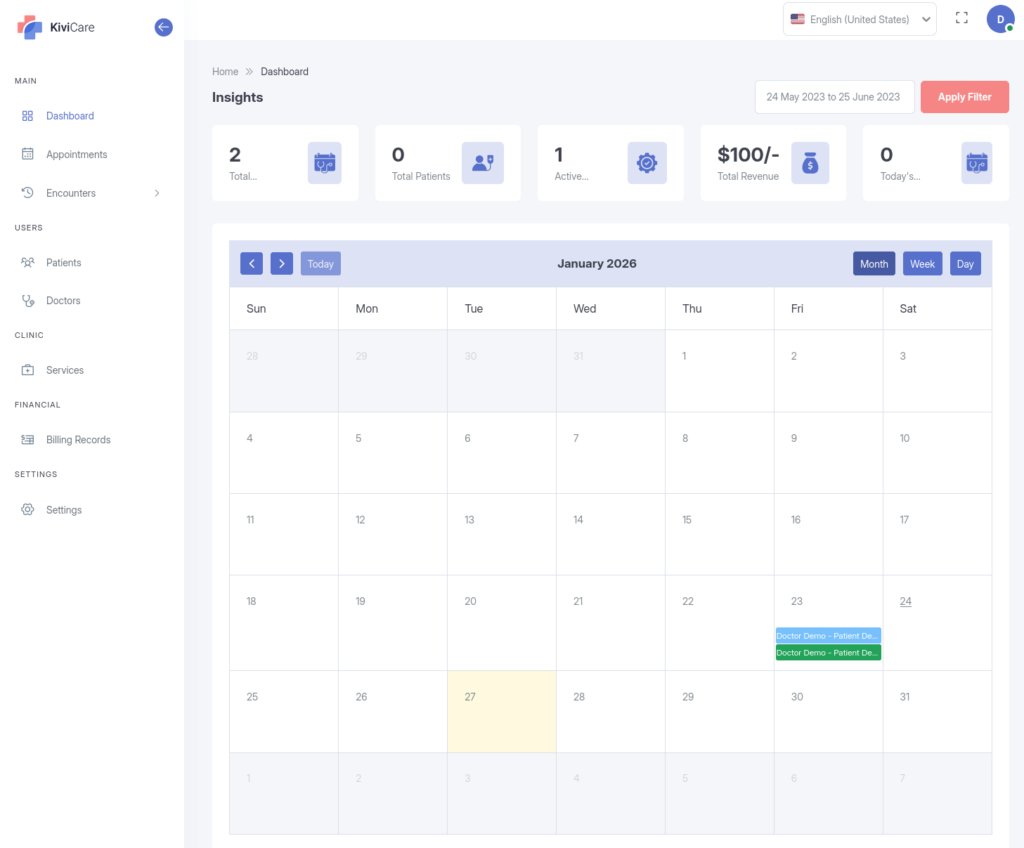
  • Role-Based Dashboards: Each role sees a customized dashboard relevant to their work

Backend Security

  • Capability Checks: All actions are validated against user capabilities
  • API Endpoint Protection: REST API requests verify permissions
  • Database Query Filtering: Database queries automatically filter data based on role
  • Action Hooks: WordPress action hooks ensure multi-layer security

Data Isolation

  • Clinic-Based Filtering: Multi-clinic setups isolate data per clinic
  • Doctor-Patient Association: Doctors only see patients assigned to them
  • Personal Data Protection: Patients only access their own records
  • Role Hierarchy: Lower roles cannot access higher-level administrative data

Suggestions & Improvements

Your email address will not be published. Required fields are marked *