The Encounter Dashboard is the central workspace for Doctors and Clinic Admins to document, manage, and complete a patient’s medical visit. It brings together all essential clinical information—such as notes, prescriptions, reports, and billing—into a single, unified interface.
This dashboard streamlines clinical workflows and ensures accurate documentation throughout the patient encounter.
1. Accessing the Dashboard
To open an encounter dashboard:
Navigate to Encounters → Encounter List
Locate the required encounter (search by patient name or date)
Click the Dashboard button for the selected encounter
2. Dashboard Interface
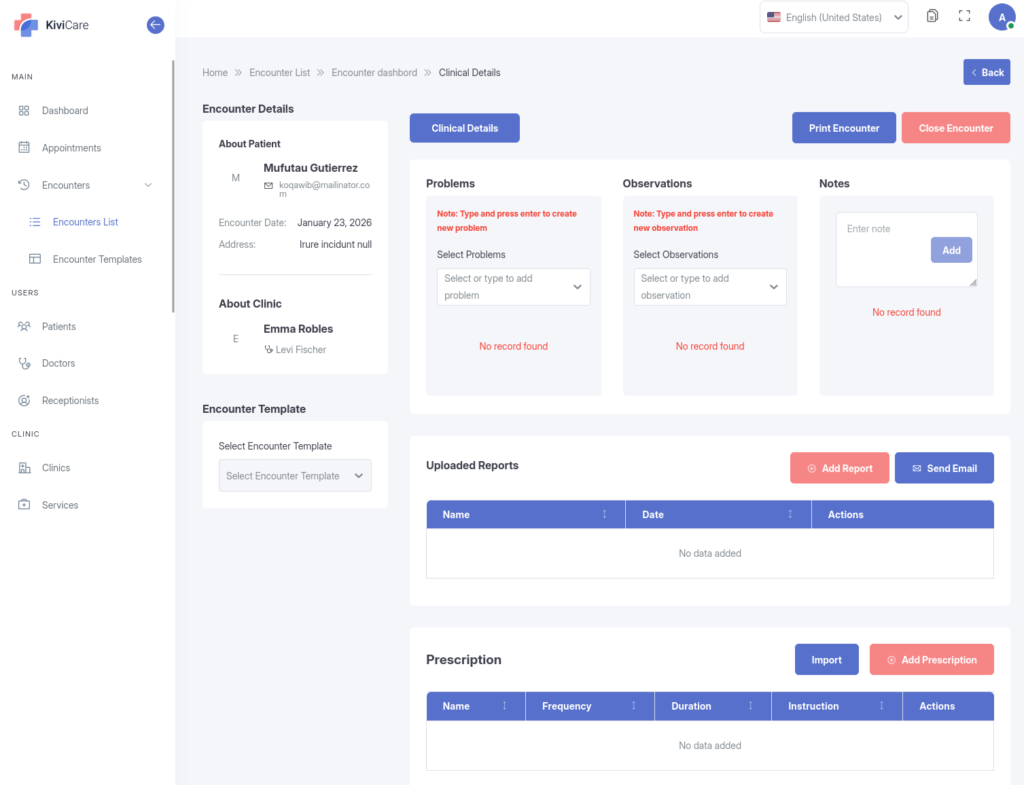
The Encounter Dashboard is divided into two primary areas to improve usability and efficiency. Description: Full-screen view of the Encounter Dashboard highlighting the left sidebar with patient and clinic details, the main workspace with the Clinical Details tab active, the top navigation tabs (Clinical Details, Body Chart), and the Close Encounter button.
A. Left Sidebar: Encounter Details
The left sidebar provides quick context for the active medical session and is divided into two sections:
1. About Patient
Profile: Patient name and email address
Encounter Date: Scheduled date of the visit
Address: Patient’s registered address
2. About Clinic
Status: Current encounter status (Open, Closed, or Pending)
Clinic Profile: Clinic name and assigned doctor
Created: Date and time the encounter record was created
Additional option in the sidebar:
Encounter Template (Pro Feature): Dropdown to apply a pre-defined clinical template
B. Main Workspace
The main workspace uses a tab-based layout to organize clinical tasks:
Clinical Details: Primary area for medical documentation
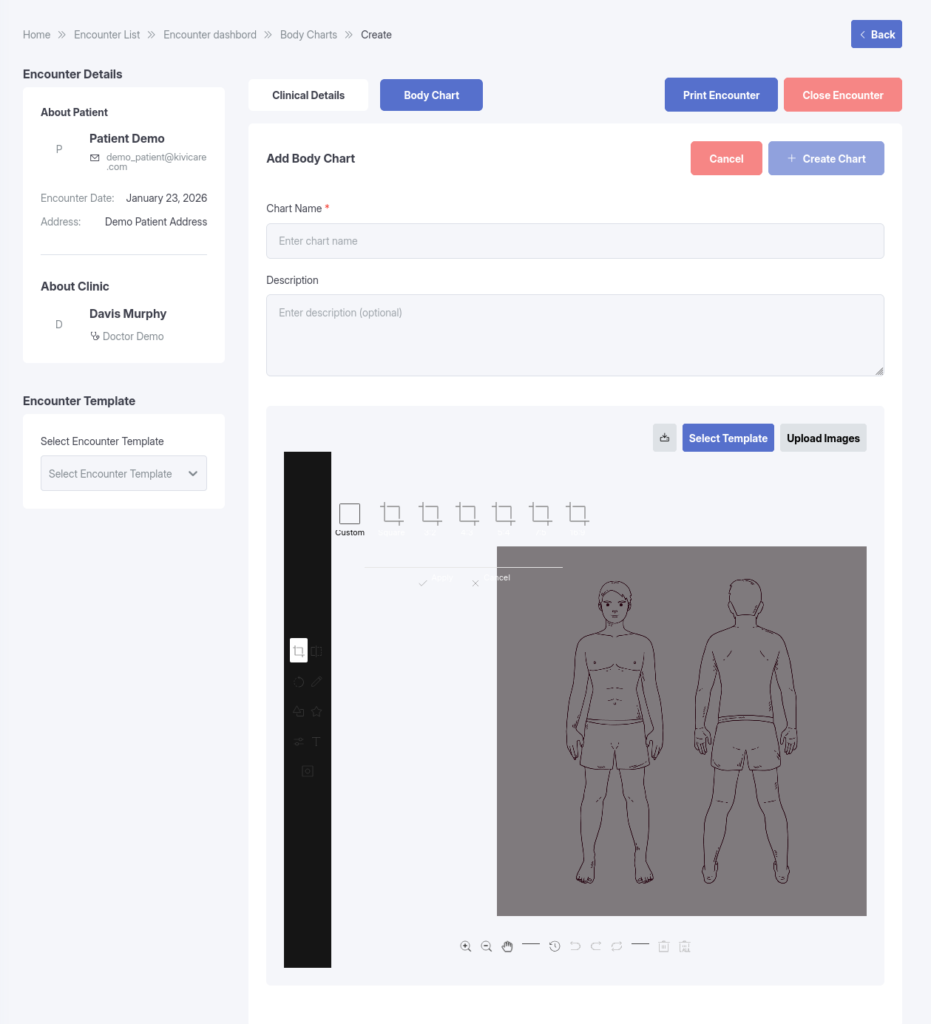
Body Chart (Add-on): Visual tools for marking pain points or symptoms
Custom Forms: Additional forms configured for the encounter type
3. Clinical Details Management
The Clinical Details tab is the default view and is used to record patient history and treatment information.