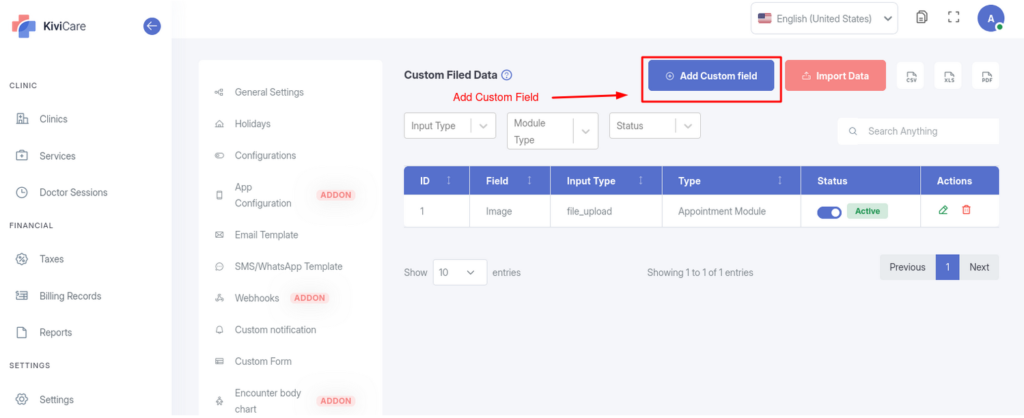
The Custom Field Settings feature allows administrators to extend the default data forms in KiviCare by adding new, customized fields. This helps clinics capture information that is not included in standard forms, such as:
Allergies
Reference Number
Secondary Phone
These fields can be added to different modules within the system based on your clinic’s needs.
2. Configuration Fields
When creating or editing a custom field, the following parameters can be configured:
A. Core Settings
Module Select where the custom field will appear:
Doctor Module – Adds the field to the doctor’s profile
Patient Module – Adds the field to patient registration and edit forms
Patient Encounter Module – Adds the field to encounter/medical record forms
Appointment Module – Adds the field to the appointment booking form
Doctor (Appointment Module only) If Appointment Module is selected, you can assign the field to a specific doctor.
Leave blank to apply the field to all doctors.
Label The display name of the field shown to users. Example: “Previous Surgery”
Input Type Defines the type of data the field will accept:
Text – Single-line text input
Number – Numeric values only
Textarea – Multi-line input for longer descriptions
File Upload – Upload documents or images (configurable file types)
Select / Multi Select – Dropdown list for single or multiple selections
Radio / Checkbox – Selection buttons for single or multiple options
Calendar – Date picker input
B. Validation & Display
Placeholder Text displayed inside the field before the user enters data. Example: “Enter details here…”
Not available for File Upload fields.
Options(Select / Radio / Checkbox only) Define the list of choices available to the user.
Type a value and press Enter to add it to the list.
File Types(File Upload only) Specify which file formats are allowed, such as:
JPEG
PDF
DOCX
Status Controls field visibility:
Active – Field is visible and usable immediately
Inactive – Field is saved as a draft or hidden from users
Validation (Mandatory Field) Mark the field as required.
Users must complete this field before submitting the form.
3. Managing Custom Fields
List View
View all created custom fields along with:
Module Type
Input Type
Status
Filtering
Use dropdown filters to narrow results by:
Input Type (e.g., File Upload)
Module Type (e.g., Patient, Appointment)
Actions
Edit
Update existing fields (e.g., correct a label, add new options)
Delete
Permanently remove a custom field ⚠️ Warning: Deleting a field may result in data loss for records using it.
Export / Import(Pro Feature)
Export custom field configurations to CSV, Excel, or PDF
Import configurations to migrate settings between sites