The Holidays feature in KiviCare allows administrators to manage unavailability for clinics or individual doctors. Marking dates as holidays prevents patients from booking appointments during those periods and helps ensure accurate scheduling.
2. Accessing Holiday Settings
Log in to the KiviCare Dashboard.
Navigate to Settings.
Select the Holidays tab.
3. Viewing the Holiday List
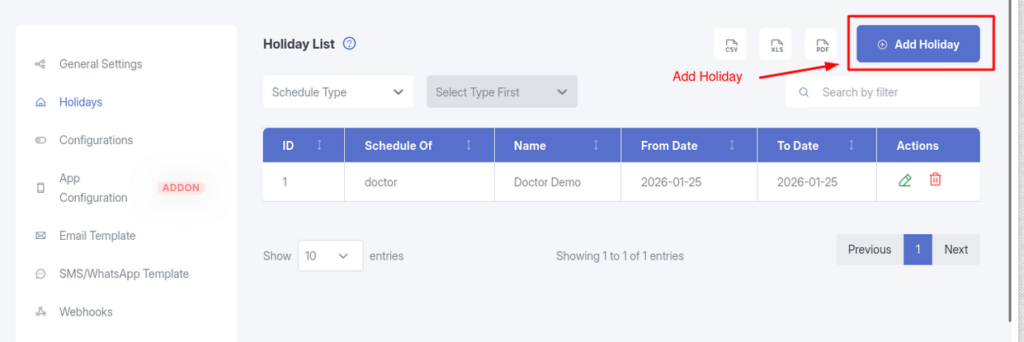
The main screen displays a table containing all upcoming holidays and off-days.
Holiday List Columns
Schedule Of Indicates whether the holiday applies to the entire Clinic or a specific Doctor.
Name Displays the name of the clinic or doctor.
From Date Start date of the holiday period.
To Date End date of the holiday period.
Actions
Edit (Pencil Icon): Modify holiday details
Delete (Trash Icon): Remove the holiday and restore availability
4. Adding a New Holiday
To block appointment bookings for a clinic or doctor:
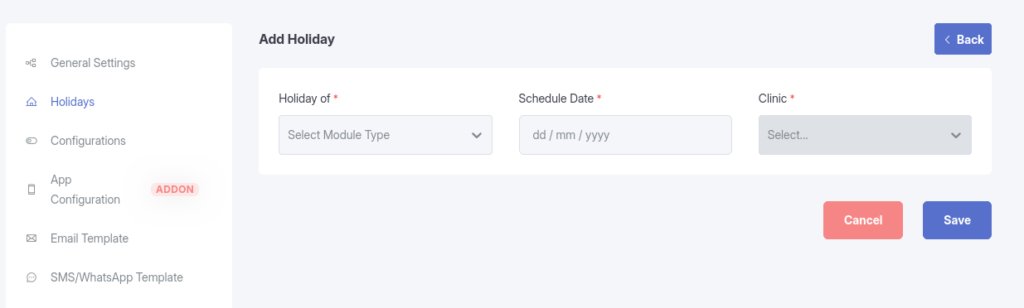
Click the Add Holiday button in the top-right corner.
In the Holiday Of dropdown, select:
Clinic – Closes the entire clinic
Doctor – Marks a specific doctor as unavailable
Select the Clinic or Doctor name from the list.
Choose the Schedule Date Range (Start Date to End Date).
Click Save.
⚠️ Important Warning Saving a holiday will automatically cancel any existing appointments scheduled for the selected clinic or doctor during the specified date range.
5. Editing a Holiday
Locate the holiday in the list.
Click Edit in the Actions column.
Update the schedule date range or assigned clinic/doctor.
Click Update to save changes.
6. Exporting Holiday Data
You can export the holiday schedule for reporting or offline use.
Click the CSV, Excel, or PDF icons at the top-right of the holiday list to download the data.