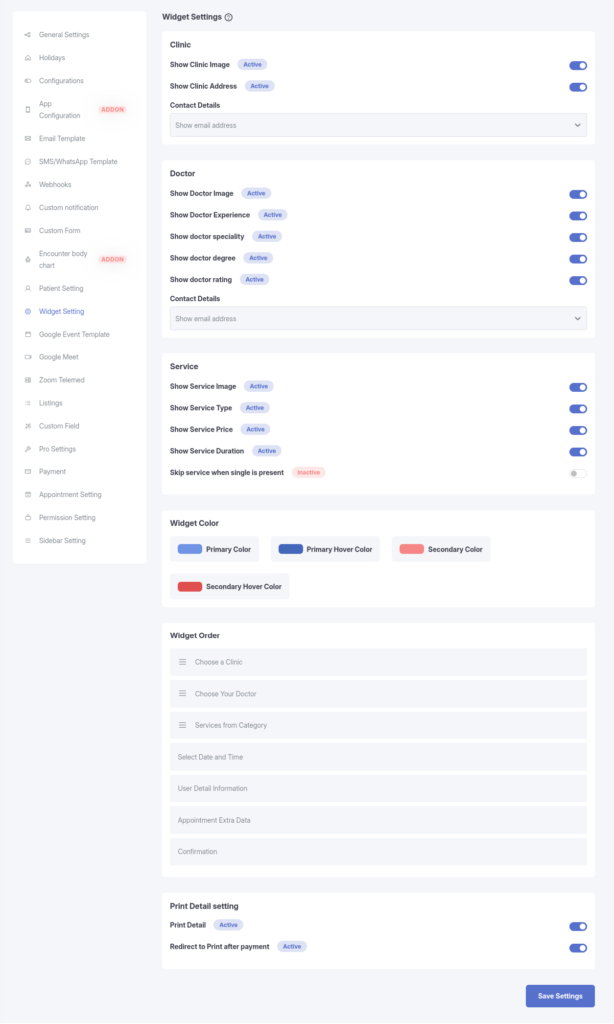
The Widget Settings section controls the appearance, behavior, and booking flow of the Appointment Booking Widget generated using the shortcode:
[kivicareBookAppointment]
These settings allow administrators to customize how clinic, doctor, and service information is presented to users during the appointment booking process.
🏥 Clinic Display Settings
These settings manage how clinic-related information appears in the appointment booking widget.
Available Options
Show Clinic Image: Displays the clinic image during appointment booking
Show Clinic Address: Displays the clinic address in the widget
Clinic Contact Details
Controls how clinic contact information is displayed:
Show Phone & Email
Show Only Phone
Show Only Email
Hide Contact Details
📝 Use case: Choose how much clinic information you want to share with patients during the booking process.
👨⚕️ Doctor Display Settings
These settings define which doctor-related details are visible to patients during appointment booking.
Available Options
Show Doctor Image: Displays the doctor’s profile image
Show Doctor Experience: Displays total years of experience
Show Doctor Speciality: Displays the doctor’s specialization(s)
Show Doctor Degree: Displays qualification or degree details
Show Doctor Rating: Displays the doctor’s rating (if available)
Doctor Contact Details
Controls how doctor contact information is displayed:
Show Phone & Email
Show Only Phone
Show Only Email
Hide Contact Details
📝 Use case: Helps patients make informed decisions while selecting a doctor.
🧾 Service Display Settings
These settings control how service-related information appears in the booking widget.
Available Options
Show Service Image: Displays the service image
Show Service Type: Displays the service category or type
Show Service Price: Displays the service price
Show Service Duration: Displays the service duration
Skip Service When Single Is Present
When enabled:
If only one service is available, the service selection step is skipped
The booking flow automatically moves to the next step
📝 Use case: Improves booking speed for clinics offering a single service.
🎨 Widget Color Settings
These settings allow you to customize the color scheme of the appointment booking widget.
Color Options
Primary Color: Main action elements such as buttons and highlights
Primary Hover Color: Hover state for primary elements
Secondary Color: Secondary interface elements
Secondary Hover Color: Hover state for secondary elements
📝 Use case: Ensures the widget design matches your website’s branding.
🔀 Widget Order Settings
Booking Step Order
Allows administrators to rearrange the order of booking steps:
Clinic
Doctor
Service
You can reorder these tabs to control the appointment booking flow.
📝 Use case: Customize the booking journey based on clinic workflow or operational preferences.
🖨️ Enable Print Details
When enabled:
A Print Appointment Details button appears after successful booking
An Add to Calendar button is displayed, allowing users to add the appointment to:
Apple Calendar
Google Calendar
Outlook
Yahoo Calendar
When disabled:
Print and calendar options are hidden from users
🔁 Redirect to Print After Payment
When enabled:
After a successful WooCommerce payment, users are automatically redirected to the Print Appointment Details page
📝 Use case: Ideal for clinics that require patients to immediately print or save appointment details after payment.