This comprehensive guide covers everything you need to know about Clinic Admin Functions in KiviCare Lite. Whether you’re a beginner or an advanced user, this documentation will help you understand and implement this feature effectively.
Overview
Clinic Admin Functions is an essential component of the KiviCare EHR system, designed to streamline healthcare management processes. This feature integrates seamlessly with other modules to provide a comprehensive solution for medical practices.
Key Features
Easy to use and intuitive interface
Seamless integration with existing workflows
Comprehensive data management capabilities
Real-time updates and notifications
Customizable settings and configurations
Getting Started
To begin using Clinic Admin Functions, follow these simple steps:
Navigate to the appropriate section in your KiviCare dashboard
Configure the necessary settings according to your requirements
Test the functionality to ensure everything works as expected
Test the functionality to ensure everything works as expected
Train your staff on how to use this feature effectively
Clinic Admin Dashboard
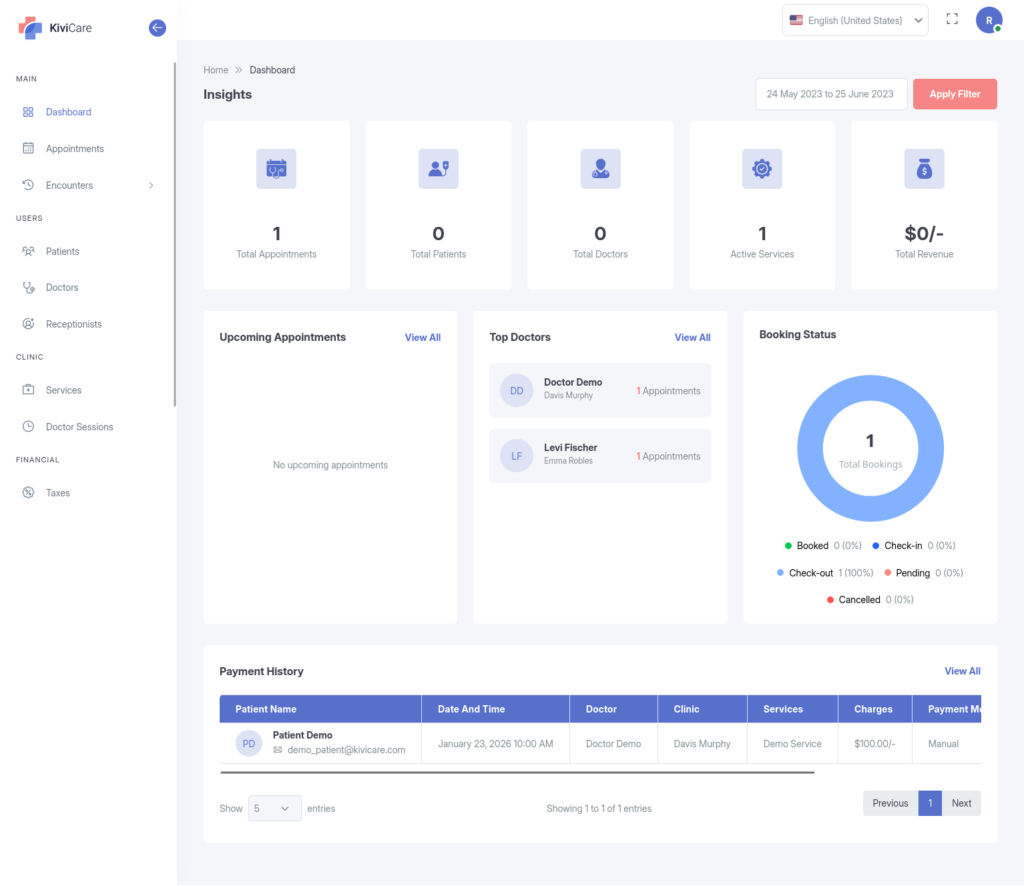
Your daily operations begin at the Dashboard. This is a high-level command center that provides real-time insights into the clinic’s performance.
Key Statistics: Instantly view the total count of Patients, Doctors, Appointments, and Revenue. If you have the Pro version, you can also see the total number of Clinics.
Activity Feeds: The dashboard lists Upcoming Appointments for the day and highlights Top Doctors based on performance.
Financial & Demographic Data: Visual charts display recent Payment History and Booking Status , helping you understand your revenue flow and patient base. You can filter all these statistics by specific date ranges.
Staff Management
As an Admin, you are responsible for onboarding and managing the clinic’s workforce.
Doctor Management
You have full control over doctor profiles.
Onboarding: Create new doctor accounts, including their specialization, qualifications, and profile photos.
Credentials: Generate and email login credentials directly to doctors. If a doctor loses access, you can securely resend their credentials.
Assignment: Assign doctors to specific services and manage their personal details.
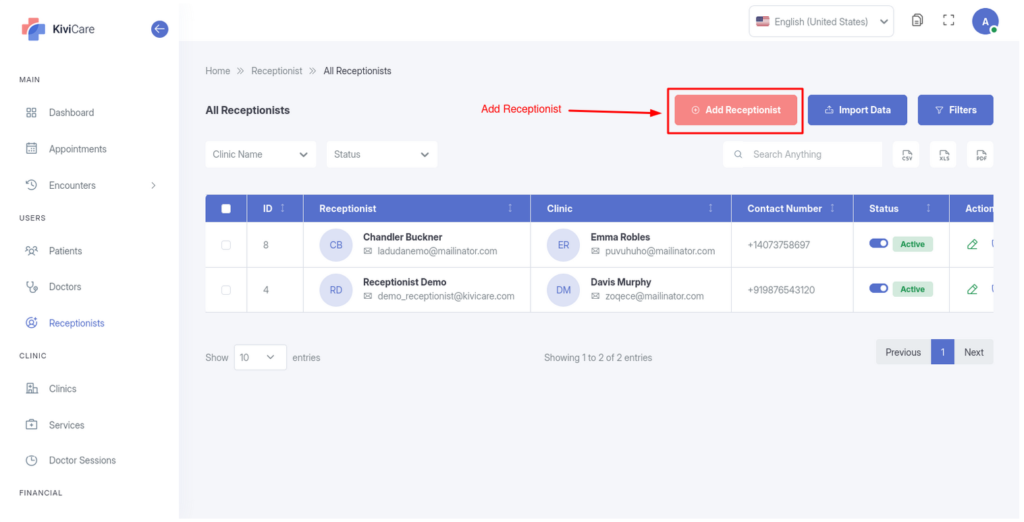
Receptionist Management
You also manage the front-desk staff.
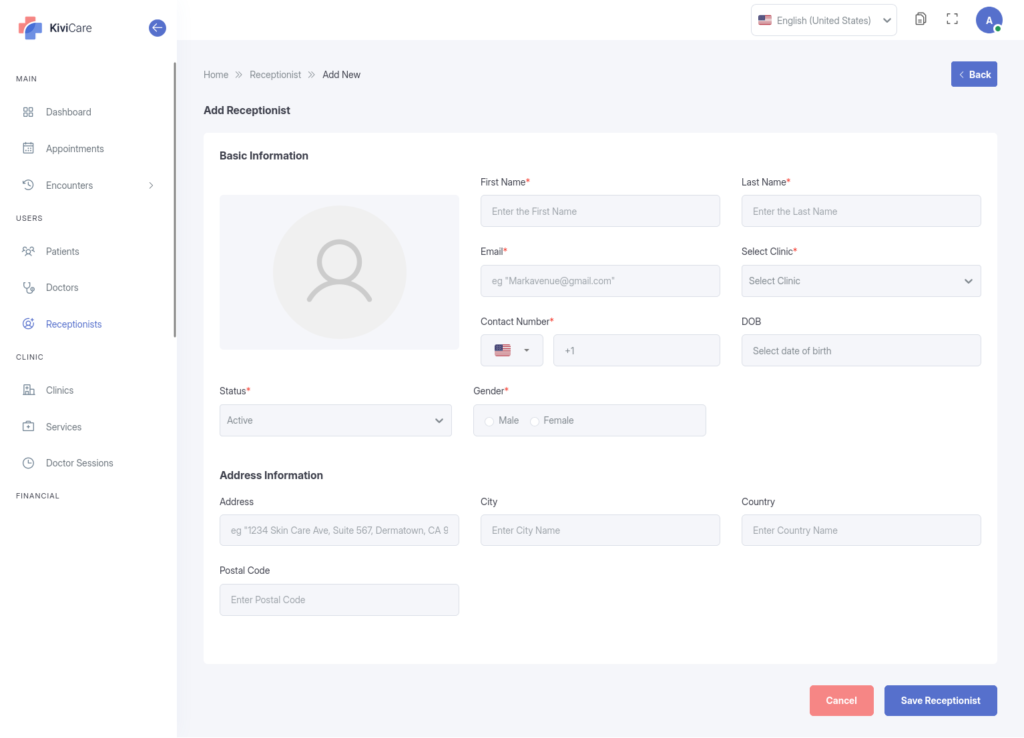
Staff Accounts: Create accounts for receptionists and assign them to specific departments.
Permissions: Managing receptionists allows you to delegate appointment scheduling and basic patient intake tasks while you oversee the broader operations.
Patient Management
The Administrator has a 360-degree view of the entire patient database.
Registration: Register new patients with comprehensive details including medical history, insurance info, and emergency contacts.
Patient Profile: Access a unified view for any patient that includes their Past/Upcoming Appointments, Medical Records, Prescriptions, Invoices, and Lab Reports.
Portal Access: You can create and resend login credentials to patients, allowing them to use the patient portal/app.
Service Management
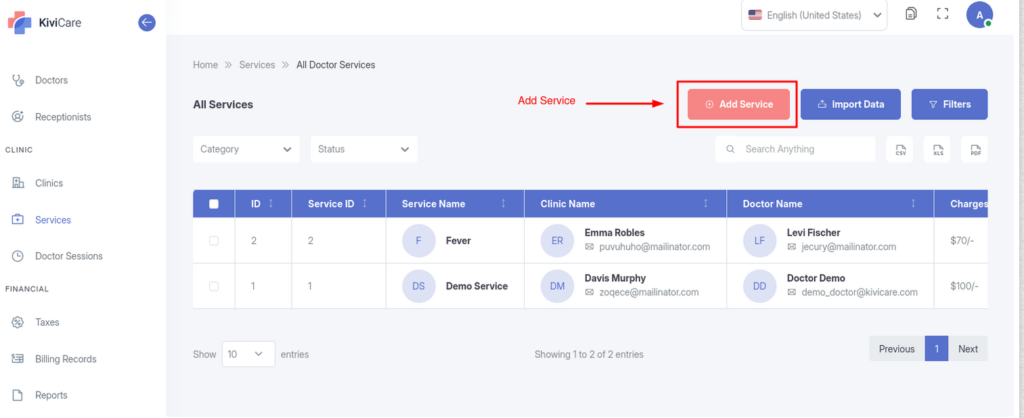
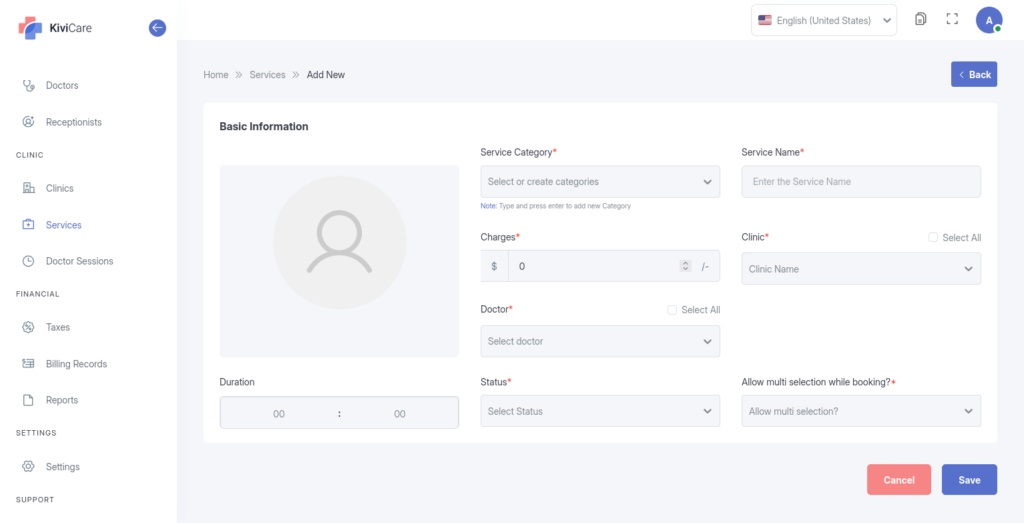
Define the “menu” of medical services your clinic offers. For each service, you can configure:
Service Name & Description
Pricing: Standard costs for the service.
Duration: How much time (in minutes) an appointment slot requires.
Staff Assignment: Which doctors are qualified to perform this service.
Doctor Sessions (Scheduling)
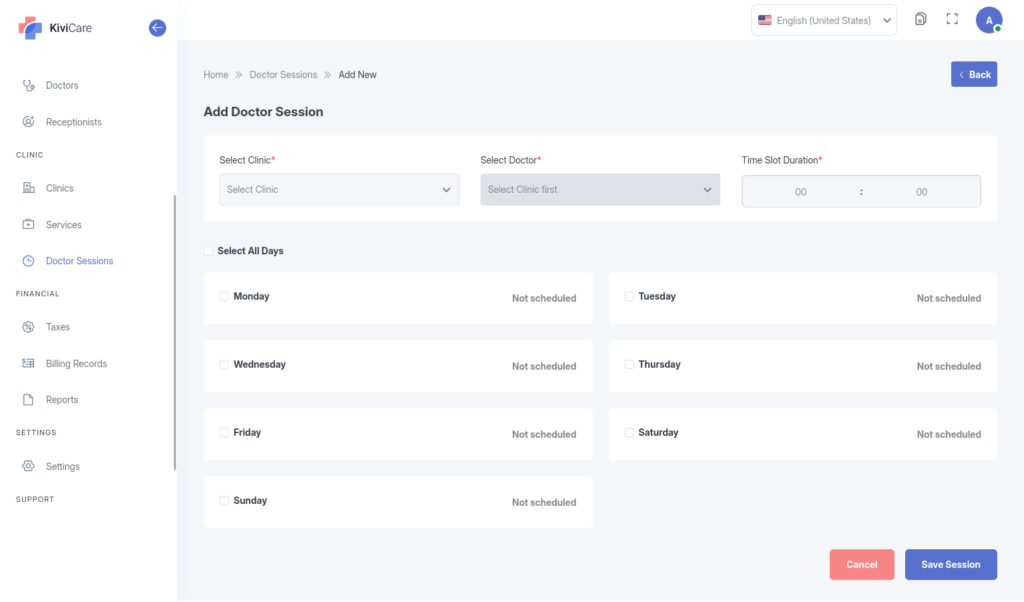
To allow online booking, you must define when doctors are available.
Session Creation: Set up specific time slots (Start Time/End Time) for each doctor.
Availability: Define which days of the week these sessions repeat.
Holiday Management
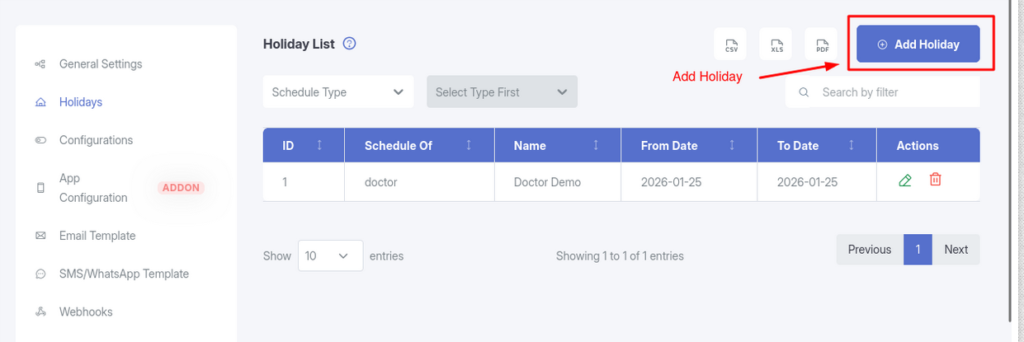
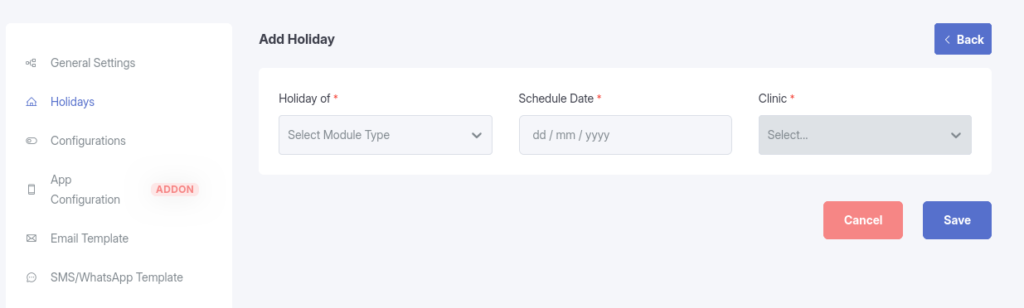
Prevent scheduling conflicts by adding clinic holidays. You can mark specific dates as “Full Day” or “Half Day” closures, which automatically blocks appointment bookings for those times.
Appointment Management
While receptionists often handle this, Admins have superior control over the schedule.
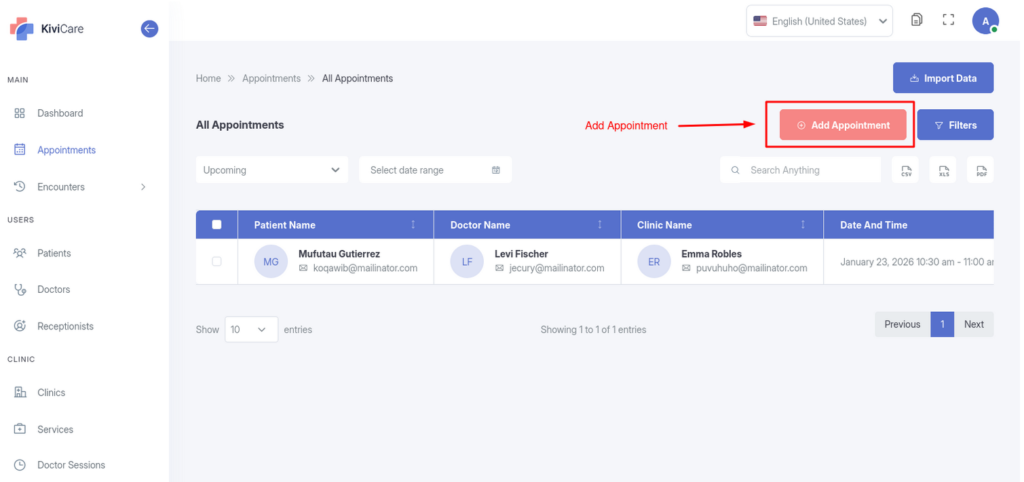
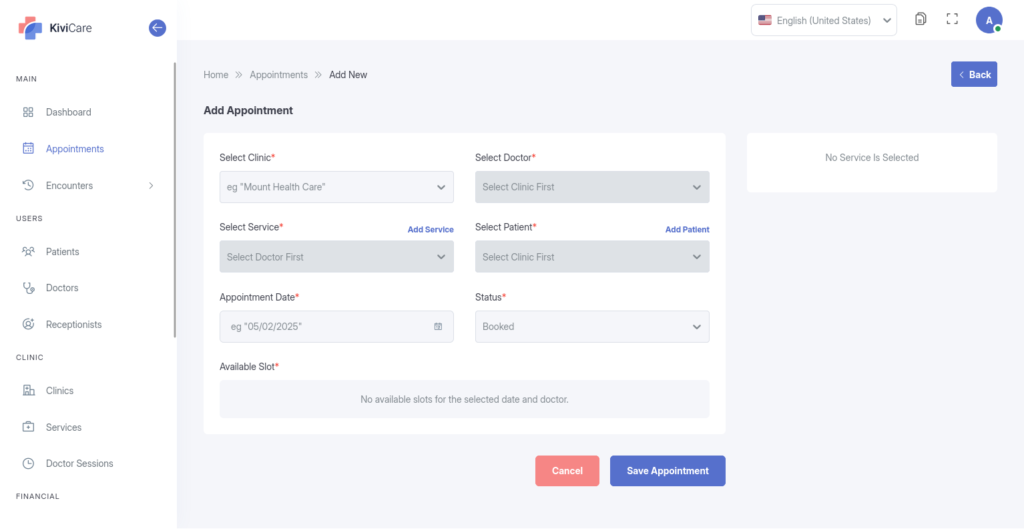
Booking: Schedule In-person or Video consultations.
Status Control: Manually update appointment statuses to track the patient journey: Pending,Booked, Check-in, Check-out , or Cancelled.
Modifications: Reschedule, edit notes, or delete appointments as necessary.
Clinical Operations (Encounters)
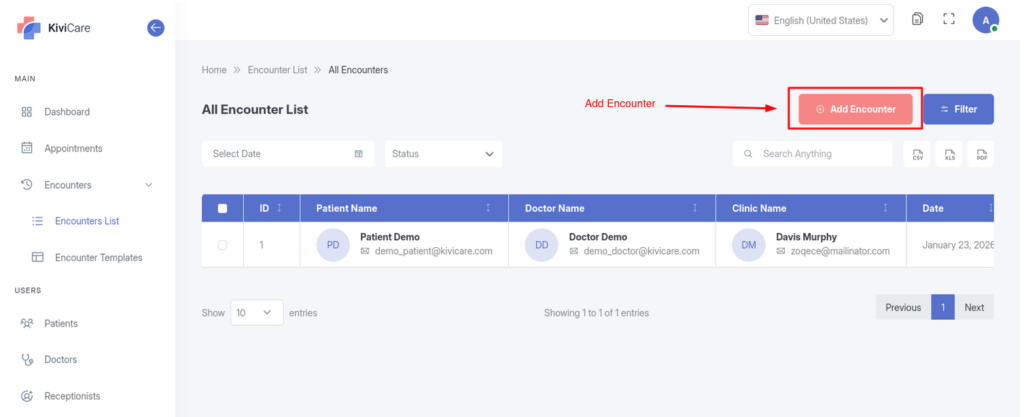
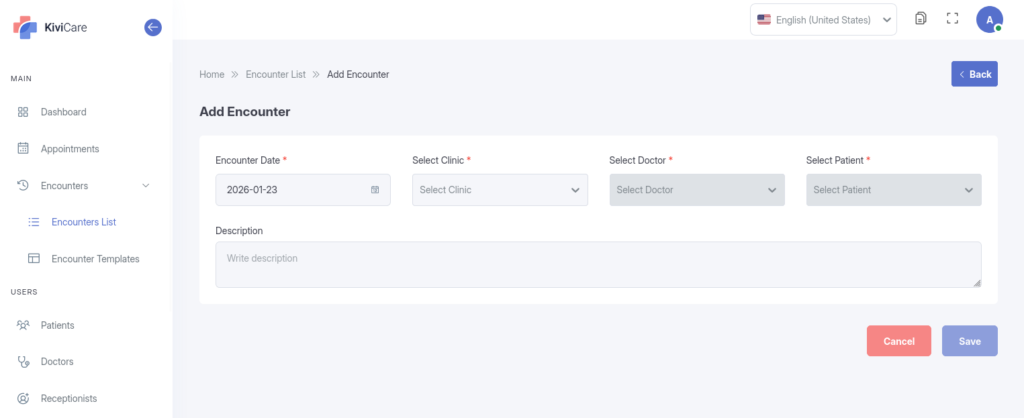
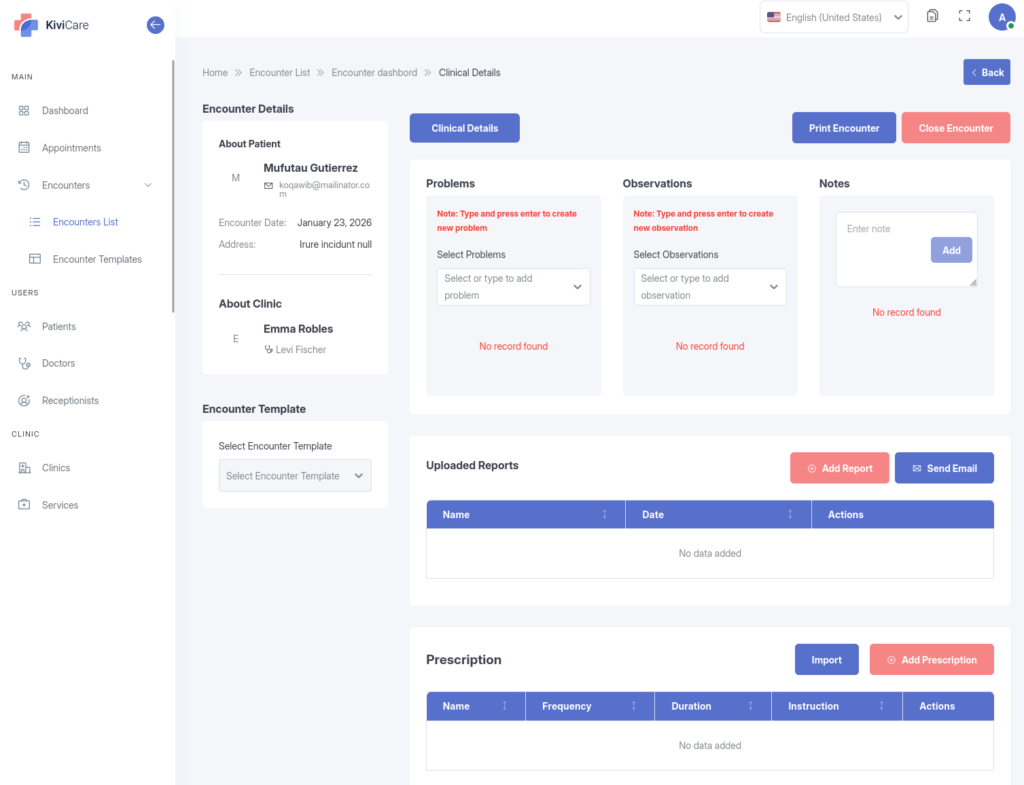
The “Encounter” is the digital record of a patient’s visit. As an Admin, you can view and manage these records to ensure compliance and accuracy.
Encounter Features
Clinical Data: Record Chief Complaints, Diagnoses, and Treatment Plans.
Prescriptions: Manage medication lists, dosages, and instructions within the visit record.
Medical Records: Upload and manage Lab Results, X-Rays, and other external reports.
Body Charts: Access visual body charts for specific medical annotations.
Financial Management(Available in Pro version)
You are responsible for the financial settings and billing operations of the clinic.
Billing & Invoicing
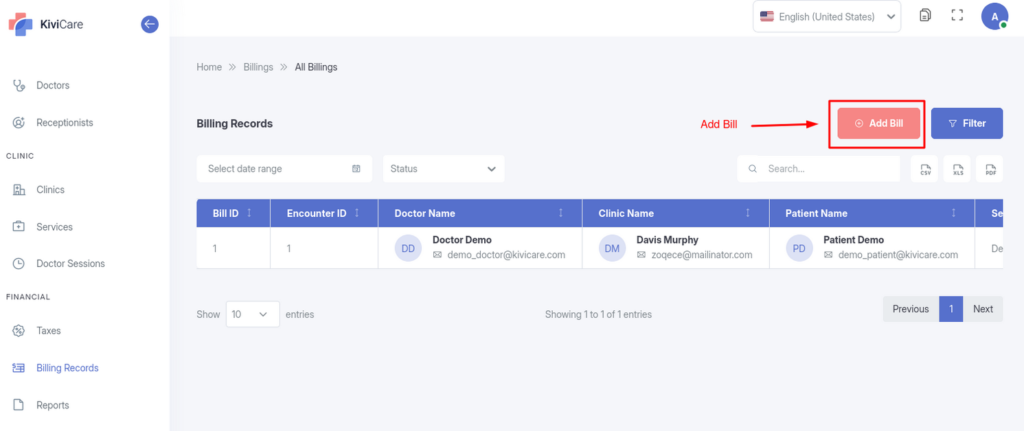
Generate Bills: Create invoices for patients based on services rendered.
Discounts & Taxes: Apply specific discounts or tax rates to line items.
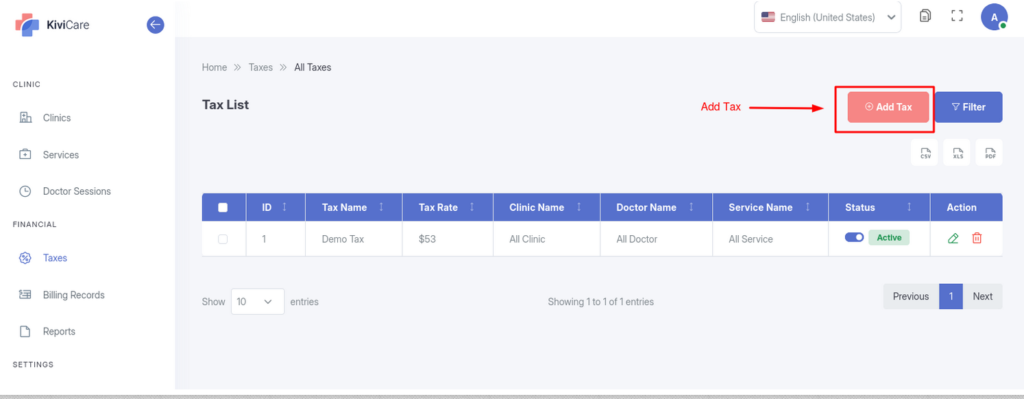
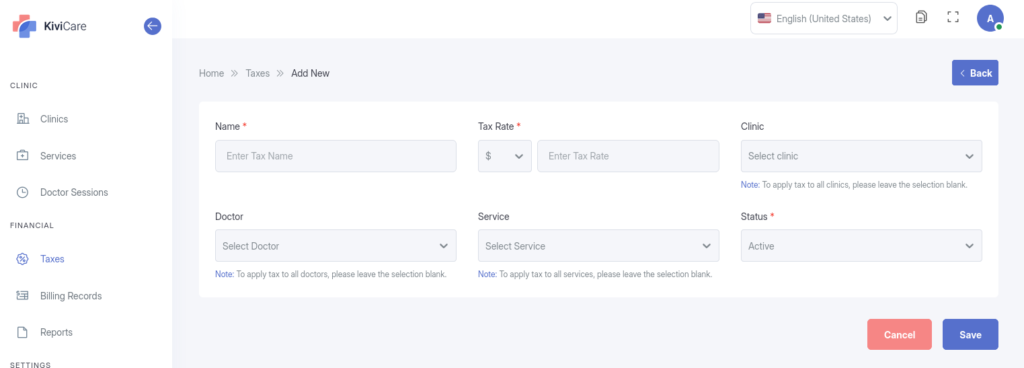
Unlike receptionists, Admins can configure the tax rules for the system. You can create, edit, or delete specific tax rates (percentages) that are automatically applied to services during billing.
Data Import & Export(Available in Pro version)
For reporting and external analysis, you have the ability to Export Data from almost every module (Patients, Appointments, Billing, Doctors) into CSV , Excel or PDF formats.
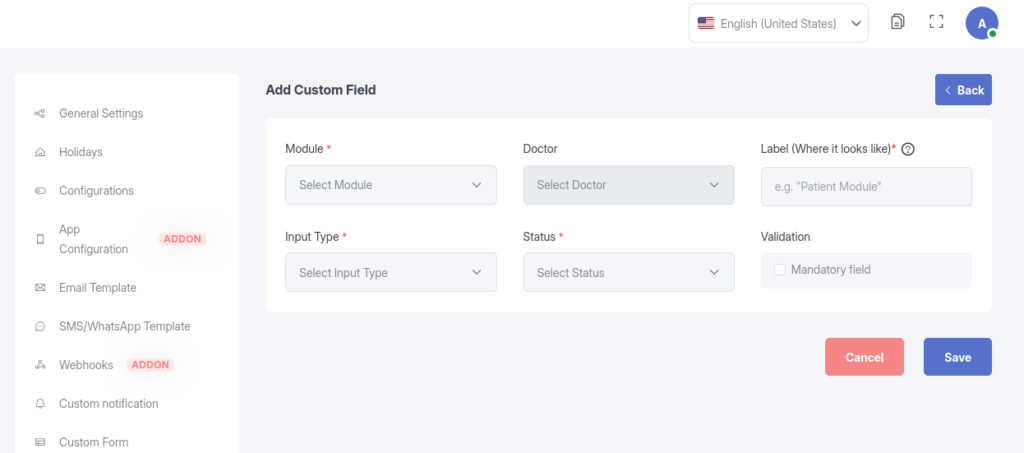
Custom Fields
If the standard patient forms do not capture enough information, you can add Custom Fields.
Field Types: Add Text boxes, Number fields, Date pickers, or Dropdowns.
Usage: These fields will appear on patient registration forms, ensuring you capture specific data relevant to your specialty.
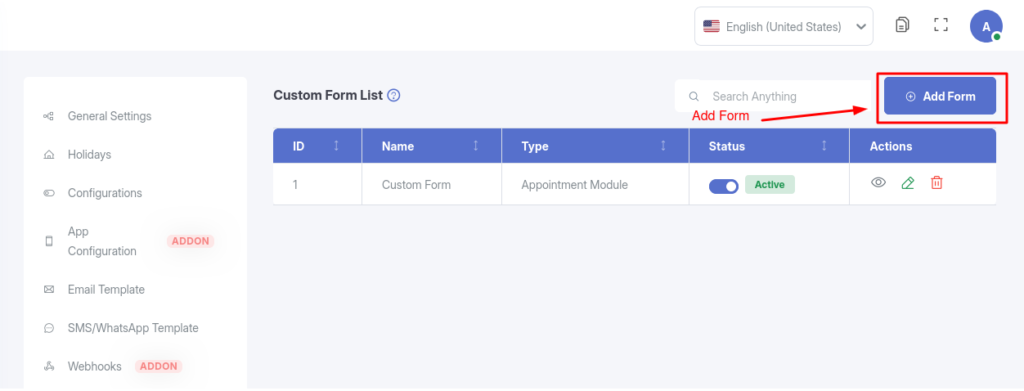
Custom Forms(Available in Pro version)
For more complex data collection, you can use the Form Builder.
Drag-and-Drop: Create entire new forms with specific layouts and validation rules.
Application: These forms can be attached to patient encounters to standardize data collection for specific treatments.
Best Practices
To get the most out of Clinic Admin Functions, consider implementing these best practices:
Regular Updates: Keep your system updated to access the latest features and security patches
Staff Training: Ensure all users are properly trained on the functionality
Data Backup: Regularly backup your data to prevent loss
Documentation: Maintain internal documentation of your specific configurations
Troubleshooting
If you encounter any issues with Clinic Admin Functions, try the following troubleshooting steps:
Clear your browser cache and cookies
Verify that you have the necessary permissions
Check for any plugin conflicts
Review the system logs for error messages
Contact support if the issue persists
Related Resources
For more information about Clinic Admin Functions and related features, check out these additional resources:
KiviCare Video Tutorials
Community Forum Discussions
Official Documentation Portal
Support Ticket System
Conclusion
Clinic Admin Functions is a powerful feature that enhances your KiviCare EHR experience. By following this guide and implementing the best practices outlined above, you’ll be able to leverage this functionality to its full potential. If you need further assistance, don’t hesitate to reach out to our support team.