This comprehensive guide covers everything you need to know about Receptionist Operations in KiviCare Lite. Whether you’re a beginner or an advanced user, this documentation will help you understand and implement this feature effectively.
Overview
Receptionist Operations is an essential component of the KiviCare EHR system, designed to streamline healthcare management processes. This feature integrates seamlessly with other modules to provide a comprehensive solution for medical practices.
Key Features
Easy to use and intuitive interface
Seamless integration with existing workflows
Comprehensive data management capabilities
Real-time updates and notifications
Customizable settings and configurations
Getting Started
To begin using Receptionist Operations, follow these simple steps:
Navigate to the appropriate section in your KiviCare dashboard
Configure the necessary settings according to your requirements
Test the functionality to ensure everything works as expected
Train your staff on how to use this feature effectively
Receptionist Dashboard
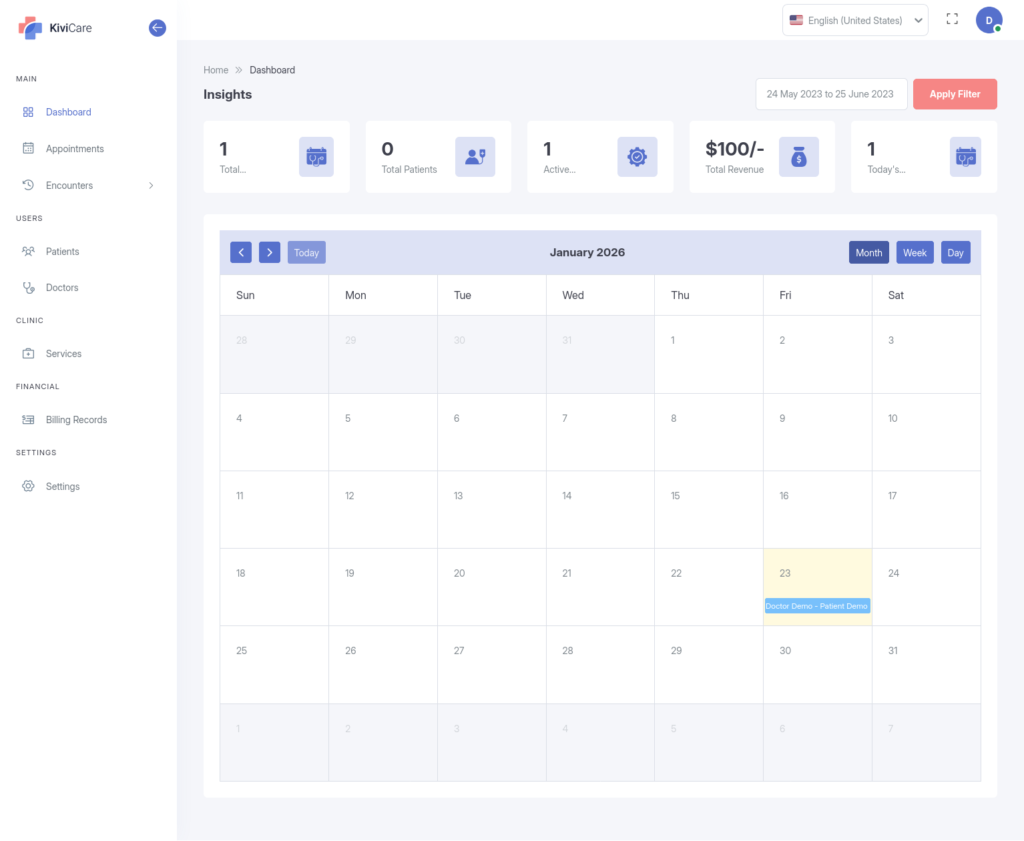
Upon logging in, you are greeted by the Receptionist Dashboard. This is your command center, providing a snapshot of the clinic’s current status.
Key Metrics
At a glance, you can view real-time statistics regarding:
Total Patients: The complete count of registered patients.
Total Doctors: The number of medical professionals currently active.
Total Appointments: All scheduled visits in the system.
Total Revenue: A summary of generated income.
Dashboard Tools
Appointment Calendar: An interactive view of the day’s or month’s schedule.
Tip: You can filter these statistics by specific date ranges to view daily, weekly, or monthly performance.
Appointment Management
The core of your daily operations involves managing the clinic’s schedule. You have full control over the booking lifecycle.
Capabilities
Booking Appointments: You can schedule new visits by selecting a patient, a doctor, the specific service required, and the appointment type (In-person or Video).
Modifying Bookings: If a patient needs to reschedule, you can edit the date, time, or assigned doctor.
Status Updates: It is crucial to keep the schedule accurate by updating the status of an appointment. options include:
Booked
Pending
Check In
Check Out
Cancelled
Patient Specific View: You can filter the calendar to see the entire appointment history of a single patient.
Patient Management
You are responsible for the intake and management of patient profiles.
Managing Patient Profiles
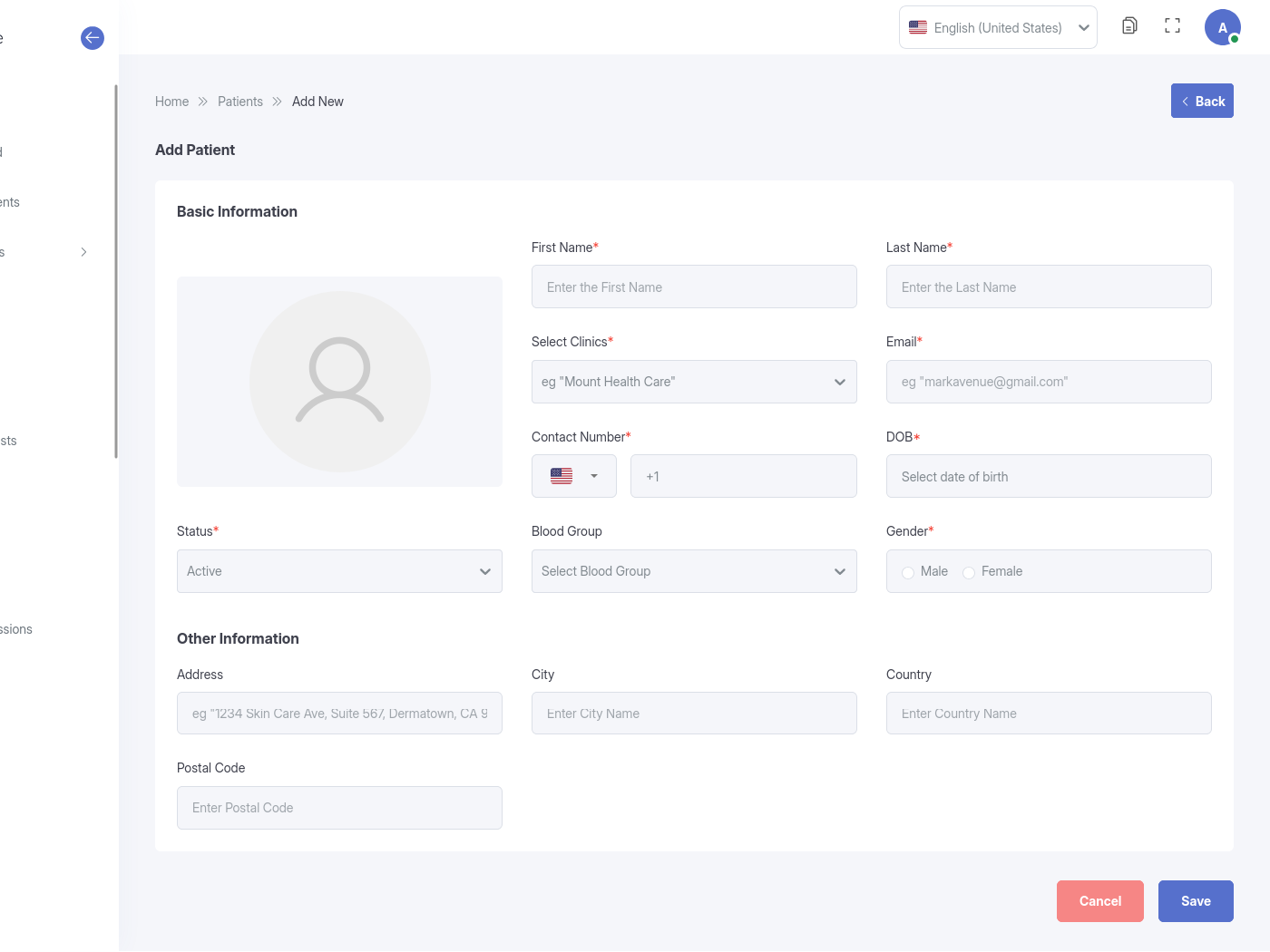
Registration: Add new patients by entering their personal details, contact information, emergency contacts, and insurance data.
Medical History: You can input initial medical history data during registration.
Profile Access: The “Patient Profile” gives you a 360-degree view of the patient, including their past appointments, medical reports, billing history, and documents.
Login Credentials: You can generate and send login credentials (username/password) to patients so they can access their own portal. If they forget their password, you have the ability to resend these credentials.
Doctor & Staff Coordination
You assist in managing the doctor’s administrative side, ensuring their profiles and schedules are accurate.
Doctor Accounts
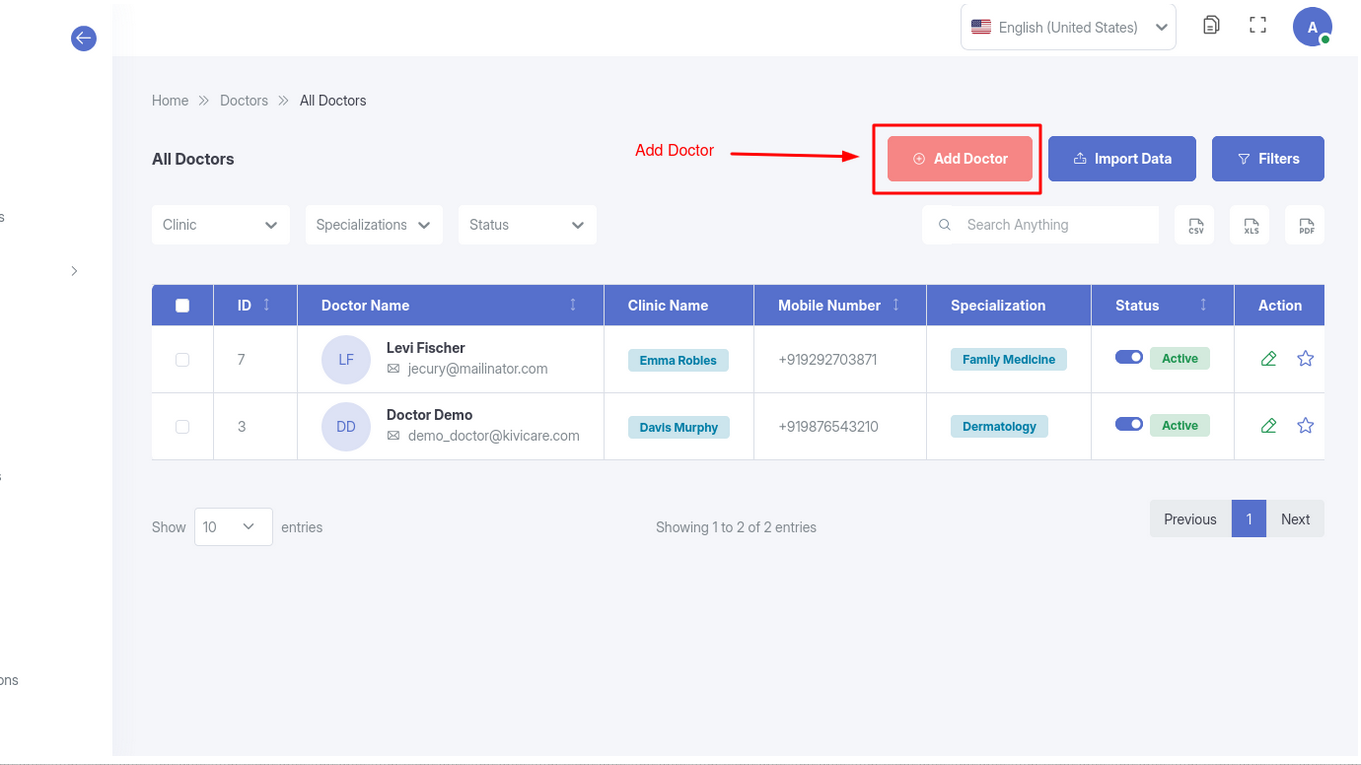
Onboarding: You can add new doctors to the system, inputting their specialization, qualifications, and assigning them to a clinic.
Credential Management: Similar to patients, you can generate and email login credentials to doctors.
Session Management: You control the availability of doctors. This involves setting up their “Sessions” (working hours), defining start/end times, and ensuring their availability reflects correctly on the booking calendar.
Clinical Operations (Encounters)
While doctors handle the medical exams, you have permissions to assist with the documentation of visits (Encounters) and records.
Encounters (Visits)
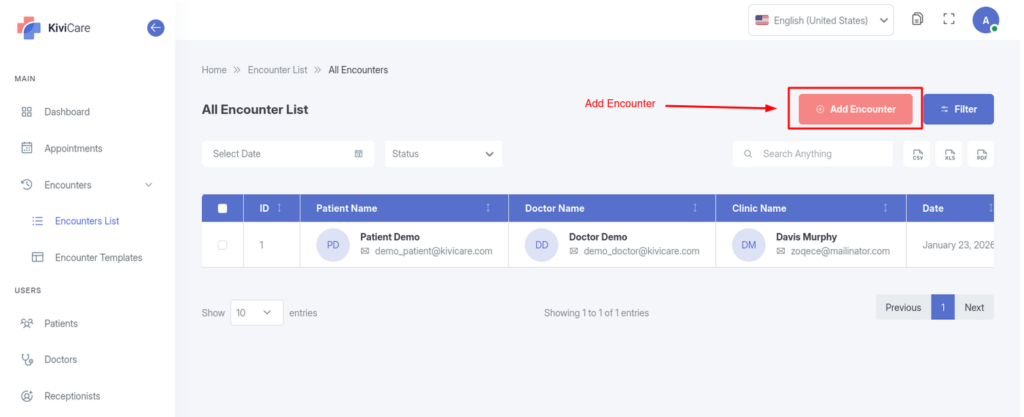
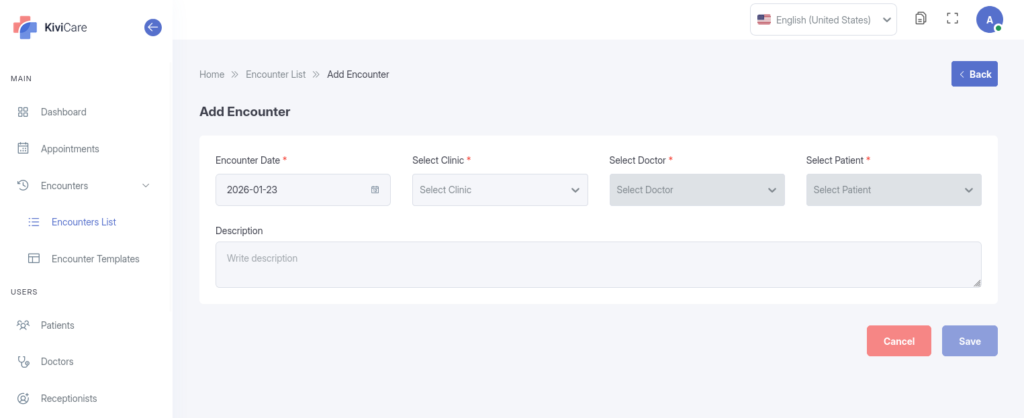
An “Encounter” is the digital record of a specific doctor visit. You can:
Create Encounters: Start a new visit record for a patient.
Clinical Details: Input or edit details such as Chief Complaints, Diagnosis, and Treatment Plans.
Prescriptions: You can manage prescriptions within an encounter, adding medication names, dosages, and instructions.
Medical Records & Reports
Document Management: Upload and organize lab results, X-rays, and external medical documents into the patient’s profile.
Patient Reports: Generate or upload specific reports related to a patient’s health status.
Billing & Finance(Available in Pro version)
You handle the checkout process and financial record-keeping for patient visits.
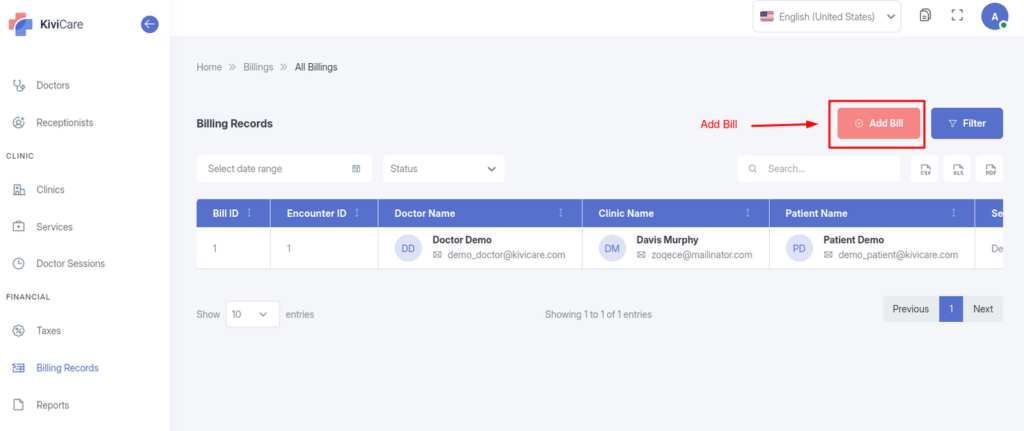
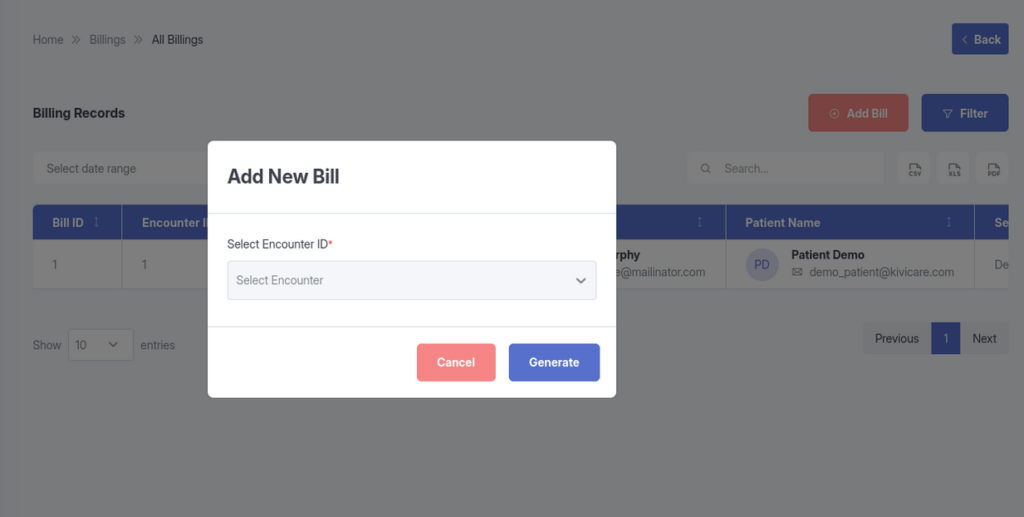
Invoicing Features
Creating Bills: Generate invoices for patients by selecting the services or products provided.
Itemization: You can add multiple items, adjust quantities, apply taxes, and offer discounts directly on the bill.
Payment Tracking: Record the payment method used (cash, card, insurance) and track the payment status.
Invoices: You can generate and print professional invoices for patients.
Clinic Administration & Settings
To ensure the clinic runs smoothly, you have access to specific configuration settings.
Service Management
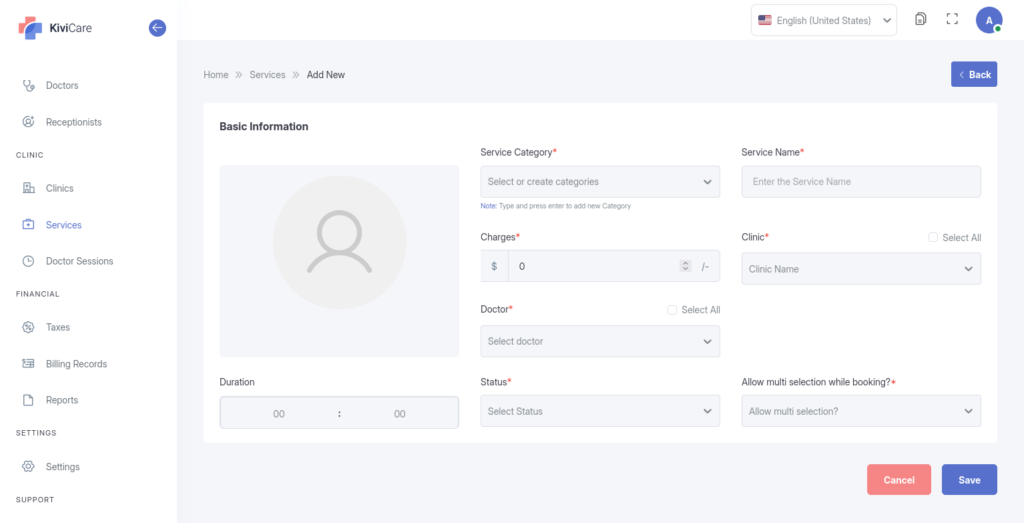
You can define the “menu” of services the clinic offers. For each service, you can set:
Name and Description
Price
Duration (how long the appointment slot should be)
Assigned Doctors (who performs this service)
Schedule & Holidays
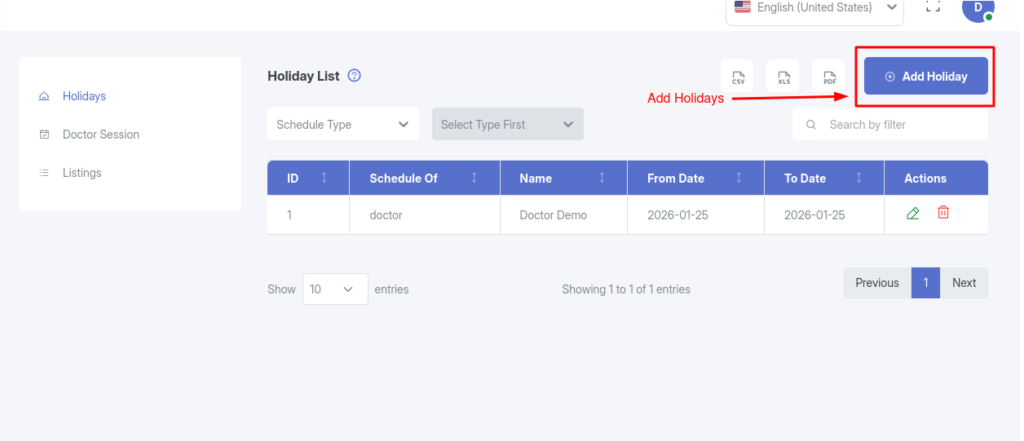
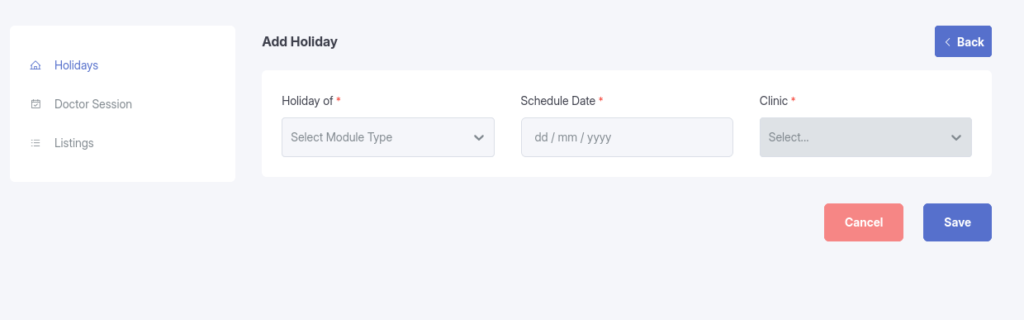
Holiday Management: You can block out specific dates as clinic holidays (Full Day or Half Day) to prevent appointments from being booked on days the clinic is closed.
Data Importing & Exporting(Available in Pro version)
For almost every module in the system—including Patients, Doctors, Appointments, Billing, and Encounters—you have the ability to import and export data. You can download lists and records in CSV,Excel or PDF formats, which is useful for monthly reporting, external accounting, and data backups.
Best Practices
To get the most out of Receptionist Operations, consider implementing these best practices:
Regular Updates: Keep your system updated to access the latest features and security patches
Staff Training: Ensure all users are properly trained on the functionality
Data Backup: Regularly backup your data to prevent loss
Documentation: Maintain internal documentation of your specific configurations
Troubleshooting
If you encounter any issues with Receptionist Operations, try the following troubleshooting steps:
Clear your browser cache and cookies
Verify that you have the necessary permissions
Check for any plugin conflicts
Review the system logs for error messages
Contact support if the issue persists
Related Resources
For more information about Receptionist Operations and related features, check out these additional resources:
KiviCare Video Tutorials
Community Forum Discussions
Official Documentation Portal
Support Ticket System
Conclusion
Receptionist Operations is a powerful feature that enhances your KiviCare EHR experience. By following this guide and implementing the best practices outlined above, you’ll be able to leverage this functionality to its full potential. If you need further assistance, don’t hesitate to reach out to our support team.