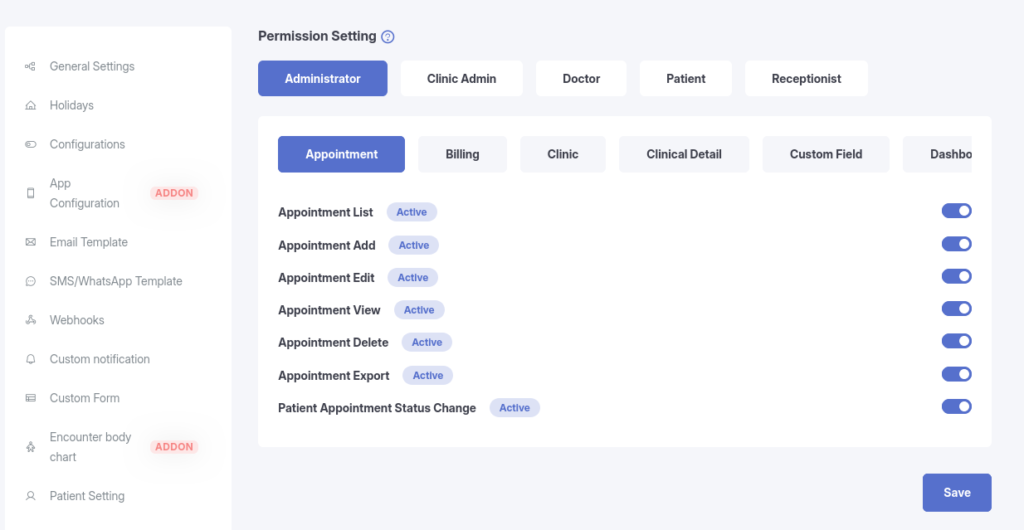
Permission Settings is a KiviCare Pro feature that provides granular control over what each user role can view and perform within the clinic management system. It enables administrators to enhance system security and streamline operational workflows by enabling or disabling specific capabilities for different user types.
2. Key Features
Role-Based Access Control (RBAC)
Permissions are organized by user role, allowing administrators to define distinct access levels for:
Administrator Full system access, including global settings and configuration.
Clinic Admin Manage clinic-specific operations, doctors, and staff.
Doctor Access patient records, appointments, encounters, and prescriptions.
Receptionist Handle front-desk operations such as billing, scheduling, and patient coordination.
Patient Specialized access to the patient portal, including:
Viewing personal medical records
Booking and managing appointments
Module-Level Permissions
Permissions are grouped by functional modules. Administrators can enable or disable access at both the module and action level.
Common modules include:
Appointment Control booking, editing, viewing, and canceling appointments.
Billing Manage invoices, payments, and financial reports.
Clinical Detail Access medical records, SOAP notes, and patient history.
Patient Permissions to add, edit, or view patient profiles.
Prescription Control who can create, edit, or view prescriptions.
Encounters Manage patient visit records and encounter templates.
Other Modules Service, Holiday, Dashboard, Reports, and more.
Action-Specific Granularity
For most modules, permissions can be fine-tuned using action-level controls:
View / List – Allow viewing data without modification
Add – Allow creation of new records
Edit – Allow modification of existing records
Delete – Allow permanent removal of records
Export – Allow downloading data (CSV / Excel) for external use
3. How to Use
Navigate to Settings > Permission Settings.
Select the User Role tab you wish to configure (e.g., Doctor).
Scroll through the list of available Modules (e.g., Appointment).
Toggle permission switches ON or OFF as needed.
Example: Disable Appointment → Delete to prevent doctors from deleting appointments.
Click Save to apply changes immediately.
4. Operational Benefits
Enhanced Data Security Prevent unauthorized access to sensitive patient data, exports, or critical system actions.
Workflow Compliance Ensure only qualified roles (e.g., Doctors) can create medical records or prescriptions.
Simplified User Experience Hide unused modules for specific roles to declutter dashboards and reduce confusion.