KiviCare Pro
The Follow-up and Treatment Module in KiviCare helps healthcare providers manage long-term patient care after the initial consultation.
This module allows clinics to:
It ensures better patient retention, improved treatment monitoring, and organized clinical workflows.
A Follow-up is a planned medical visit scheduled after a patient encounter.
Follow-ups help doctors:
Once created, clinic staff can convert the follow-up into a confirmed appointment.
A Treatment Chain groups multiple follow-ups and appointments under a single treatment goal.
Examples:
Instead of managing follow-ups separately, Treatment Chains provide a structured treatment journey.
Chronological Timeline
Doctors and staff can see:
Clinical Workflow Management
Each chain has its own status:
This helps track the overall progress of a patient’s treatment plan.
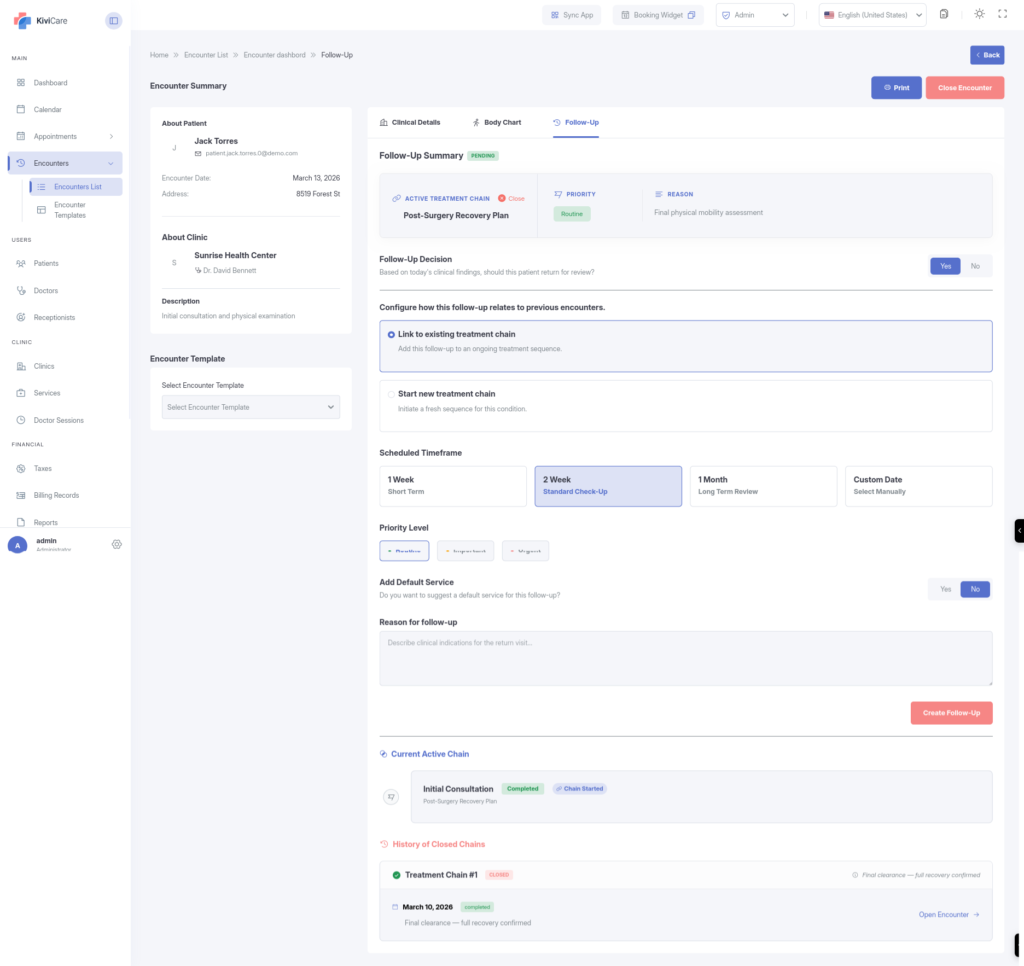
Doctors can create follow-ups during a patient encounter from the Follow-up Tab.
Choose one of the following:
Example:
“Physiotherapy Cycle – Week 1”
Follow-ups can be marked as:
Urgent follow-ups are visually highlighted for the front desk team.
Doctors can set the expected return period.
Examples:
Doctors can add instructions such as:
This helps clinic staff prepare properly for the next appointment.
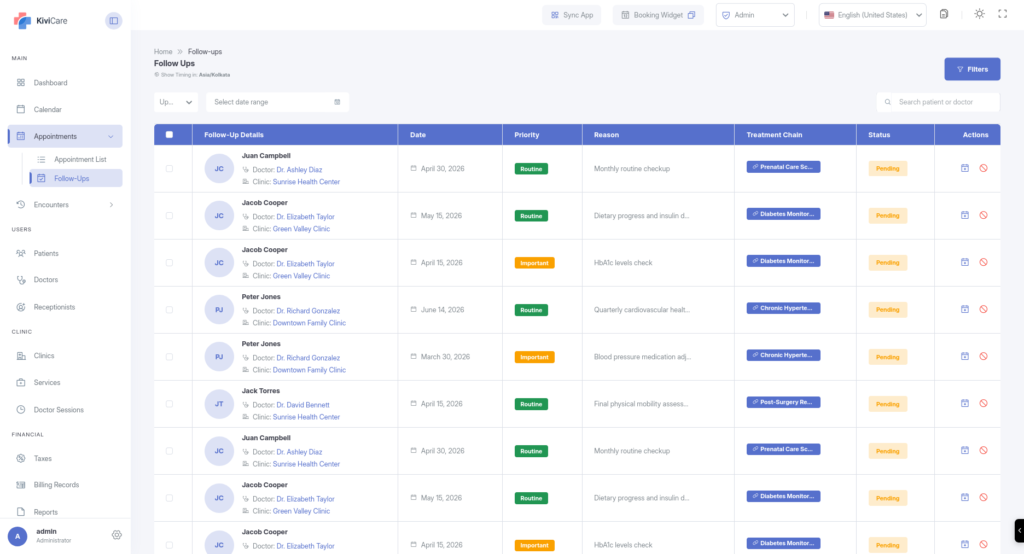
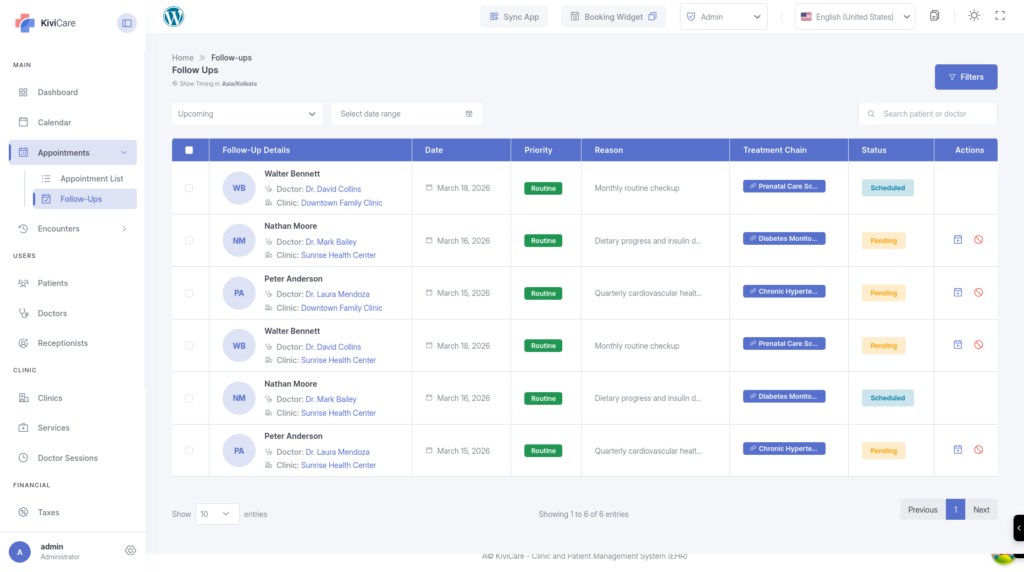
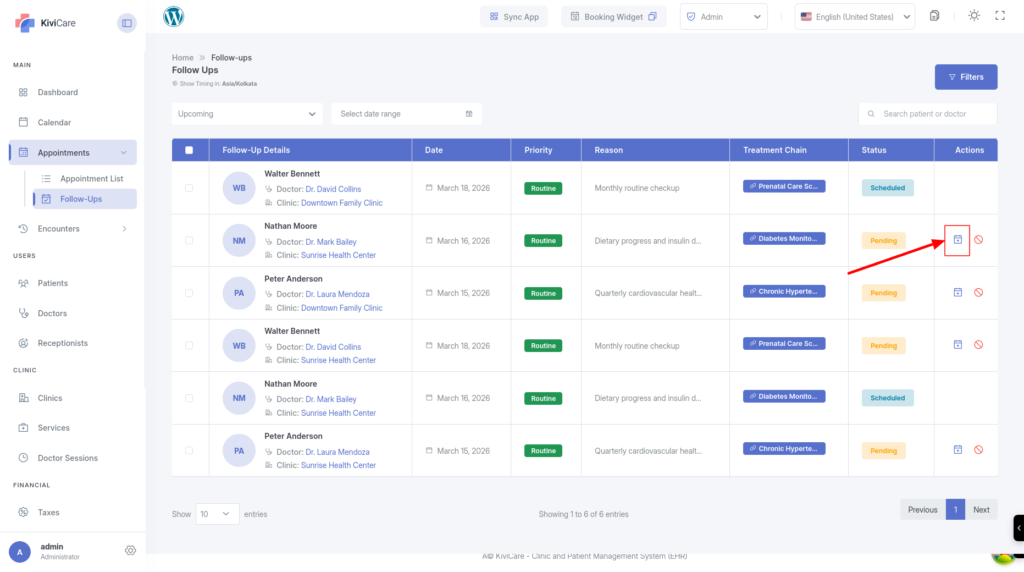
The Follow-up Dashboard is the central place where clinic staff manage all follow-up requests.
The dashboard helps staff:
Upcoming
Displays patients whose follow-up visits are approaching.
Past (Overdue)
Shows patients who missed their recommended follow-up date.
Overdue records are highlighted in red so the front desk team can prioritize them.
Staff can filter follow-ups by:
This helps organize daily scheduling and patient call lists.
Follow-ups can easily be converted into appointments.
The system will pre-fill:
The follow-up status automatically changes from Pending → Scheduled.
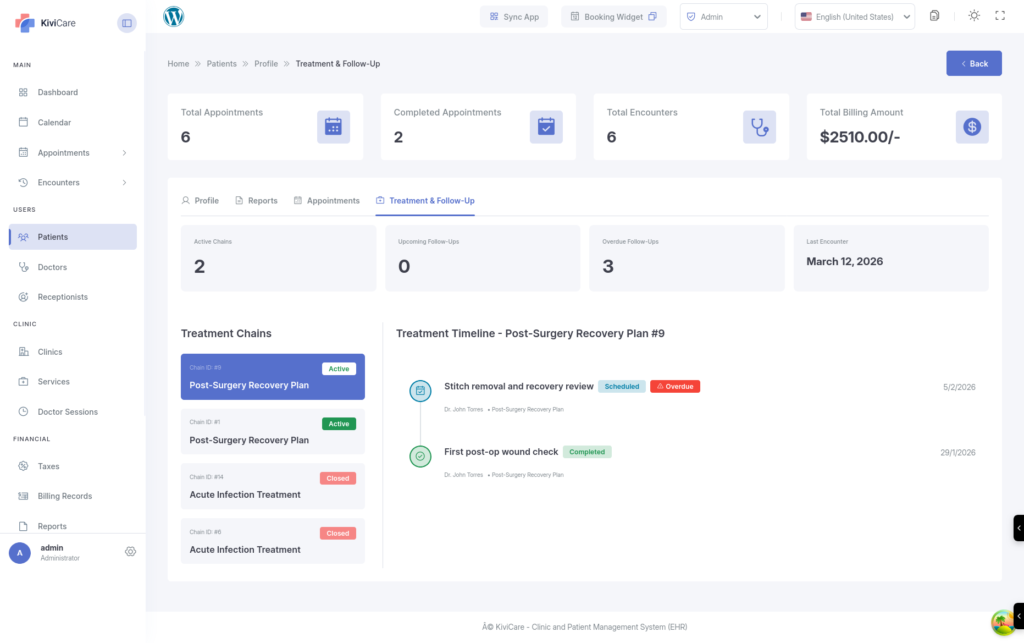
Inside the patient profile, the Treatment & Follow-up Tab provides a complete overview of the patient’s medical journey.
Clinical Summary
Displays key statistics such as:
Interactive Treatment Timeline
Shows a chronological view of:
Treatment Chain Switcher
Patients can have multiple treatment plans.
Example:
Staff can switch between chains to view progress for each condition.
| Status | Description |
|---|---|
| Pending | Doctor requested the follow-up, but no appointment is scheduled yet |
| Scheduled | Appointment has been successfully booked |
| Completed | Patient attended the visit and the encounter was finalized |
| Overdue | Recommended follow-up date passed without scheduling |
| Cancelled | Follow-up is no longer required |
Use Reminder Settings inside follow-ups to send:
This reduces missed appointments.
If treatment pauses temporarily:
Set the treatment chain to On-Hold.
This prevents overdue alerts from cluttering the dashboard.
Audit logs track:
This is important for medical compliance and patient history tracking.
The Follow-up & Treatment Module requires the Pro version of KiviCare.
You can enable or disable this module from:
Settings → Configurations → Follow-up Settings